How to connect to a Windows server
This article provides a step-by-step guide for connecting to a Windows server from Windows, macOS, Linux, iOS, and Android. It also covers how to transfer files between your local machine and the remote server.
Before you start
Make sure the server is powered on. You will need the server's IP address, username, and password. You can find these in the welcome email sent during server setup.
Connecting from Microsoft Windows
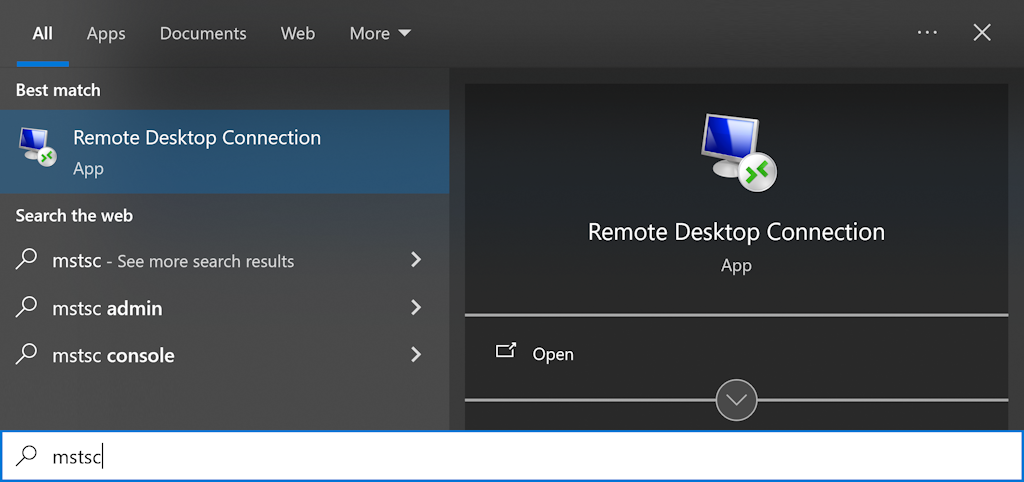
Windows includes the built-in Remote Desktop Connection client (mstsc).
- Open the Start menu, type mstsc, and press Enter
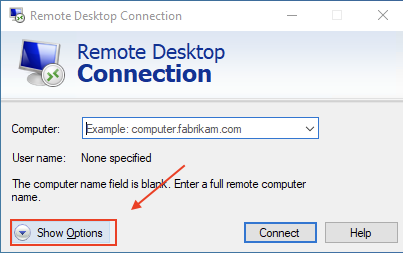
- Click Show Options in the Remote Desktop Connection window
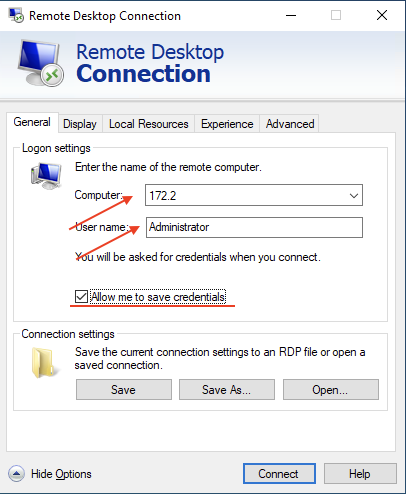
- On the General tab, enter your server's IP address in the Computer field, the username in the User name field, and check Allow me to save credentials
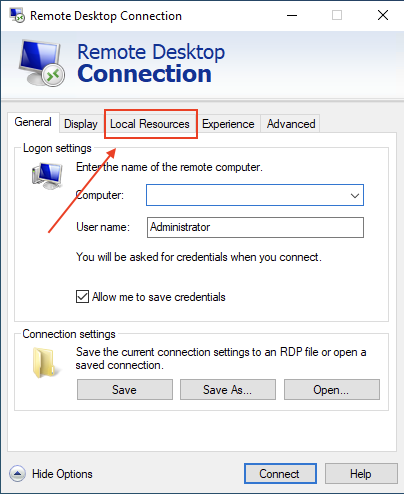
- Optional — share local drives for file transfer:
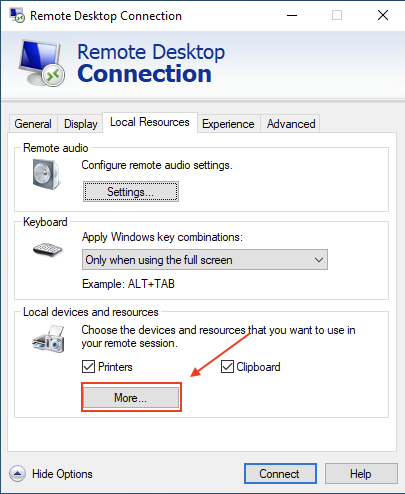
- Switch to the Local Resources tab
- Click More
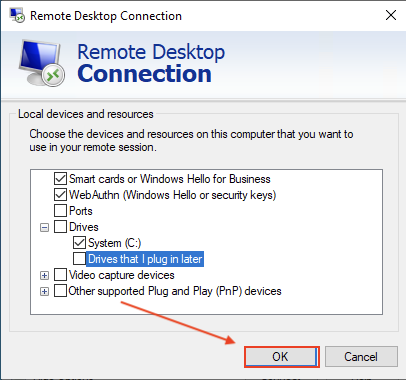
- Expand Drives, select the drives to share, and click OK
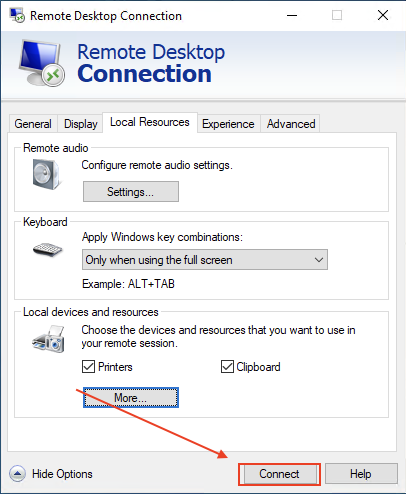
- Switch to the Local Resources tab
- Click Connect
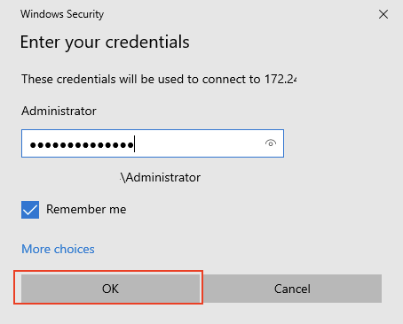
- Enter your password and click OK
- Click Yes to accept the certificate
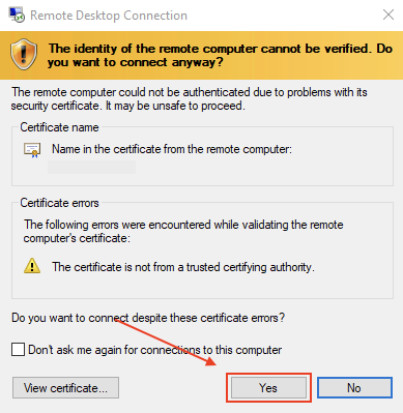
The connection will be established.
If you shared drives, they will appear as additional drives under This PC in Windows Explorer on the server.
Connecting from macOS
Install the official Windows App from the Mac App Store.
-
Add the server
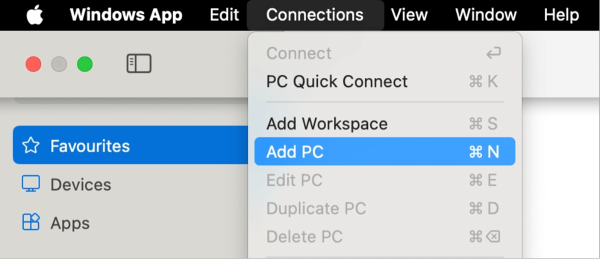
- In the top menu, click Connections → Add PC
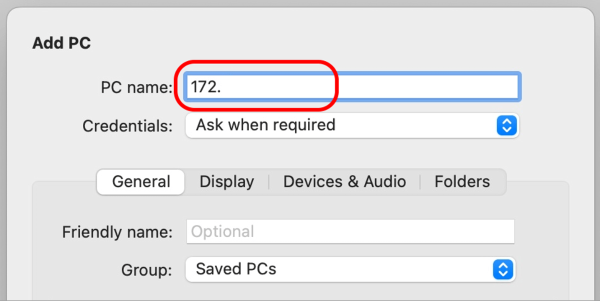
- On the General tab, enter the server IP in the PC name field
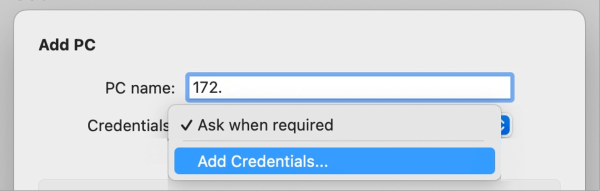
- In the Credentials drop-down, select Add Credentials and enter your username and password, then click Add
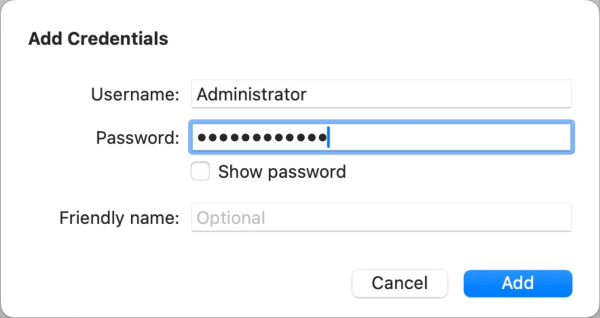
- In the top menu, click Connections → Add PC
-
Optional — share folders for file transfer
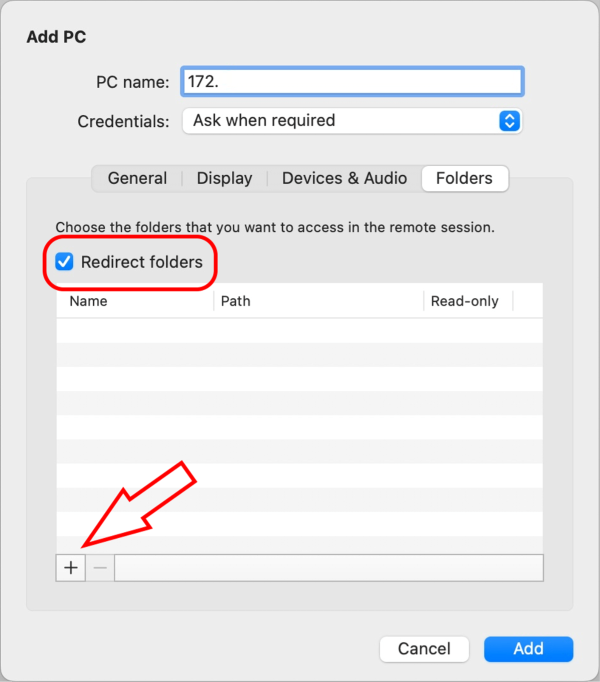
- Switch to the Folders tab
- Check Redirect folders
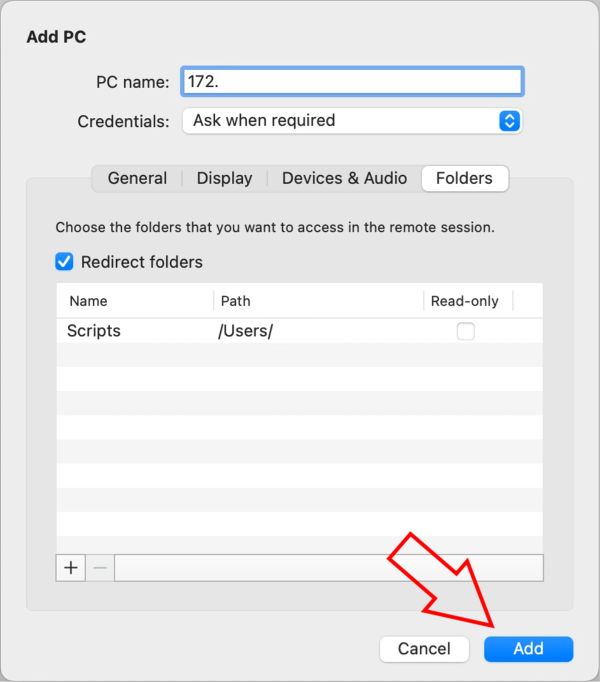
- Click + and choose a folder
- Click Add
-
Connect to the server
- On the Devices tab, click your saved server
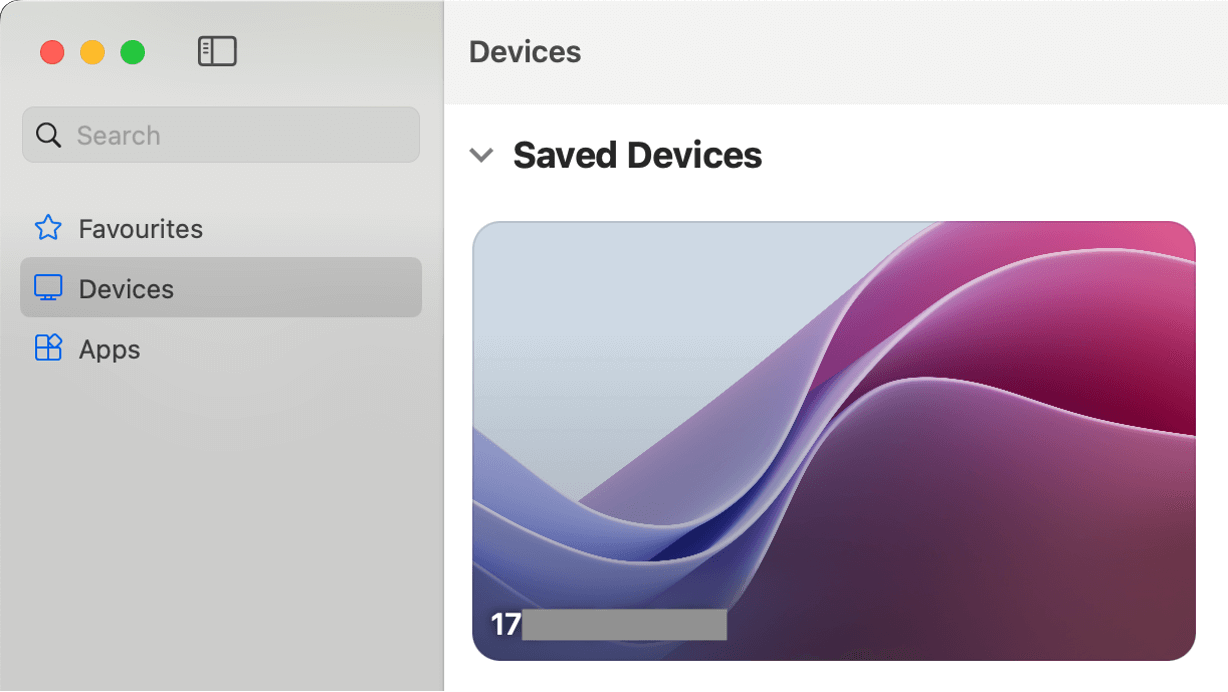
- Click Continue to accept the certificate
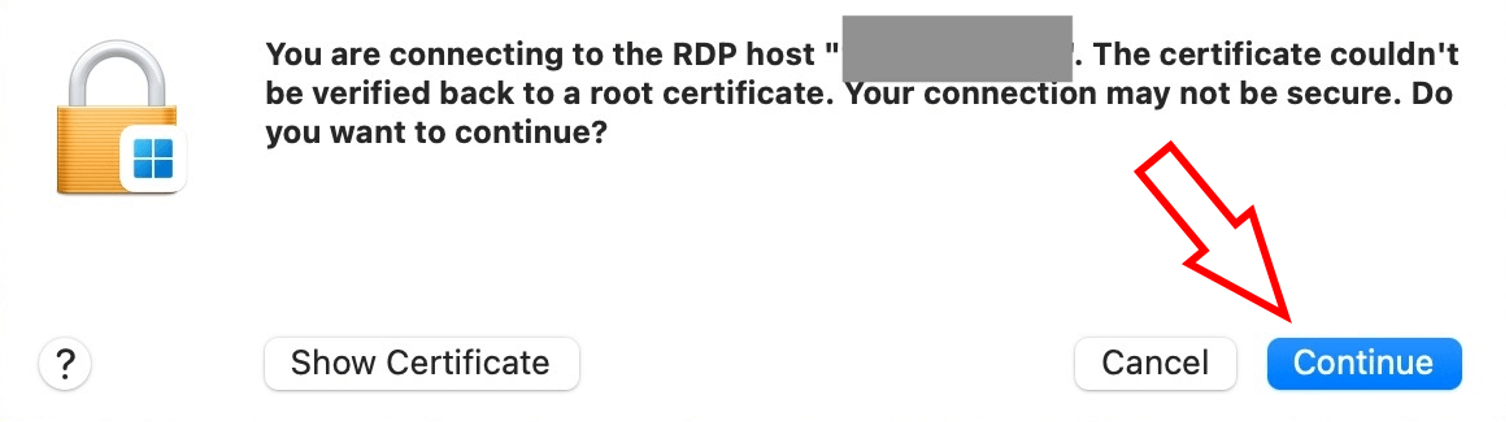
- On the Devices tab, click your saved server
The connection will be established.
Connecting from Linux
Install Remmina, then:
- Click the New Connection button in the top-left corner
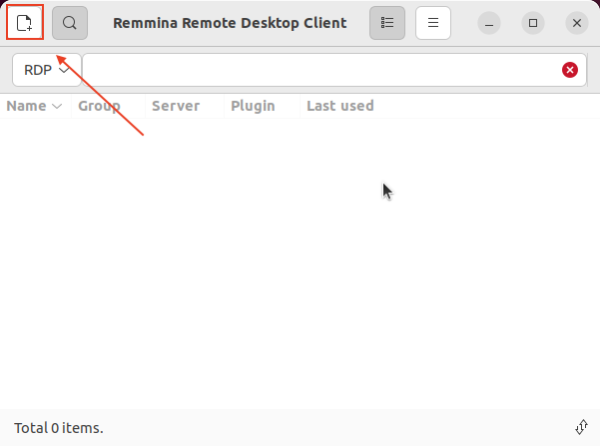
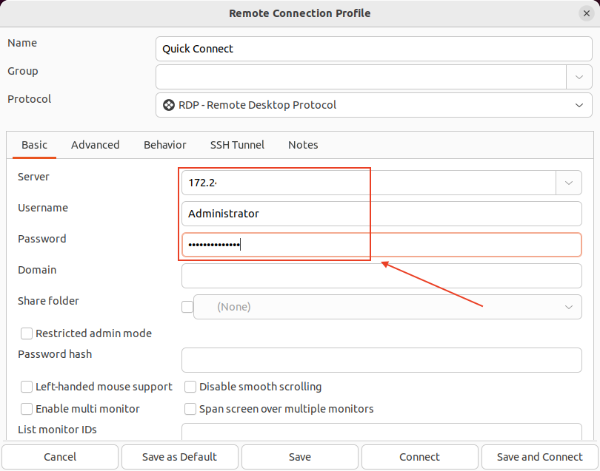
- Enter the server address, username, and password in their respective fields
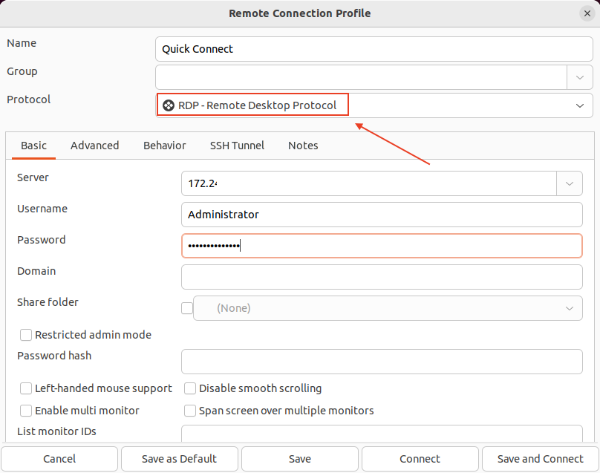
- In the Protocol drop-down, select RDP
- Set Color depth to True color (32 bpp)
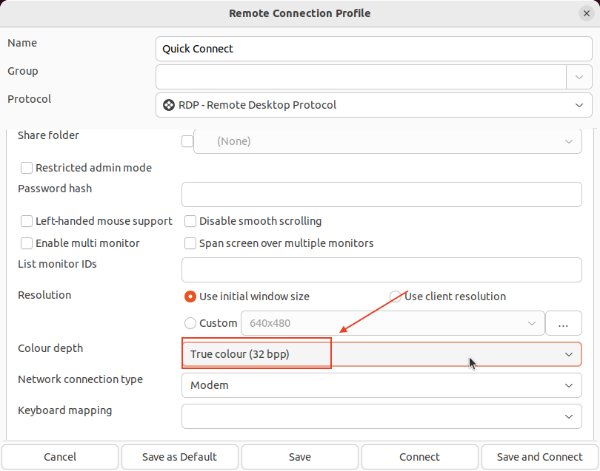
- Optional — share a folder:
- Check Share folder
- Select the folder from the drop-down
- Click Save and Connect
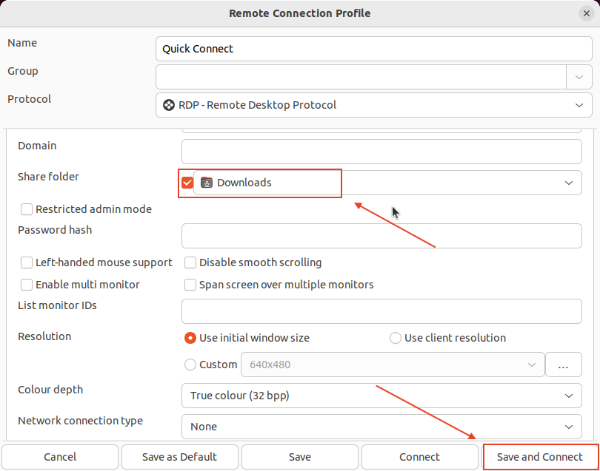
The connection will be established.
Connecting from iOS (iPhone / iPad)
Install Windows App Mobile from the App Store.
-
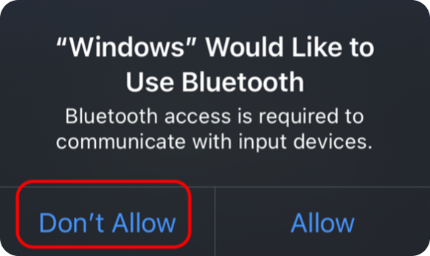
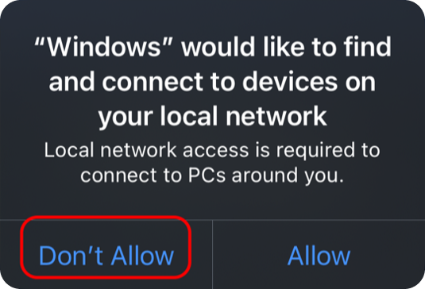
Open the app, then Decline the Bluetooth and local network permission requests
-
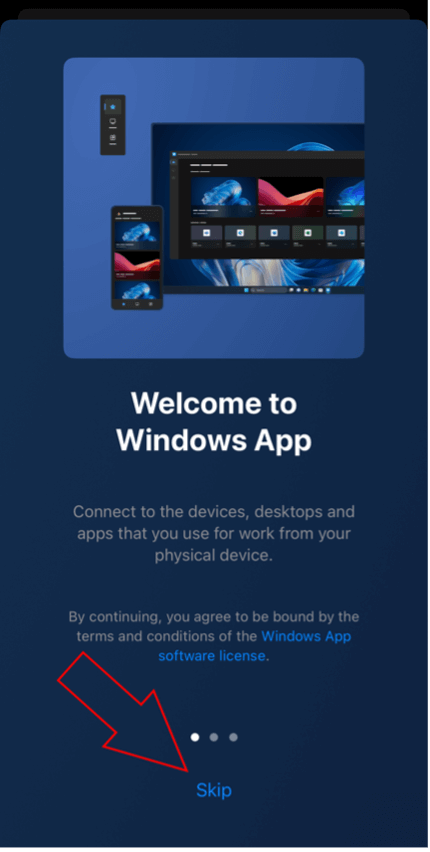
Skip the welcome screen
-
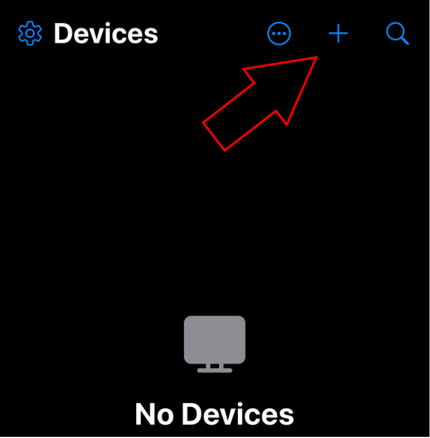
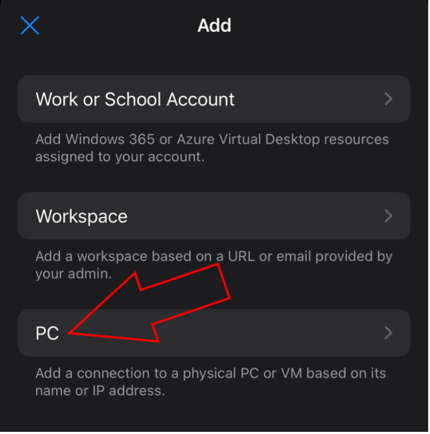
Tap + at the top, then select PC
-
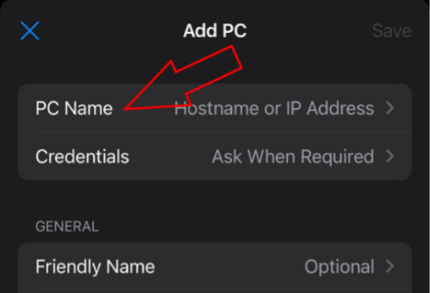
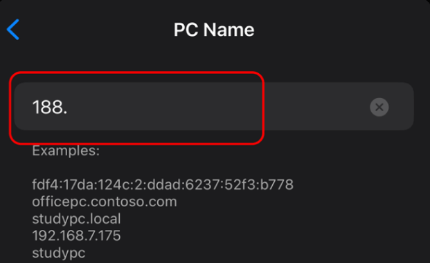
Tap PC Name, enter the server address, and return to the previous screen
-
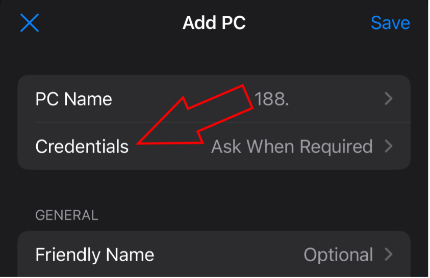
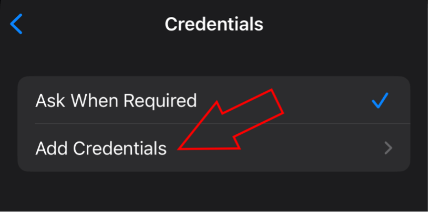
Tap Credentials → Add Credentials:
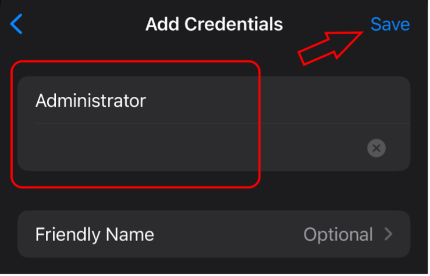
- Enter username and password, and tap Save
- Tap Return icon
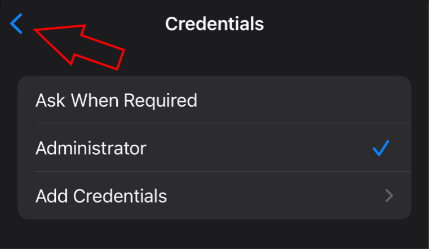
- Enter username and password, and tap Save
-
Tap Save
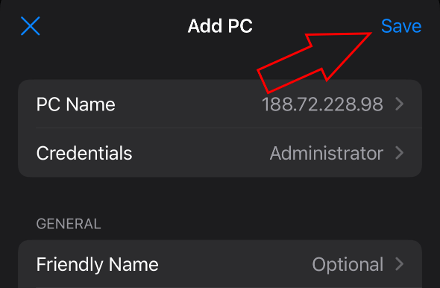
-
Rotate your device sideways and tap the server card on the Devices tab
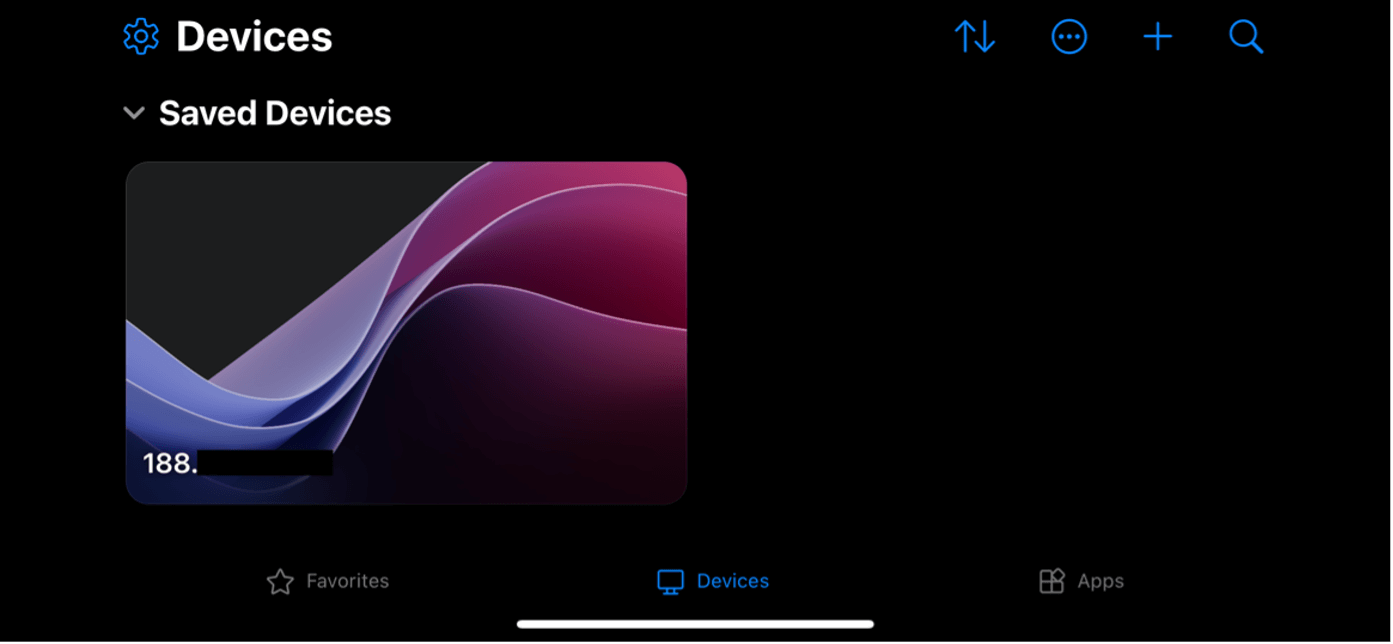
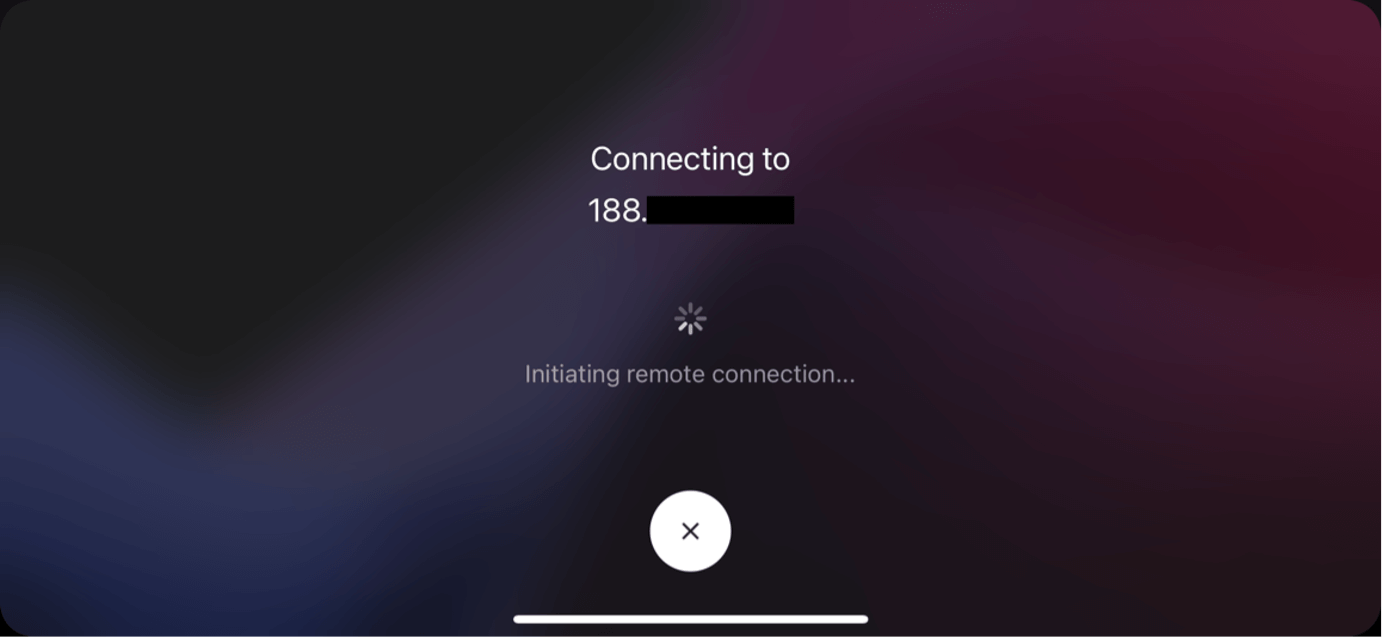
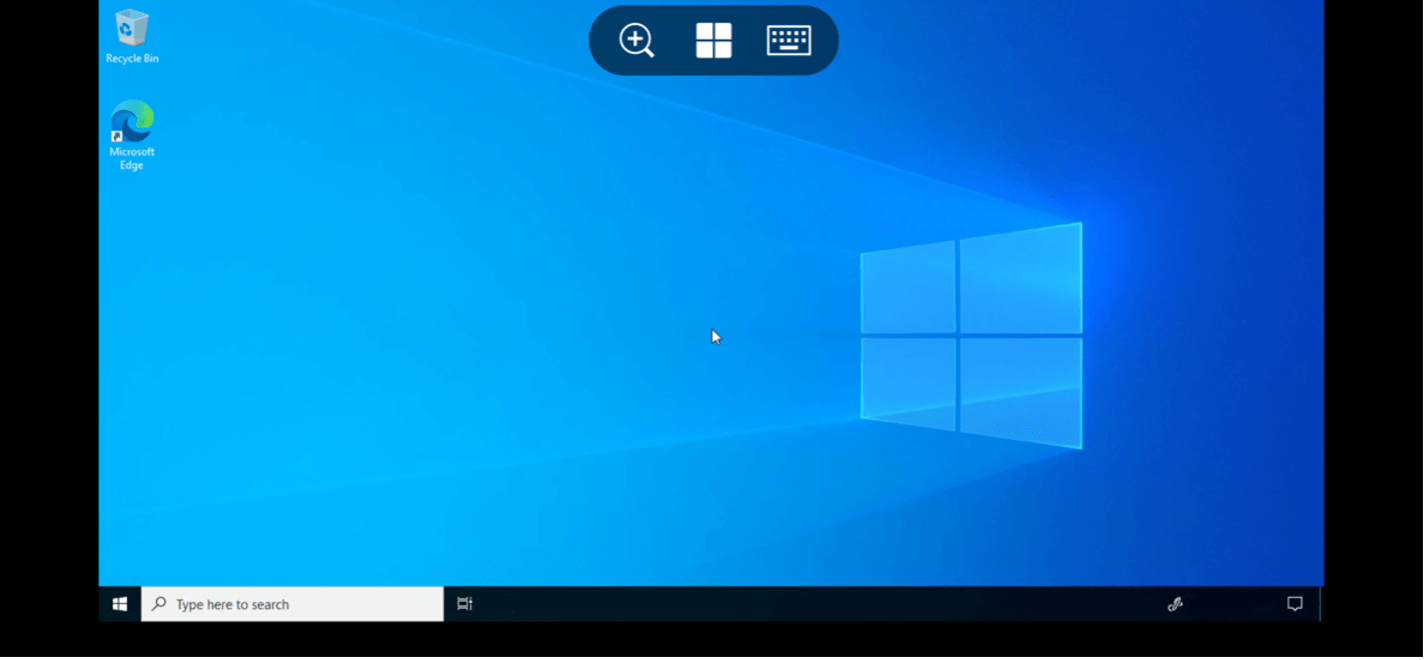
The connection will be established.
Connecting from Android
Install the Microsoft Remote Desktop app from Google Play.
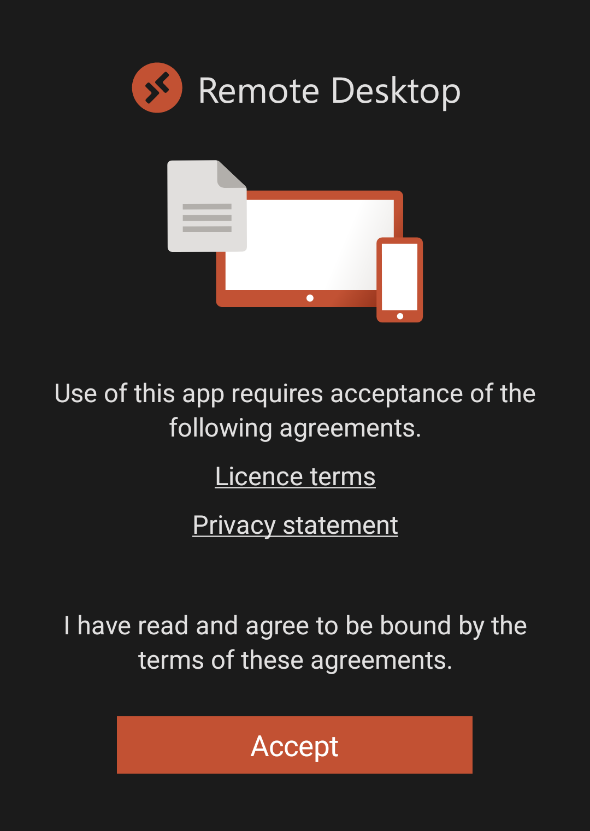
- Accept the license agreement on first launch
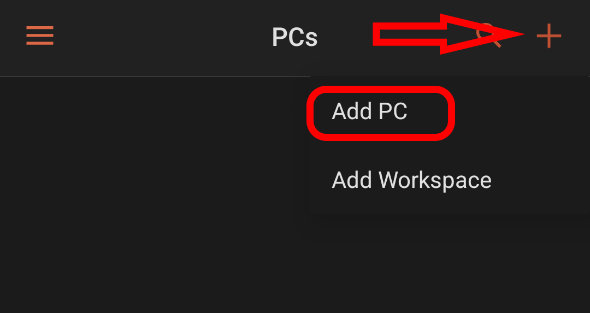
- Tap + in the top-right corner and select Add PC
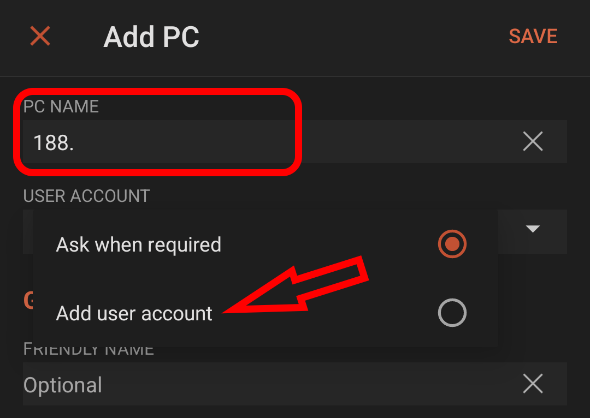
- Enter the server address in PC NAME, then under USER ACCOUNT select Add user account and enter your credentials
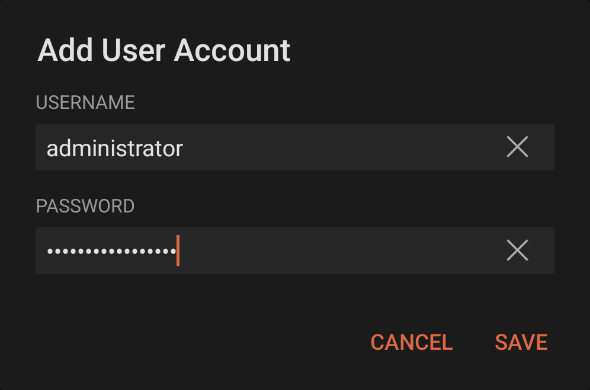
- Tap SAVE twice
- Rotate your device sideways
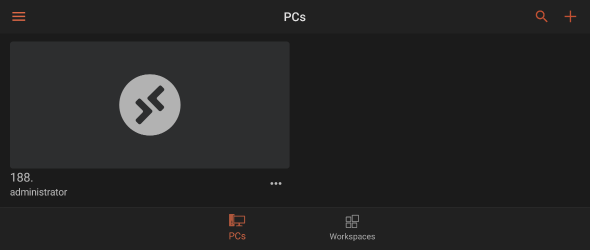
- On the PCs tab, tap your server card
- On the certificate pop-up, check Never ask again and tap CONNECT
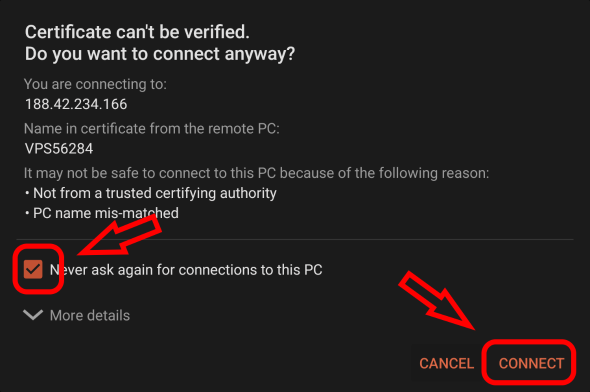
The connection will be established.