How to copy Expert Advisors from your home PC to a VPS
When you order a Forex VPS, copying your Expert Advisors (EAs) and their settings to the new server saves you from having to configure everything manually. This guide outlines the steps to transfer your EAs.
Connect your home PC's disk to the VPS
First, create a connection between your home PC and the VPS to enable file transfer. Follow the steps in our dedicated article: How to connect to a Windows server.
Allow experts to run on the VPS
Once you've set up the connection, allow EAs to run on the VPS:
- Open MetaTrader on the VPS.
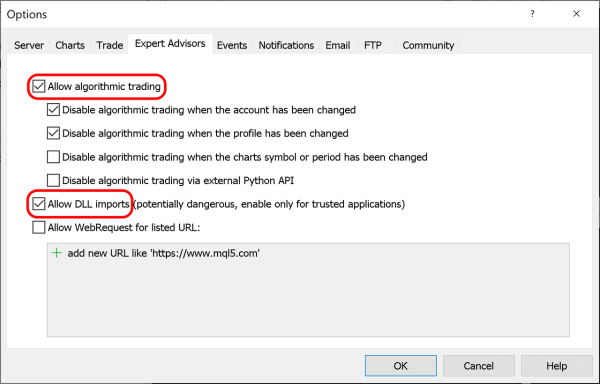
- In the main menu, select Tools → Options.
- Switch to the Expert Advisors tab.
- Make sure the following options are checked:
- Allow algorithmic trading
- Allow DLL imports
Export EA files from your home PC
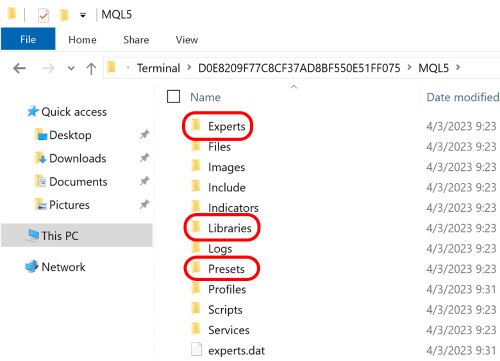
EAs consist of several files located in the Experts, Libraries, and Presets folders inside the MetaTrader data folder.
- Open MetaTrader on your PC.
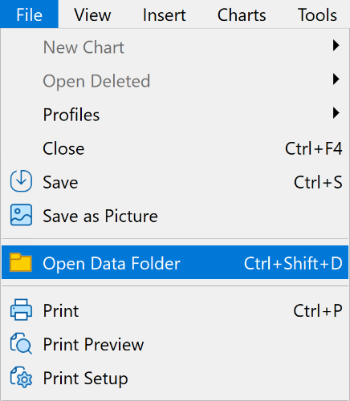
- In the main menu, go to File → Open Data Folder.
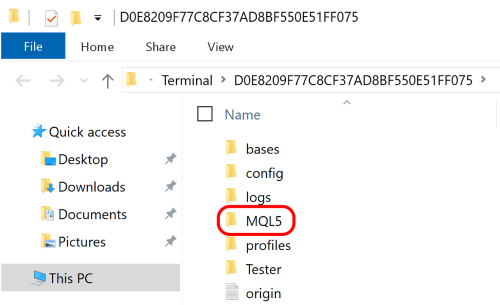
- A new Explorer window will open. Find the
MQL5orMQL4folder and open it.
- Copy the
Experts,Libraries, andPresetsfolders from that location to your desktop or another easily accessible location.
- On the VPS, navigate to your home PC's connected drive and find the exported folders there. Copy them to the VPS desktop.
Import EA into MetaTrader on the VPS
- On the VPS, open MetaTrader.
- In the main menu, go to File → Open Data Folder.
- In the Explorer window that opens, navigate to the
MQL5orMQL4folder. - Copy the
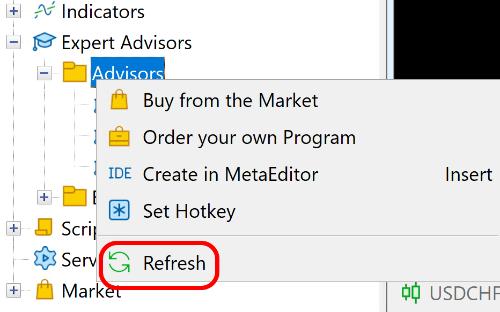
Experts,Libraries, andPresetsfolders from the VPS desktop into this folder. Confirm overwriting if prompted. - In MetaTrader, in the Navigator panel, expand Expert Advisors, then expand Advisors. Right-click the Advisors folder and select Refresh. The newly copied EA should appear.