How to boot a server into a custom ISO image using iDRAC
iDRAC is Dell's out-of-band management interface. You can use it to access the Dell server console remotely and boot the server from virtual media, even if the operating system is not installed or is not booting.
This guide describes the steps for iDRAC 7, 8, and 9.
Before you begin:
- Get the iDRAC credentials. For instructions, see "How to access the out-of-band management interface of a Dell server called iDRAC".
- If you plan to use an ISO image from a remote file share, use an IPv4 address in the image path. Do not use a DNS hostname.
- The OOB network of iDRAC is isolated from public access and from the internet by default. To allow iDRAC to access an external file share, enable temporary public access for iDRAC. See "How to access the out-of-band management interface of a Dell server called iDRAC".
- Depending on the iDRAC version and configuration, remote virtual media may support CIFS (SMB) only, or CIFS (SMB), HTTP, and HTTPS.
iDRAC 9
Use the iDRAC Virtual Media feature to boot the server from a bootable ISO image stored on your local machine or a remote file share.
The UI may vary slightly between iDRAC 9 firmware versions.
Enable Virtual Media
-
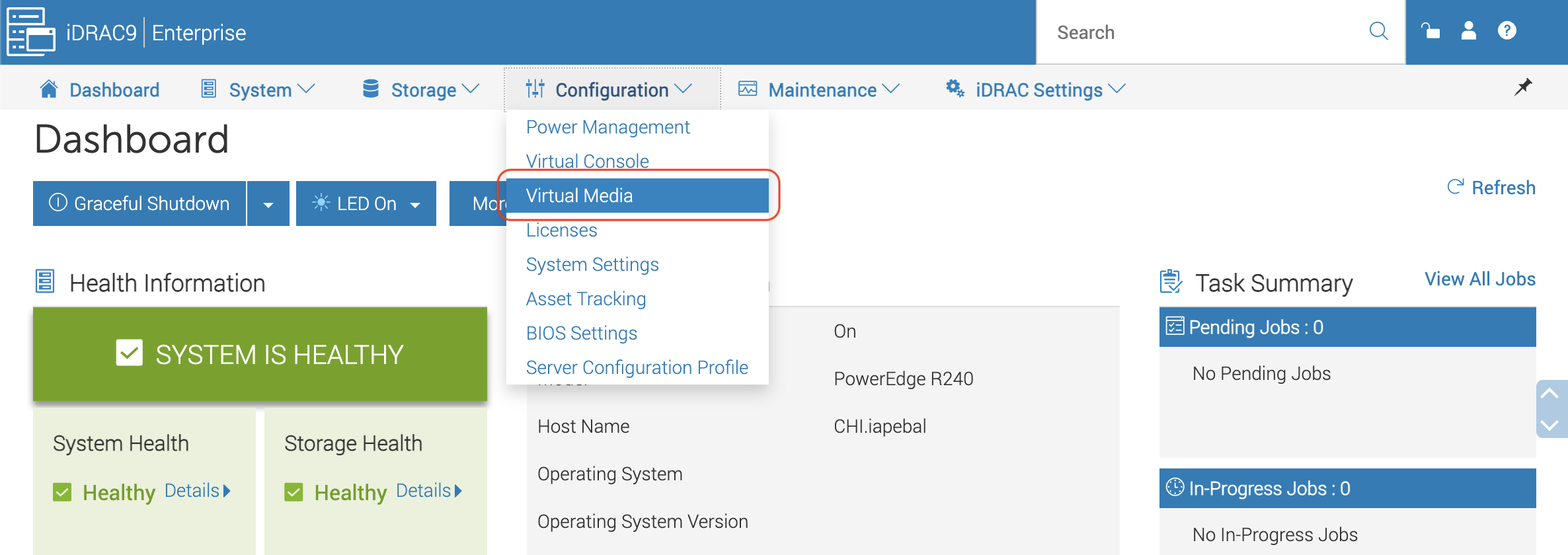
In the iDRAC web interface, go to Configuration → Virtual Media:
-
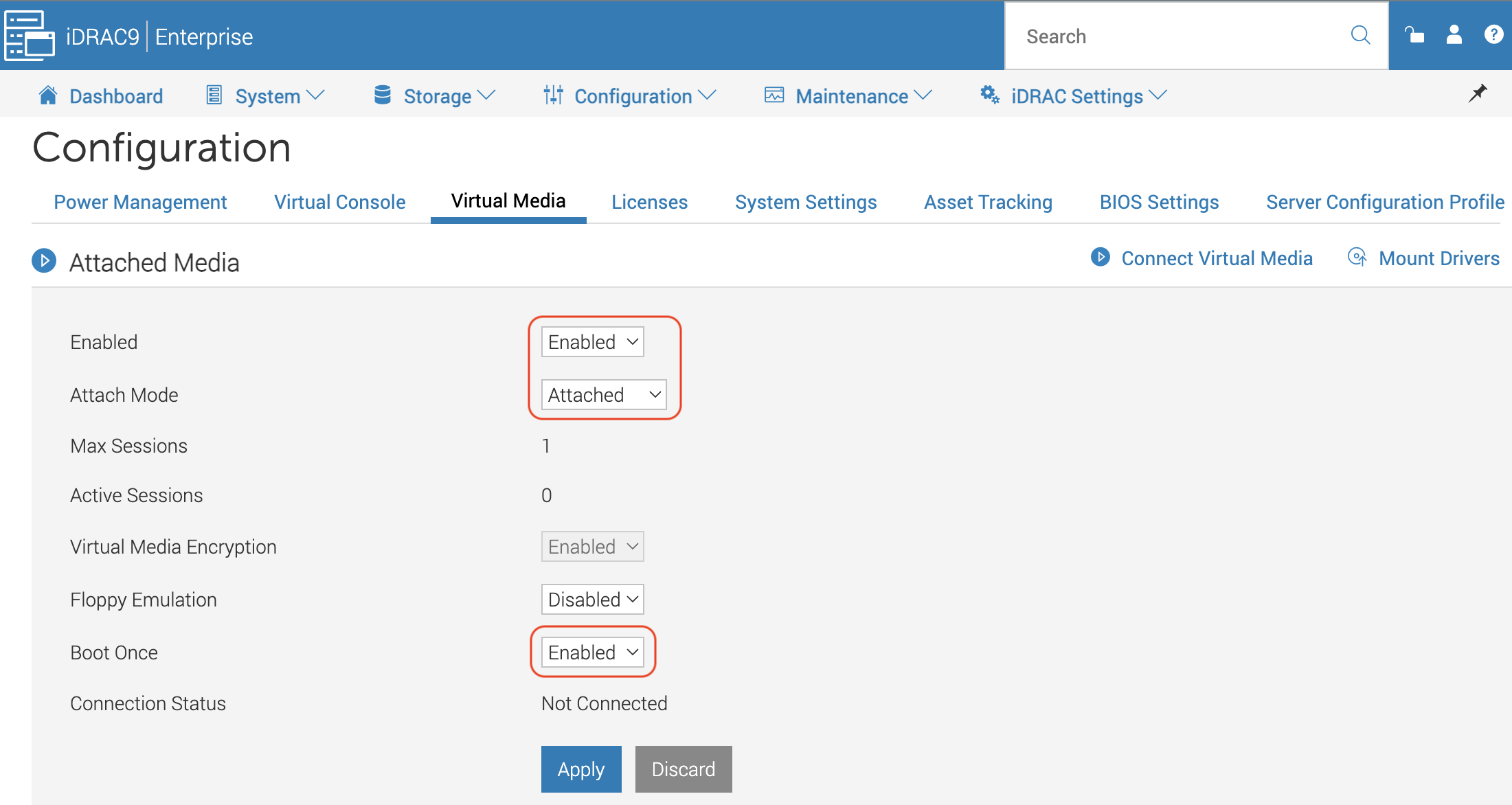
On the Virtual Media page, set the following:
- Enabled: Enabled
- Attach Mode: Attached
- Boot Once: Enabled
With Boot Once enabled, the server boots from the attached virtual media only once. After that, it returns to the normal boot order
-
Click Apply
Connect an ISO image
You can connect the ISO image from your local machine or a remote file share.
From a local machine:
- Click Connect Virtual Media
- Select a bootable ISO image from your local machine, and then click Map Device
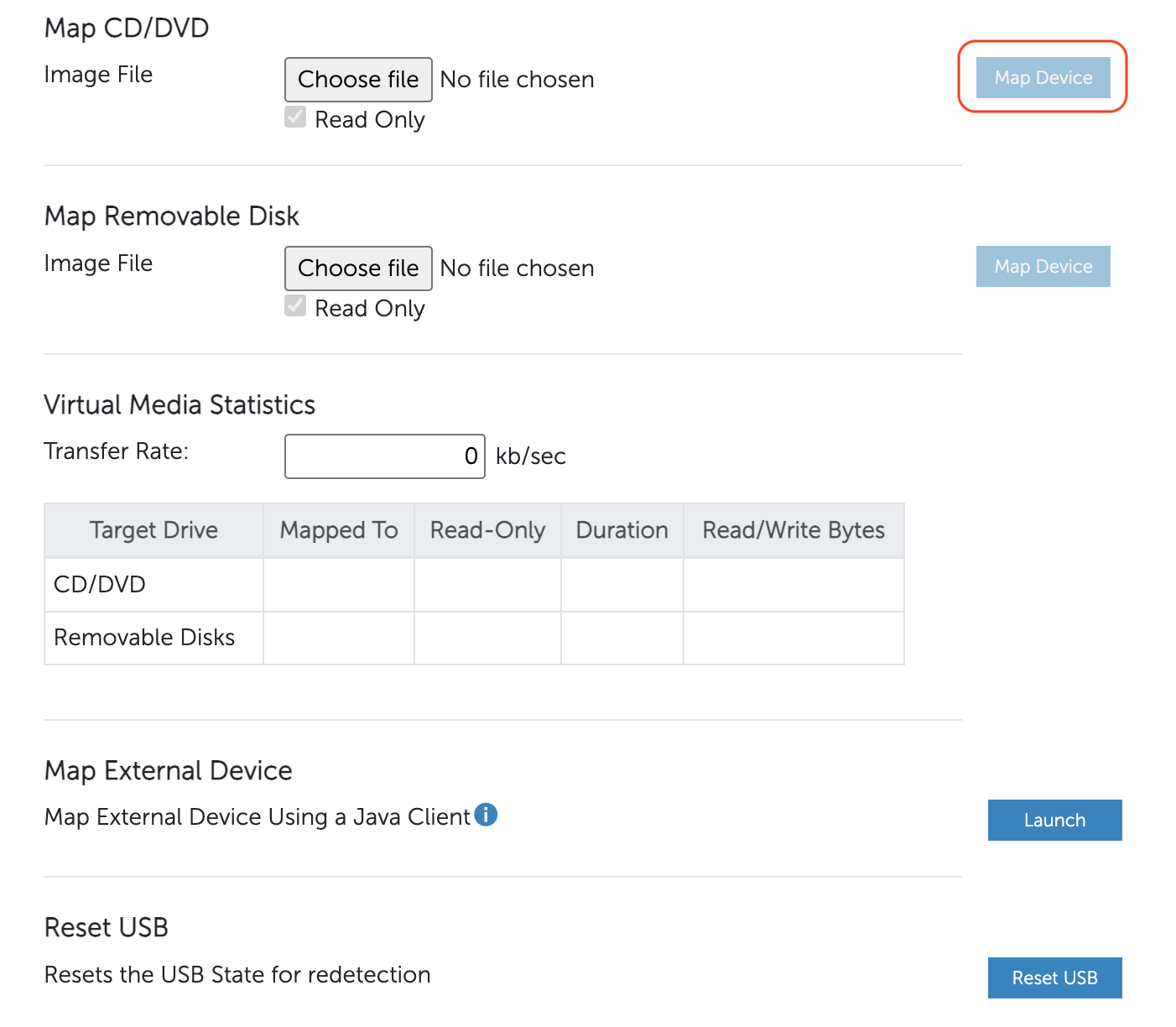 After you click Map Device, you can close the file selection window
From a remote file share:
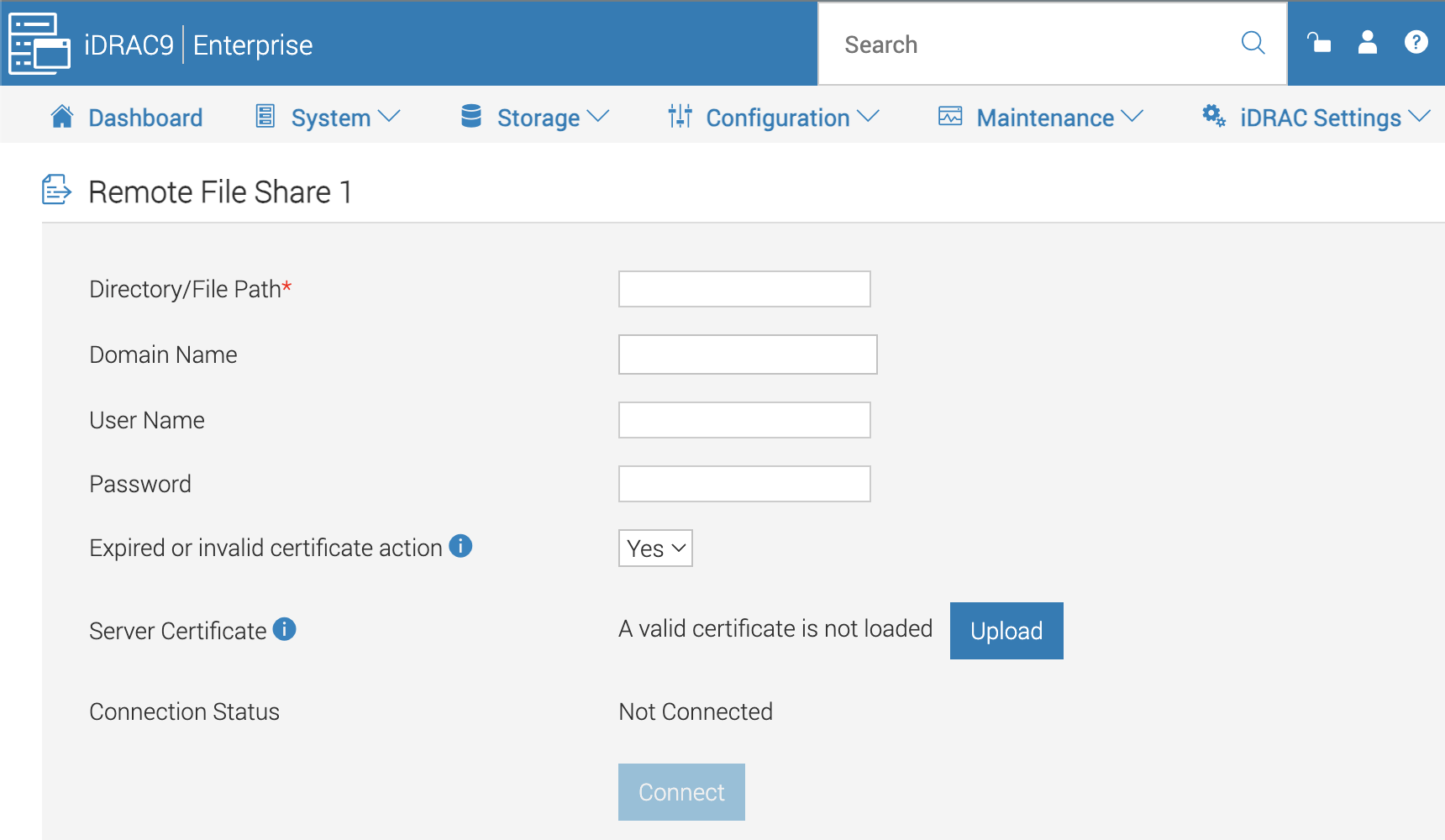
Specify the path to the bootable ISO image, and then click Connect, where:
- Directory/File Path: The full path to the ISO image, using an IPv4 address
- Domain Name, User Name, and Password: Required only if the remote file share requires authentication
- Server Certificate: Configure this option only if required by your remote file share
Boot the server from the ISO
Do not unmount the ISO or end the Virtual Media session until the server starts booting from the image.
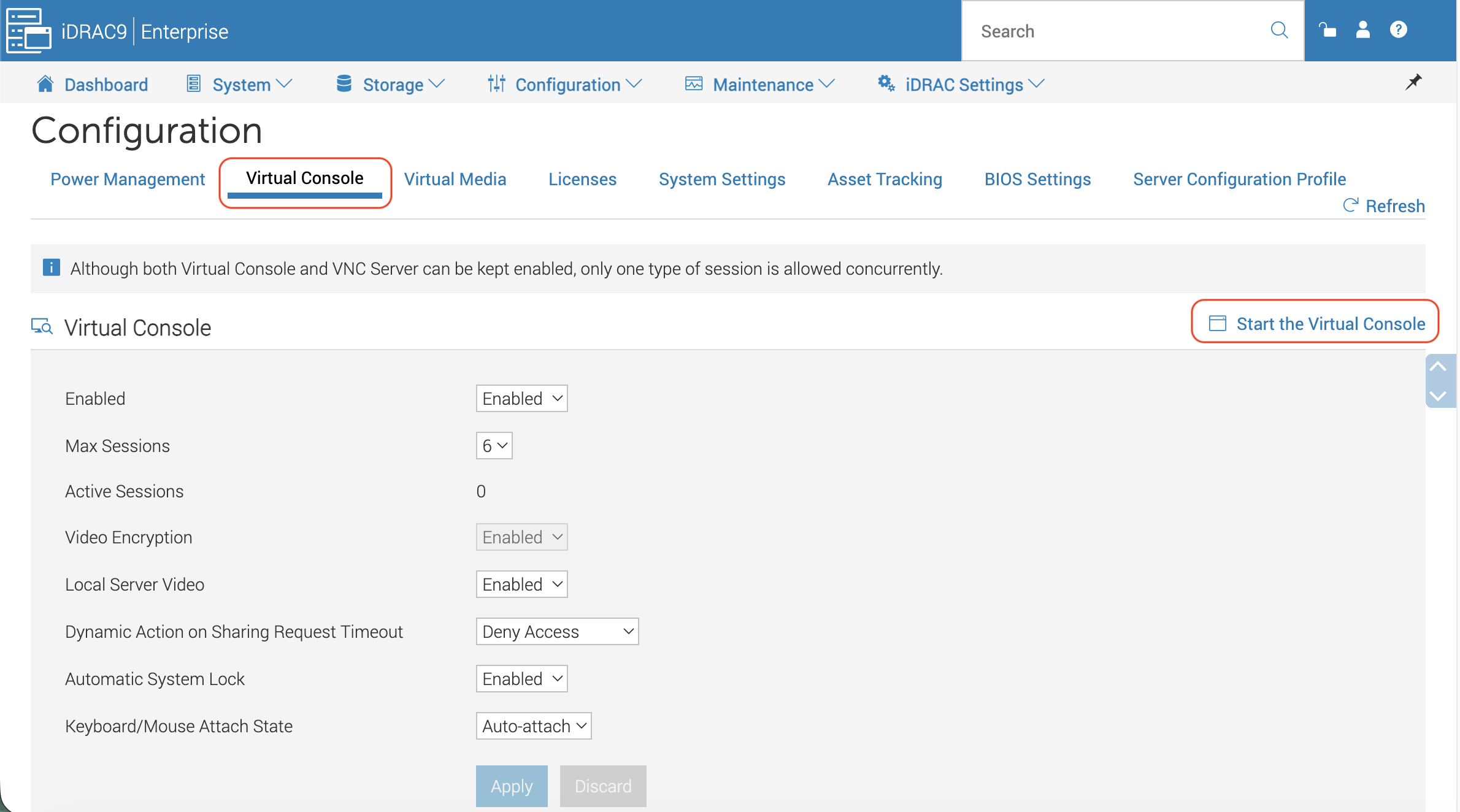
- Go to the Virtual Console tab and click Start the Virtual Console
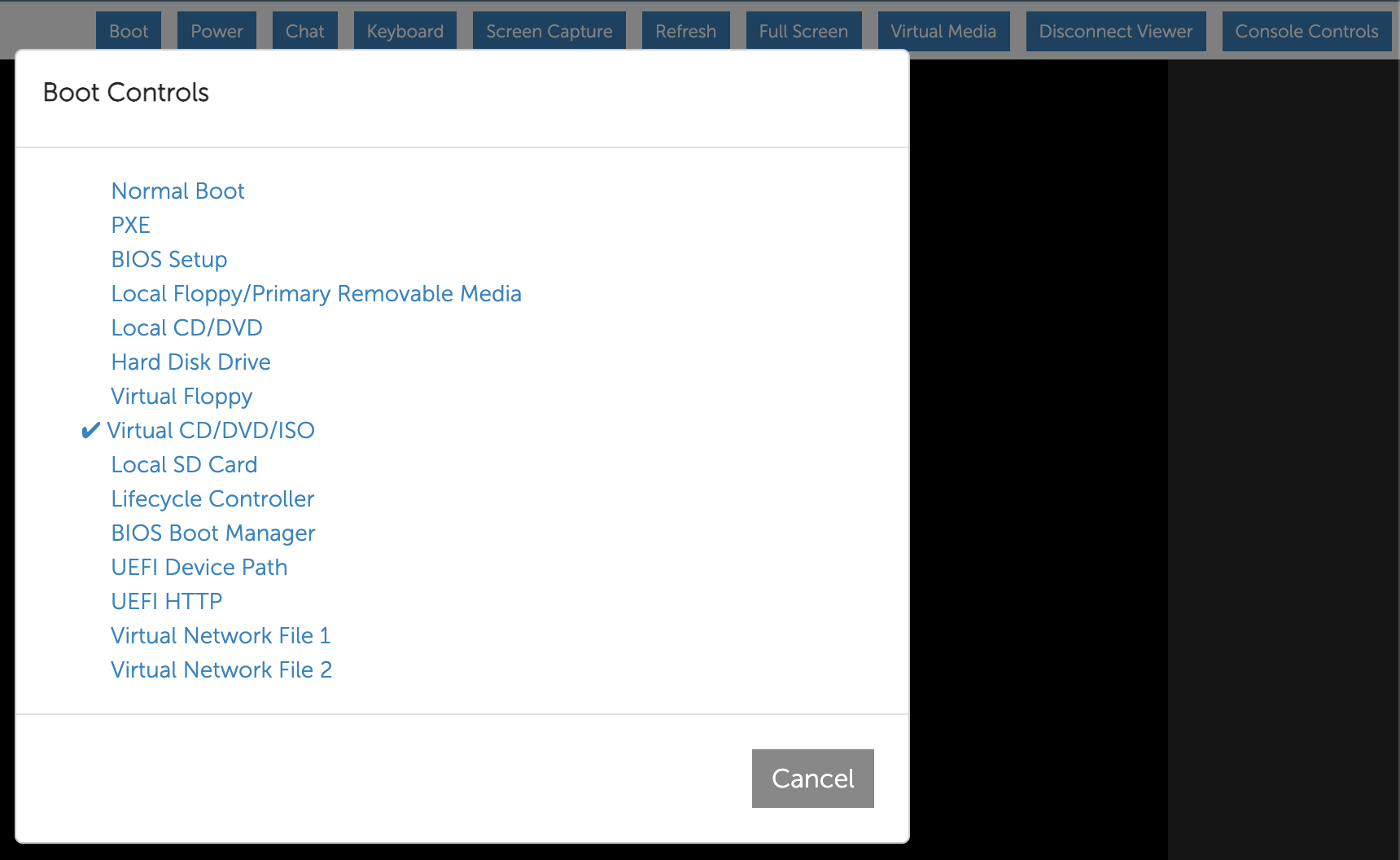
- In Virtual Console, click Boot, and then select Virtual CD/DVD/ISO:
- If the server starts booting from the ISO, continue in Virtual Console
- Otherwise, click Power, and then select Power Cycle System (cold boot)
- If the server still does not boot from the ISO, press F11 during startup and select the virtual optical drive
After you complete the installation or recovery, disconnect or unmap the ISO in Virtual Media.
iDRAC 7 and 8
Use the iDRAC Virtual Media feature to boot the server from a bootable ISO image stored on your local machine. Some iDRAC 7 and 8 configurations also support ISO images on a remote file share.
Starting with firmware version 2.30.30.30, iDRAC 7 and 8 support the HTML5-based Virtual Console. If HTML5 Virtual Console is enabled, use it instead of the legacy Java-based console. See "How to configure iDRAC to use the HTML5 plug-in for virtual console".
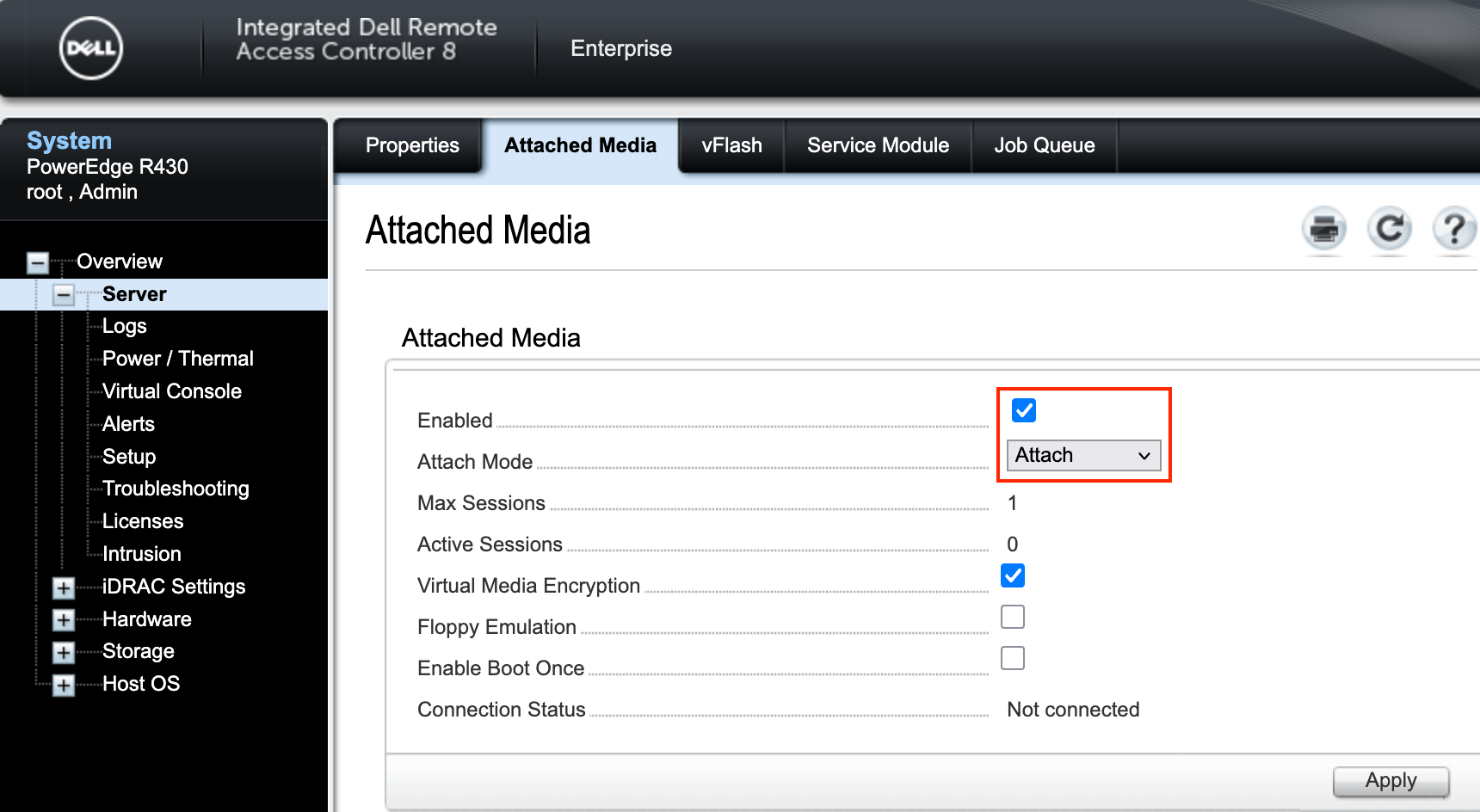
Enable Attached Media
- In the iDRAC web interface, go to Overview → Server → Attached Media
- On this page:
- Select Enabled
- Set Attach Mode to Attach
- Click Apply
Connect an ISO image
You can connect the ISO image from your local machine or a remote file share.
From a local machine:
- Open Virtual Console: go to Overview → Virtual Console Preview → Launch
- If HTML5 Virtual Console is available and enabled, launch it
- Otherwise, launch the legacy Java-based console
- In Virtual Console, go to Virtual Media and click Browse
- Select a bootable ISO image from your local machine, and then click Map Device to mount the ISO
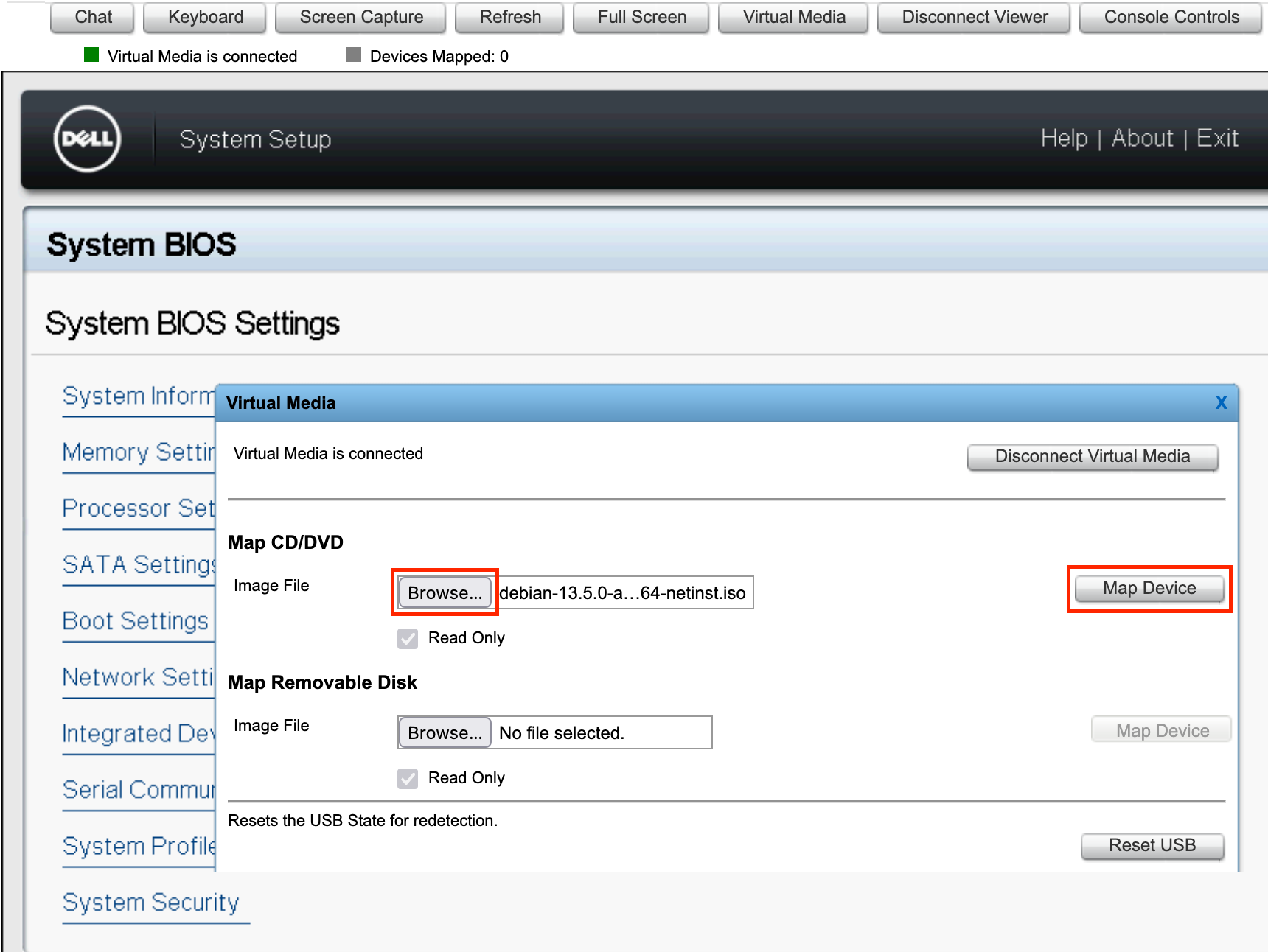 After you click Map Device, you can close the file selection window.
From a remote file share:
- Go to the Attached Media tab
- Specify the path to the bootable ISO image in the Remote File Share section
- Click Connect, where:
- Image File Path: The full path to the ISO image, using an IPv4 address
- Domain Name, User Name, and Password: Required only if the remote file share requires authentication
- Certificate: Configure this option only if required by your remote file share
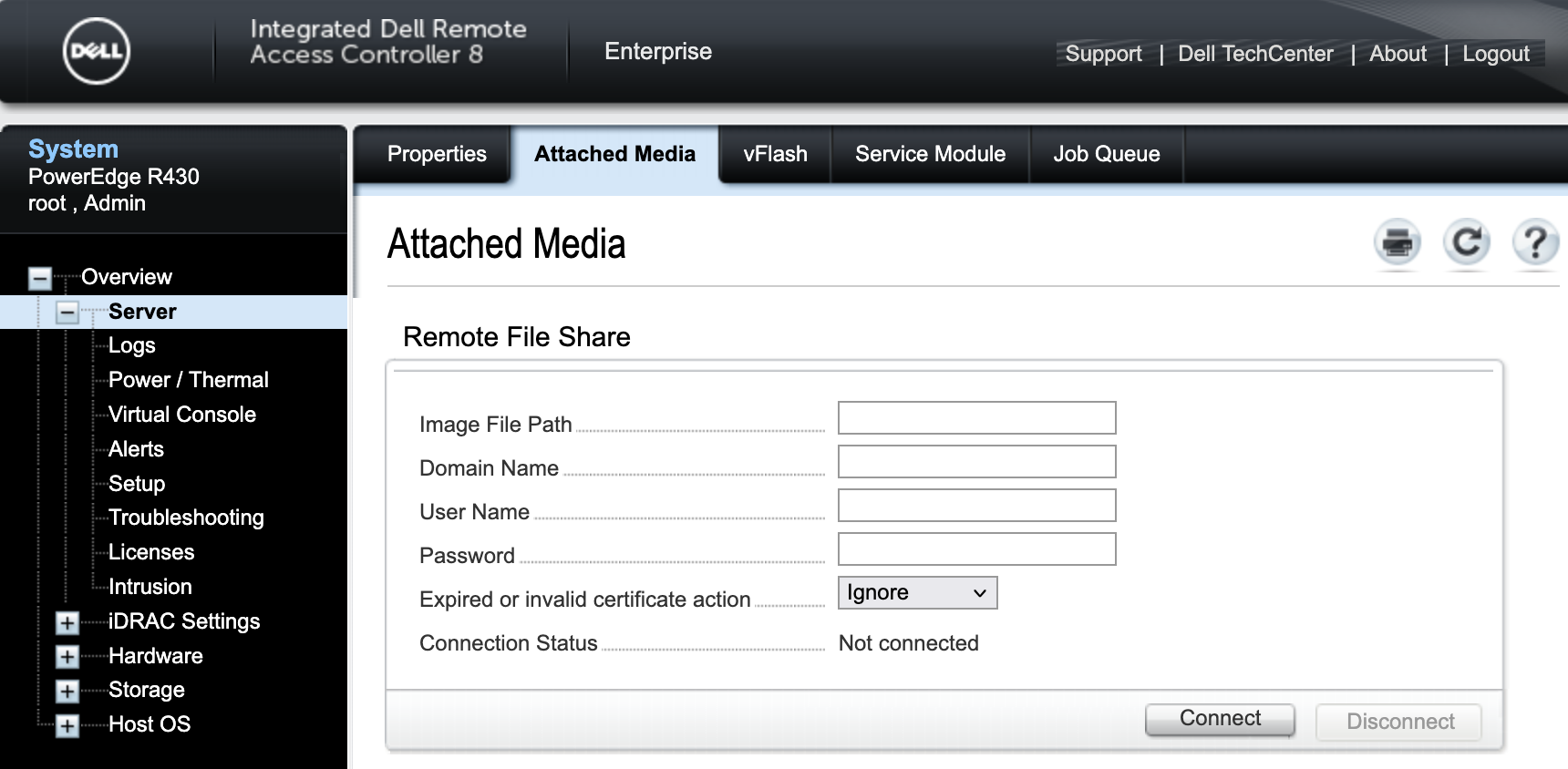
For details, see iDRAC 7/8 - Managing remote file share and Configuring remote file share using the web interface.
Boot the server from the ISO
Do not unmount the ISO or end the Virtual Media session until the server starts booting from the image.
- If Virtual Console is not already open, launch it from Overview → Virtual Console Preview → Launch
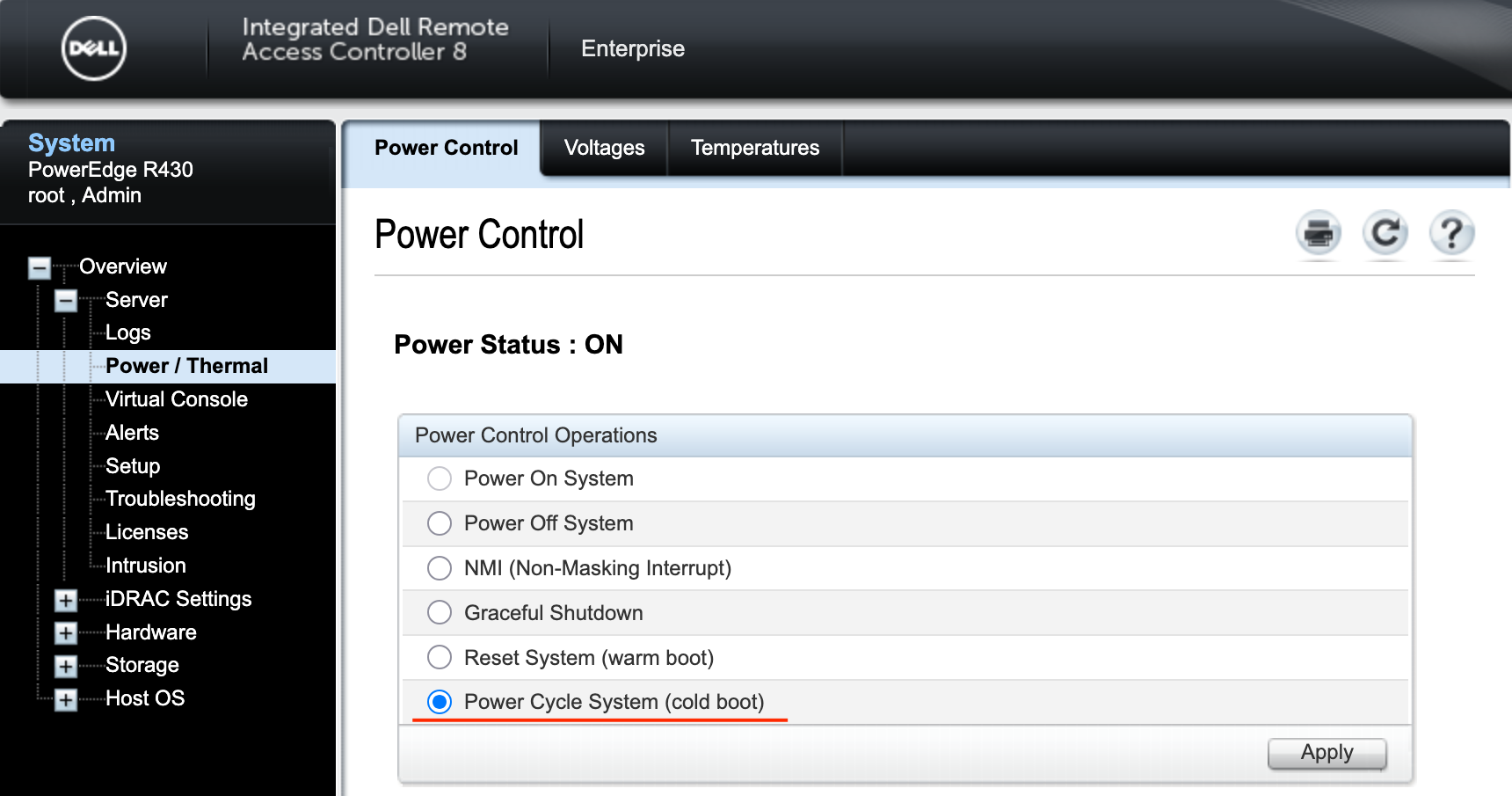
- Restart the server using one of these methods:
- Go to Overview → Server → Power / Thermal, select Power Cycle System (cold boot), then click Apply
- In Virtual Console, go to Console Controls → Keyboard Macros: Ctrl-Alt-Del, then click Apply
- During startup, press F11 to open Boot Manager
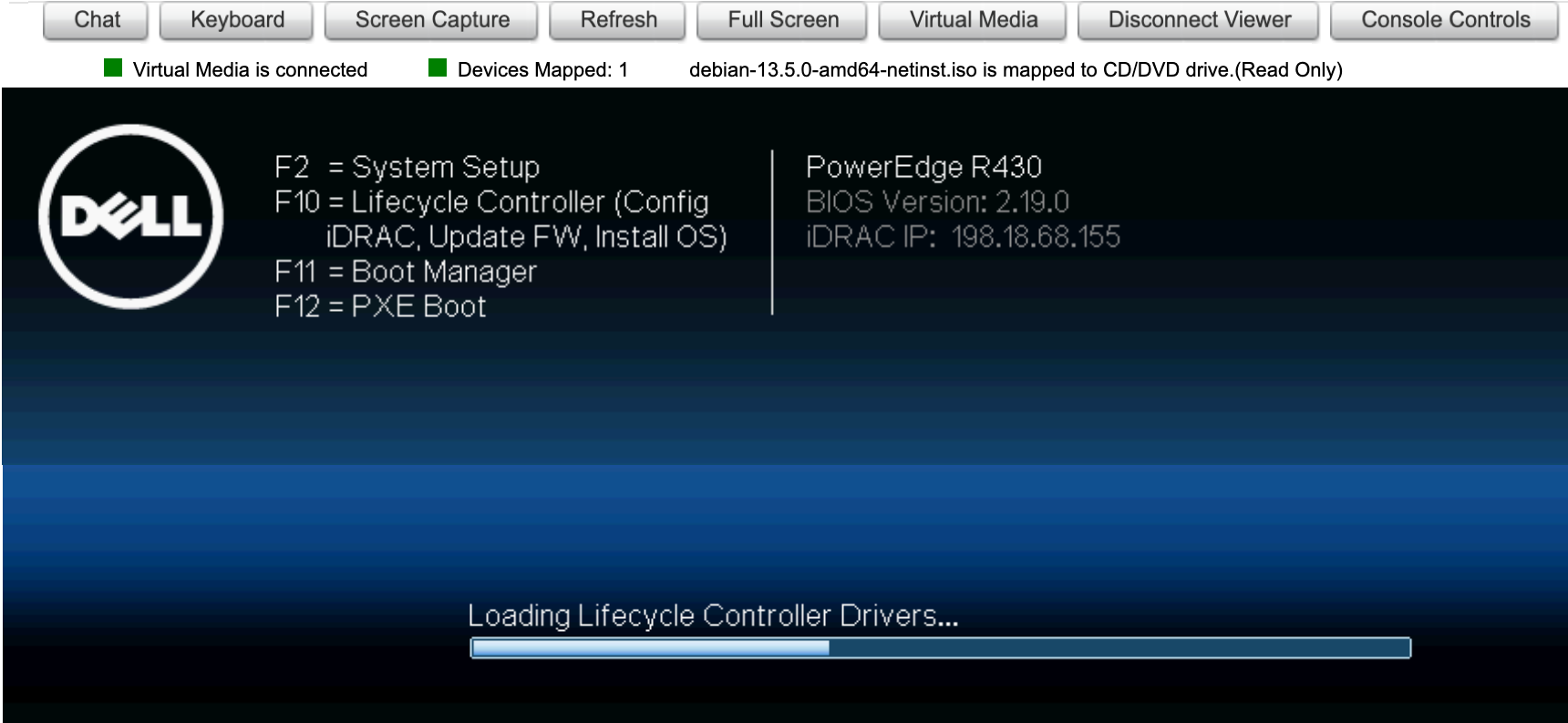
- Select One-shot UEFI Boot Menu to boot from the ISO once
- Select Virtual Optical Drive
After you complete the installation or recovery, disconnect or unmap the ISO in Virtual Media.