How to update iDRAC
This guide describes how to update iDRAC firmware on iDRAC 7/8 and 9.
Before you begin, get the iDRAC credentials and learn how to access iDRAC. For instructions, see How to access the out-of-band management of a Dell server.
iDRAC 9
Check the current firmware version and service tag
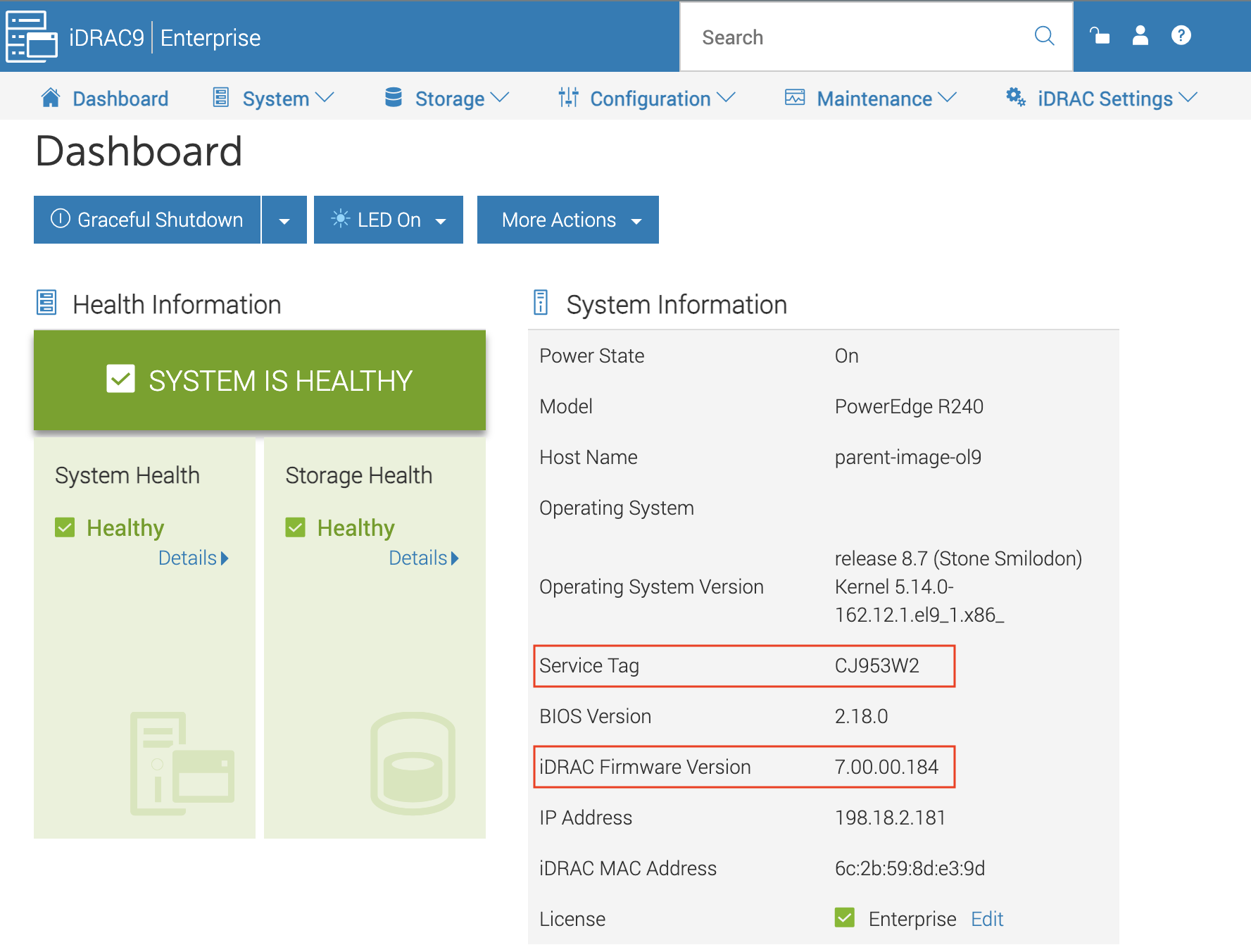
- Connect to iDRAC.
- On the main page, note the current iDRAC Firmware Version and Service Tag.
You will use the firmware version to verify the update and the Service Tag to find the appropriate firmware for the server.
Download the latest firmware
- Go to www.dell.com/support/home.
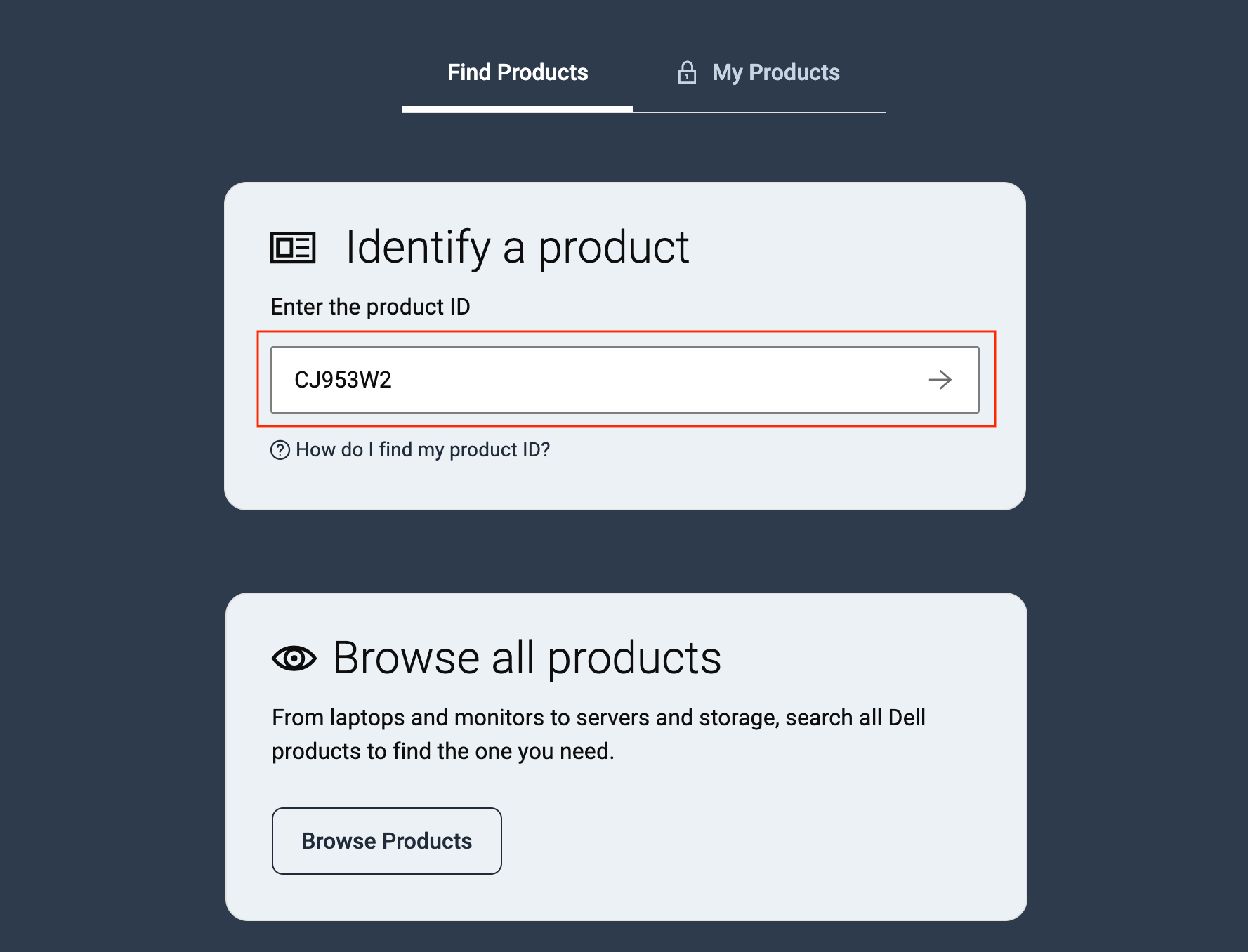
- In the Identify a product field, enter the "Service Tag". The next page shows information about your server.
- In the left pane, select Drivers & downloads.
- Under Category, select iDRAC with Lifecycle Controller.
- Next to the latest iDRAC firmware, click Download.
Upload and install the firmware
-
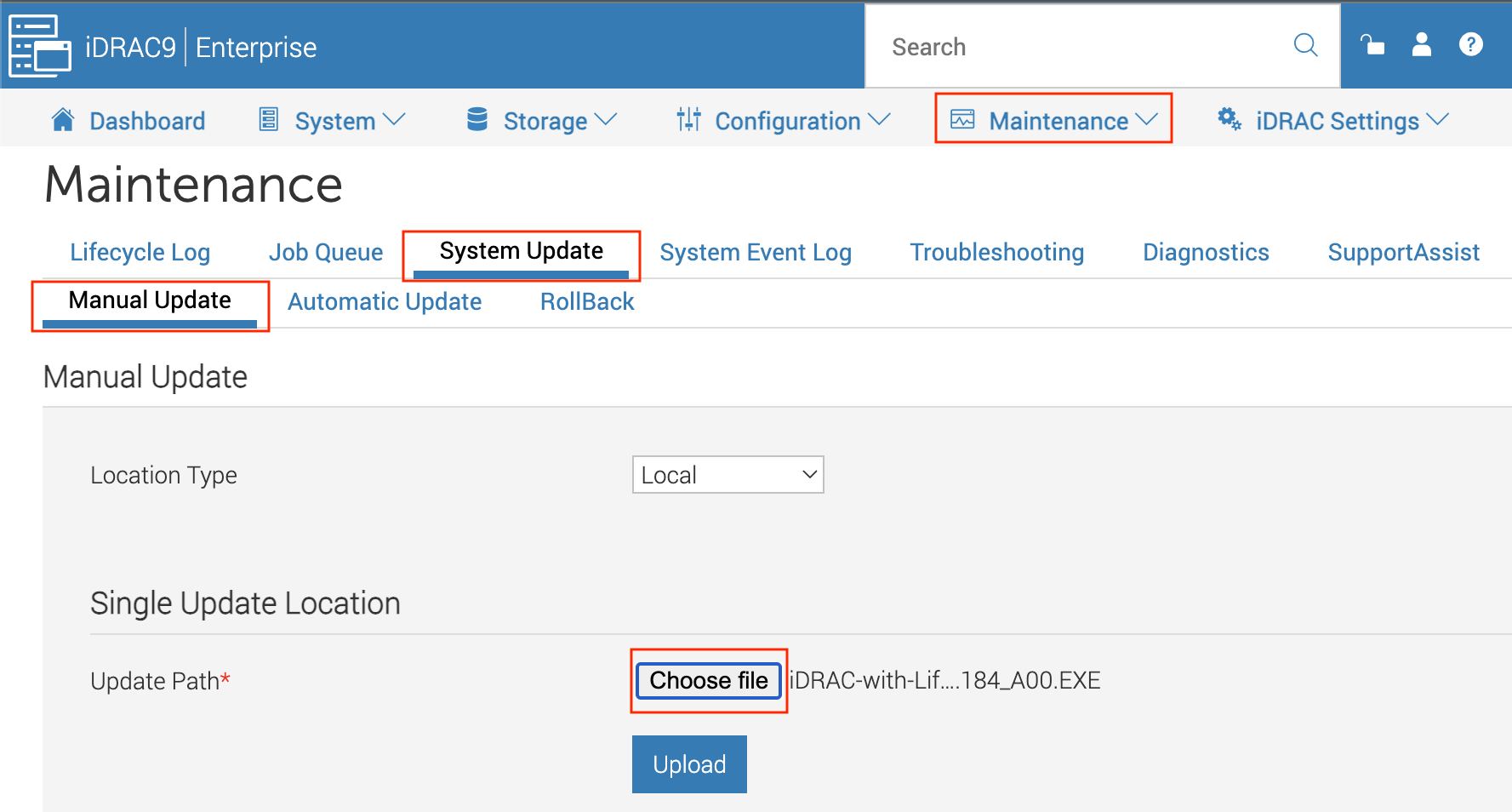
In iDRAC, go to Maintenance → System Update → Manual Update.
-
Select the downloaded firmware file and click Upload.
-
When the Update Details section appears, select the uploaded firmware and click Install.
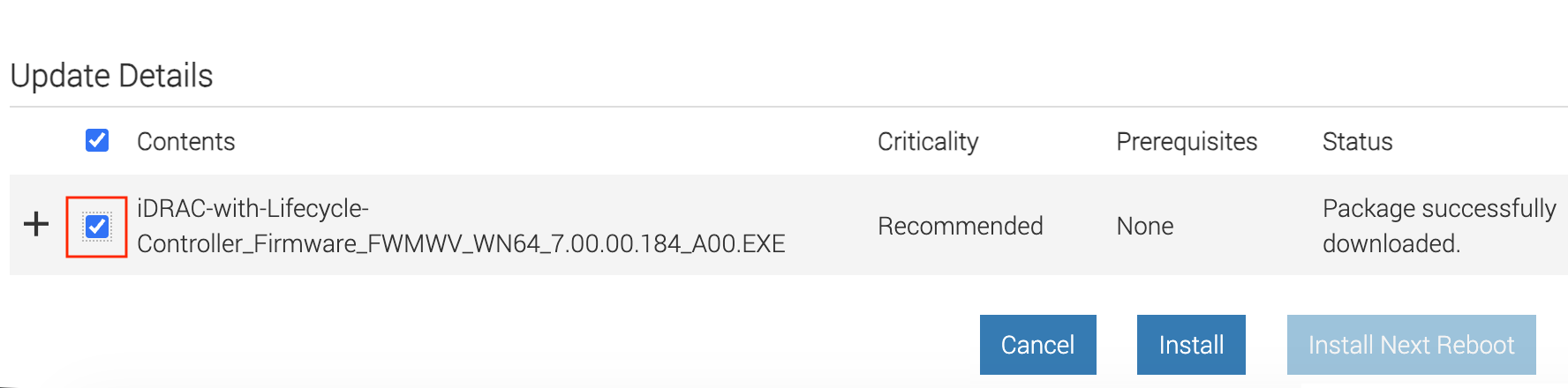
- In the dialog box, click Job Queue to monitor the update. You can also check the status at any time by going to Maintenance → Job Queue.
When the update finishes, iDRAC restarts automatically. Reconnect to iDRAC and confirm that the firmware version has been updated.
iDRAC 7/8
Check the current firmware version and service tag
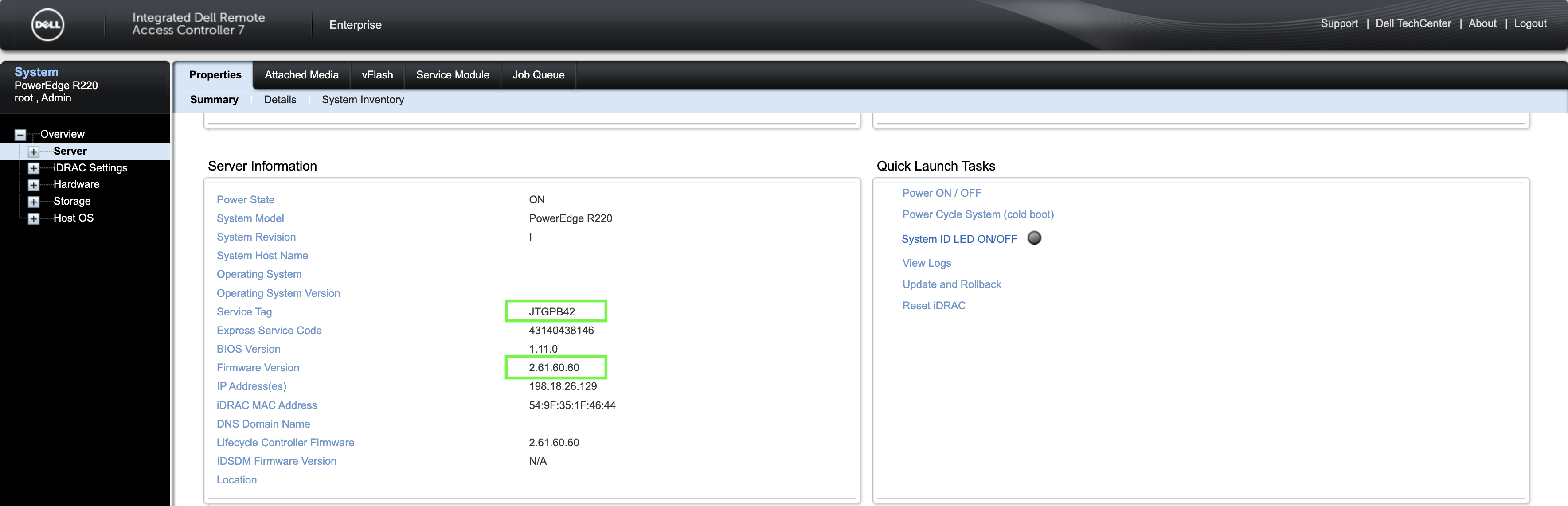
- Connect to iDRAC.
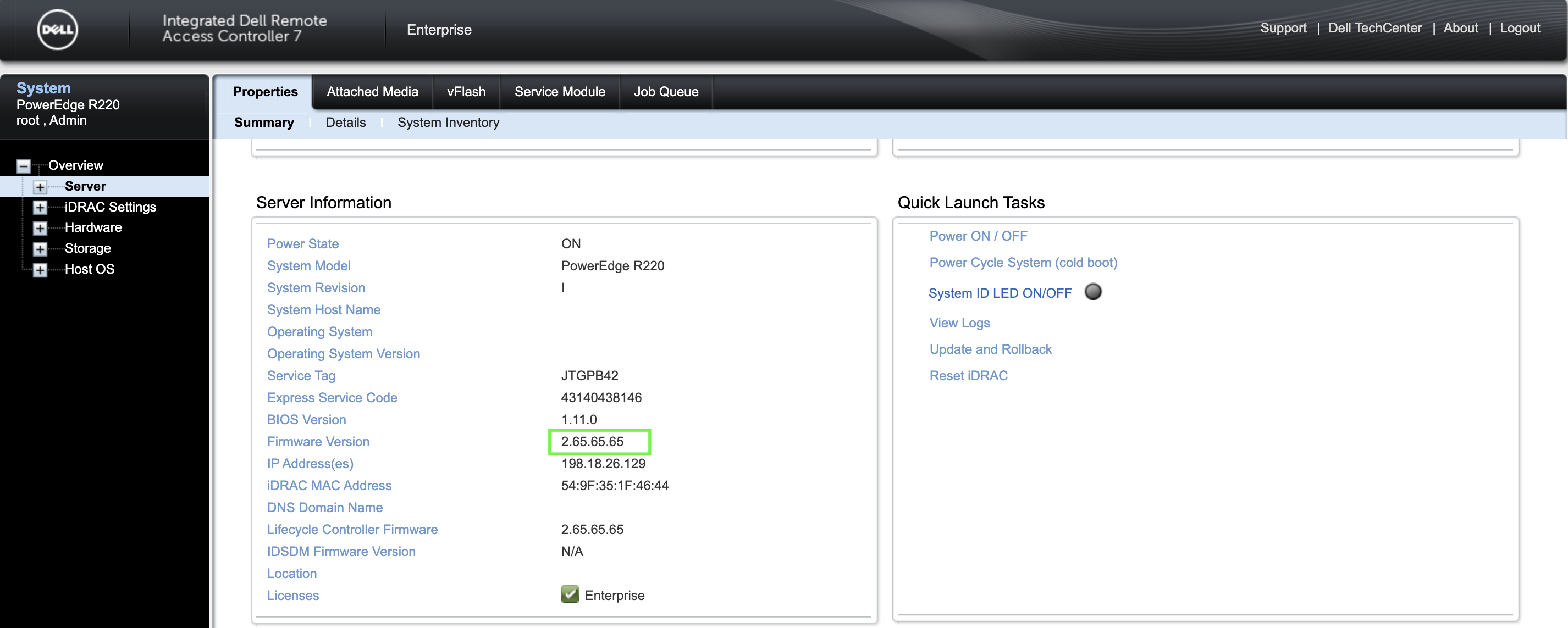
- Go to Overview → Server → Properties → Summary.
You will use the firmware version to verify the update and the Service Tag to find the appropriate firmware for the server.
Download the latest firmware
- Go to www.dell.com/support/home.
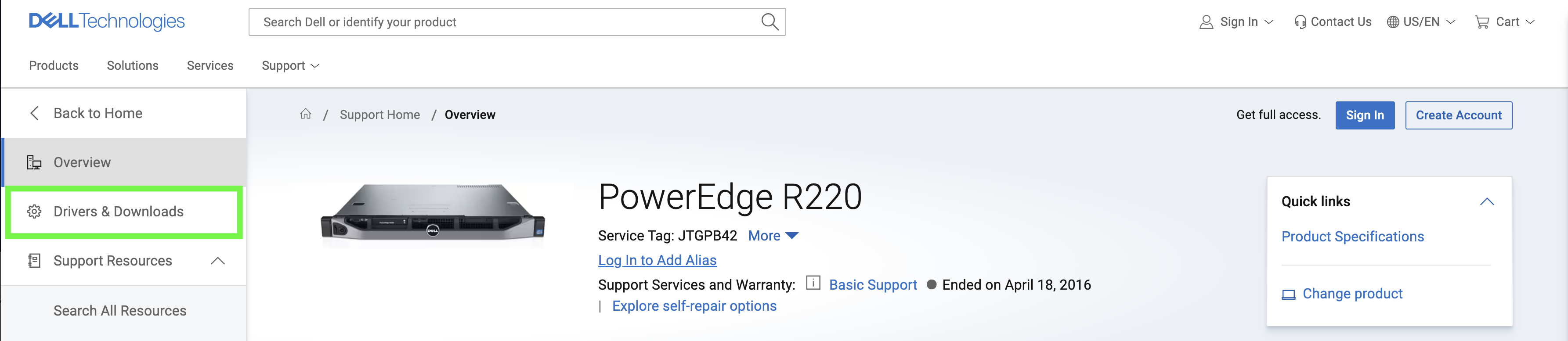
- In the Identify a product field, enter the "Service Tag". The next page shows information about your server.

- In the left pane, select Drivers & downloads.
 4. Under Category, select iDRAC with Lifecycle Controller.
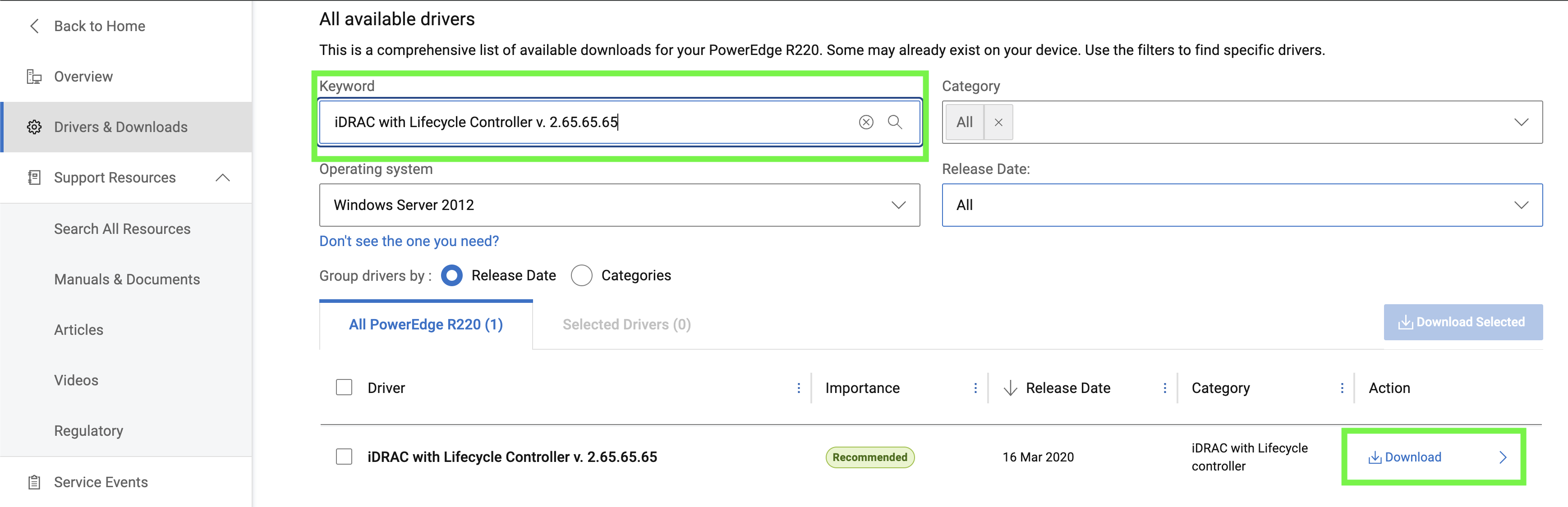 5. Next to the latest iDRAC firmware, click Download.
Upload and install the firmware
-
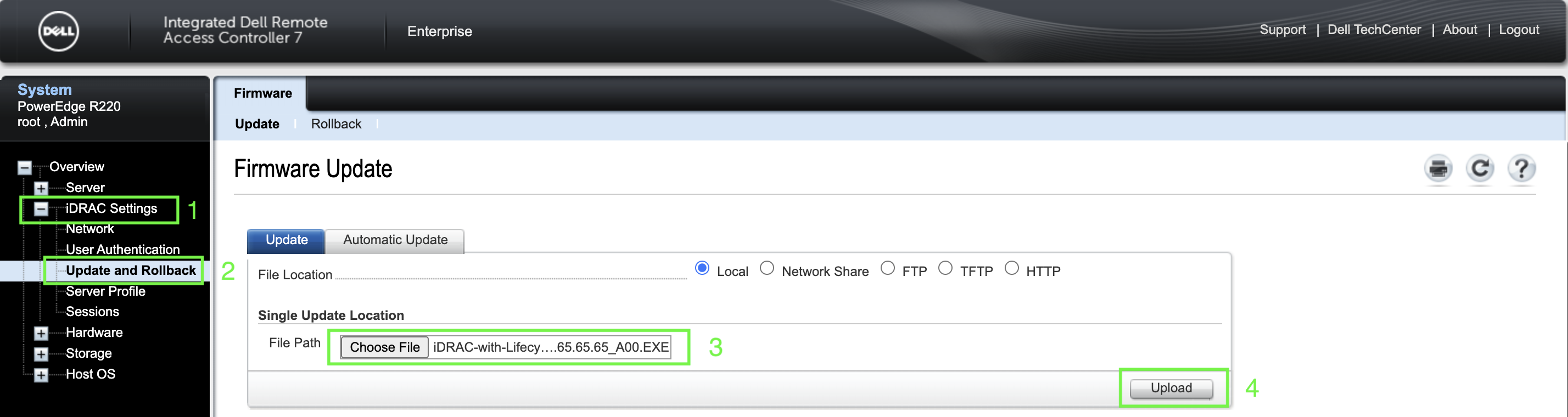
In iDRAC, go to iDRAC Settings → Update and Rollback, select the downloaded firmware file, and click Upload.
-
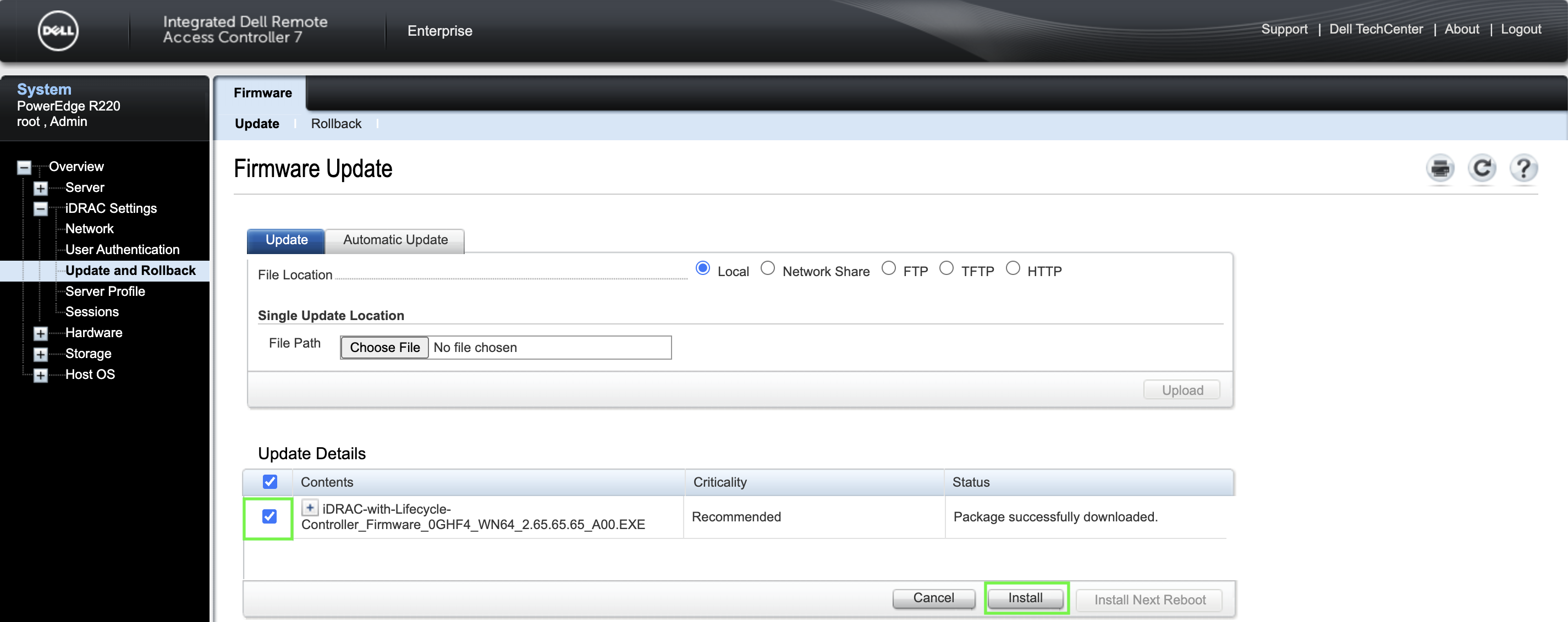
When the Update Details section appears, select the uploaded firmware and click Install.
-
To check the update status, go to Overview → Server → Job Queue.
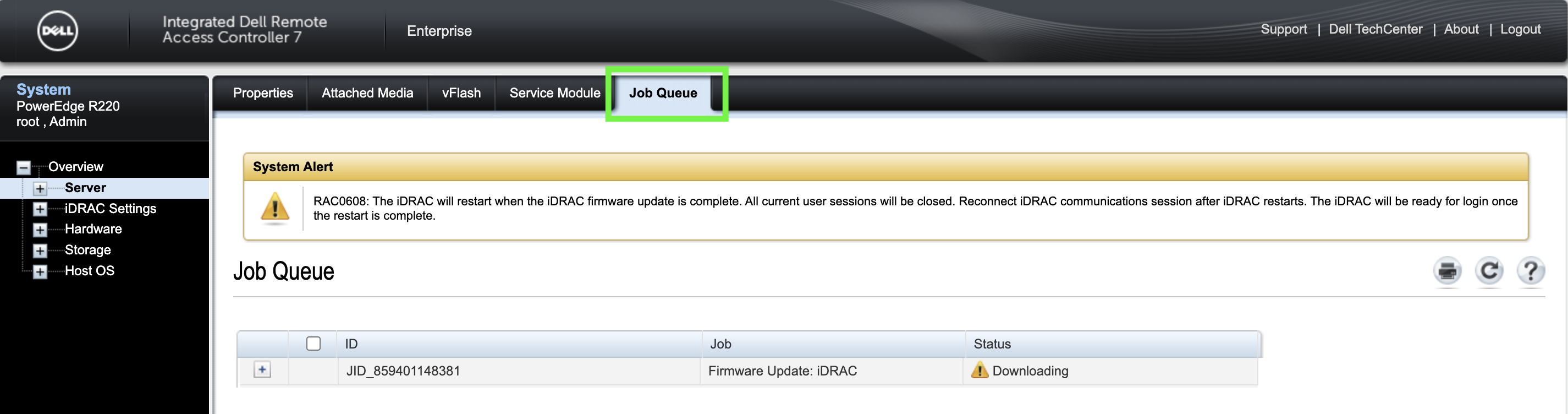
When the update finishes, iDRAC restarts automatically.

Reconnect to iDRAC and confirm that the firmware version has been updated.