How to provide the technical support team with network diagnostic results
When facing a network connectivity issue with your server, the support team may ask you to run several network diagnostic tools and provide their output. In most cases, you will be asked to run ping, traceroute, and ifconfig — though the names may vary depending on the operating system. These utilities run in the command-line interface.
There are two places to run these diagnostic tools: on your server, and on the device from which you have a problem connecting to the server. The latter is usually your home or office machine, or another server.
Accessing the command-line interface
On Mac
Press Command ⌘ + Spacebar, type "Terminal" and press Enter to open Terminal.
Use Command ⌘ + A to select the entire text in a Terminal window, Command ⌘ + C to copy the selection to the clipboard.
On Windows
Press Windows logo key + R, type cmd.exe and press Enter to open Command Prompt.
Press Alt + Spacebar, then choose Edit → Select All to select the entire text. Press Enter to copy the selection to the clipboard.
On Linux
If you are using a Linux server, you are likely already using the command-line interface via SSH or VNC console. Select All, Copy, Paste, and other shortcuts depend on the operating system and the SSH client app you are using on your local machine.
Checking general Internet connectivity
Run the following command on both your local machine and your server. It measures the round-trip time for network messages sent from one host to another, similar to opening a website to check that you are online.
For Windows:
ping -n 10 test.us01.servers.comFor Mac and Linux:
ping -c 10 test.us01.servers.comSample output:
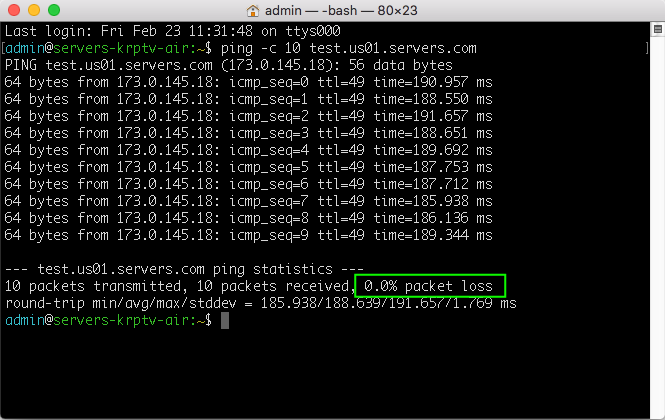
0% packet loss means good Internet connectivity. Copy and save the entire output into a text file to share with the support team.
Checking the reachability of your server
For a cloud server, find your server in Cloud Servers → Create and Manage in the Customer Portal. For a dedicated server, look in Dedicated Servers → Create and Manage. Copy the public IP address of your server — you will need it for the following commands.
Running a ping test
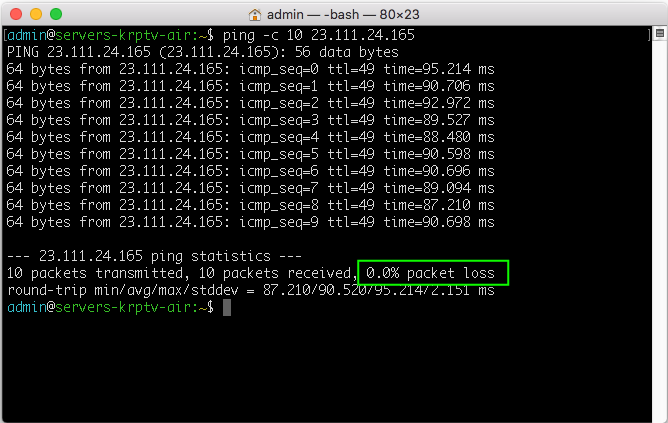
Run the following command on your local machine to check the connection between your location and the server.
For Windows:
ping -n 10 [IP address of your server]For Mac and Linux:
ping -c 10 [IP address of your server]Sample output:
Running a traceroute
Run the following command on your local machine to trace the network path from your local machine to the server.
For Windows:
tracert [IP address of your server]For Mac and Linux:
traceroute -I [IP address of your server]Sample output:
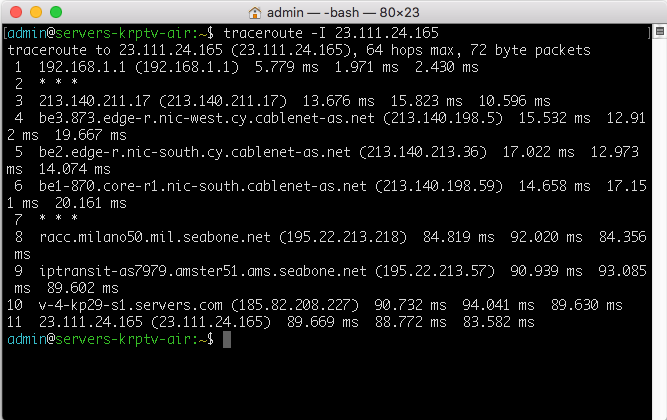
Copy and save the entire output into a text file to share with the support team.
Viewing IP configuration
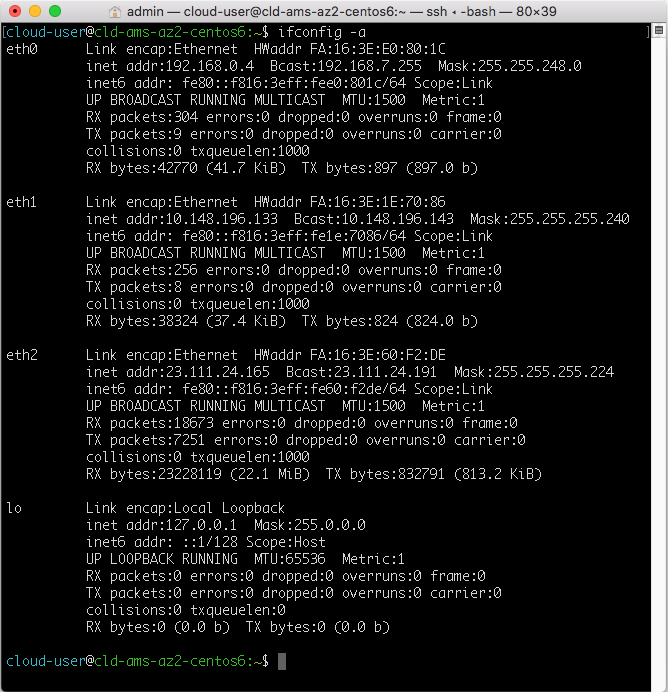
Run the following command on your server to view the current IP configuration.
For Windows:
ipconfig -allFor Linux:
ifconfig -aSample output:
Running all commands at once
Replace [IP address of your server] in the following commands with the actual IP address of your server. Copy and paste the commands into a Command Prompt, Terminal, or SSH window. The output redirect operator (>>) saves results to a text file that you can send to the support team.
Run these commands on both your local machine and your server.
On Windows
echo %date%-%time% >> "%USERPROFILE%Desktop\networking.txt"
ping -n 10 test.us01.servers.com >> "%USERPROFILE%Desktop\networking.txt"
ping -n 10 [IP address of a server] >> "%USERPROFILE%Desktop\networking.txt"
tracert [IP address of a server] >> "%USERPROFILE%Desktop\networking.txt"
ipconfig -all >> "%USERPROFILE%Desktop\networking.txt"
start notepad "%USERPROFILE%Desktop\networking.txt"
On Mac
echo `date` >> ~/Desktop/networking.txt
ping -c 10 test.us01.servers.com >> ~/Desktop/networking.txt
ping -c 10 [IP address of a server] >> ~/Desktop/networking.txt
traceroute -I [IP address of a server] >> ~/Desktop/networking.txt
ifconfig -a >> ~/Desktop/networking.txt
open ~/Desktop/networking.txt
On Linux
echo `date` >> ~/networking.txt
ping -c 10 test.us01.servers.com >> ~/networking.txt
ping -c 10 [IP address of a server] >> ~/networking.txt
traceroute -I [IP address of a server] >> ~/networking.txt
ifconfig -a >> ~/networking.txt
cat ~/networking.txt