Home/Tutorials/Password and authentication/How to reset the root password on Ubuntu 18.04+ / Debian 9+ / Proxmox on a dedicated server
How to reset the root password on Ubuntu 18.04+ / Debian 9+ / Proxmox on a dedicated server
If you have lost the root password for the server and cannot log in with superuser privileges, this article will help you resolve the issue without requiring the old password.
Reboot the server using the VNC console
- Open the Customer Portal and navigate to Dedicated Servers → Manage
- Select the server and click VNC console in the Details section
- In the VNC console window, click the Send CtrlAltDel button
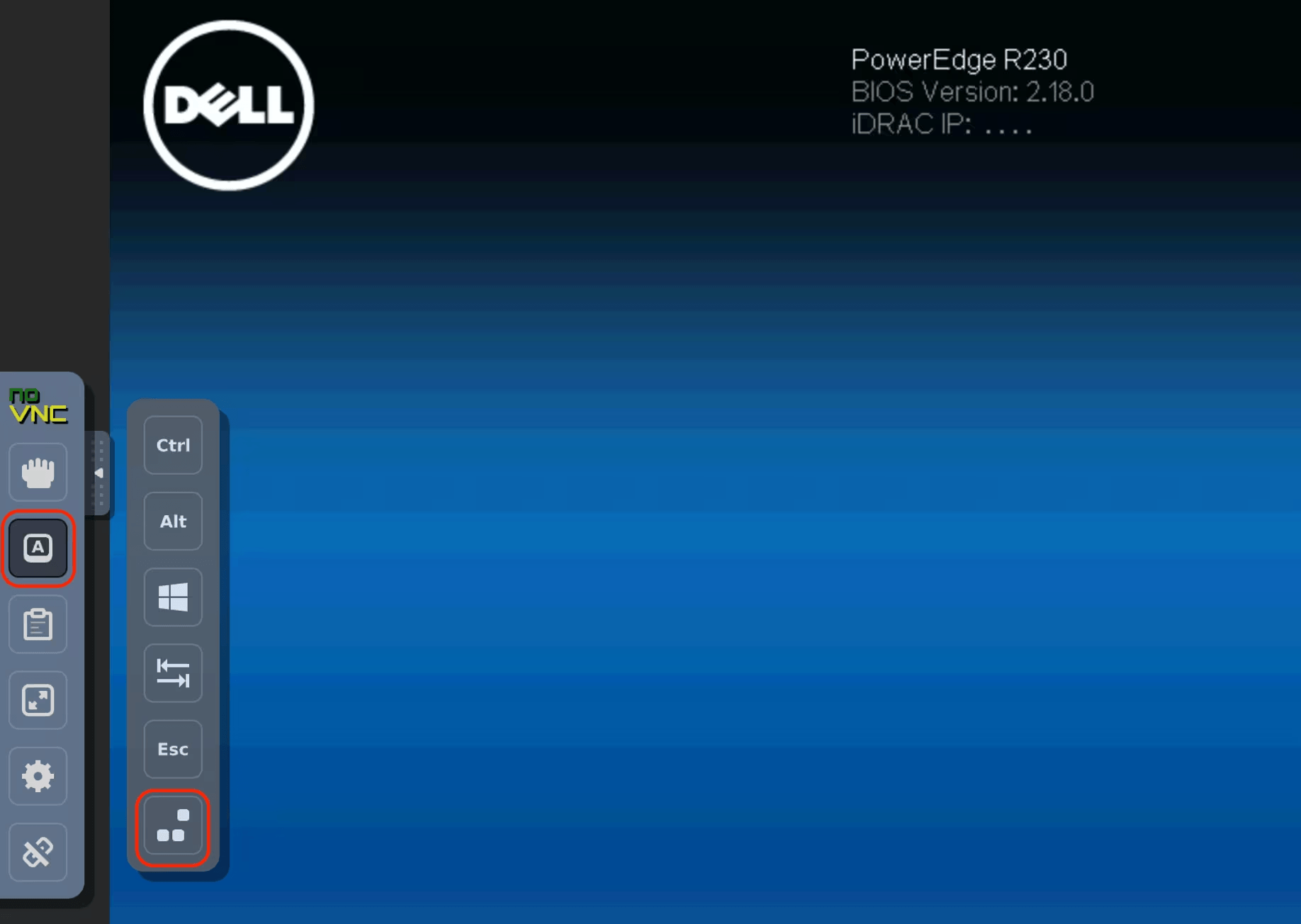
Before the OS starts and after the BIOS menu, a boot menu and timer will appear. To stop the timer, press any key (such as any arrow key or Ctrl).
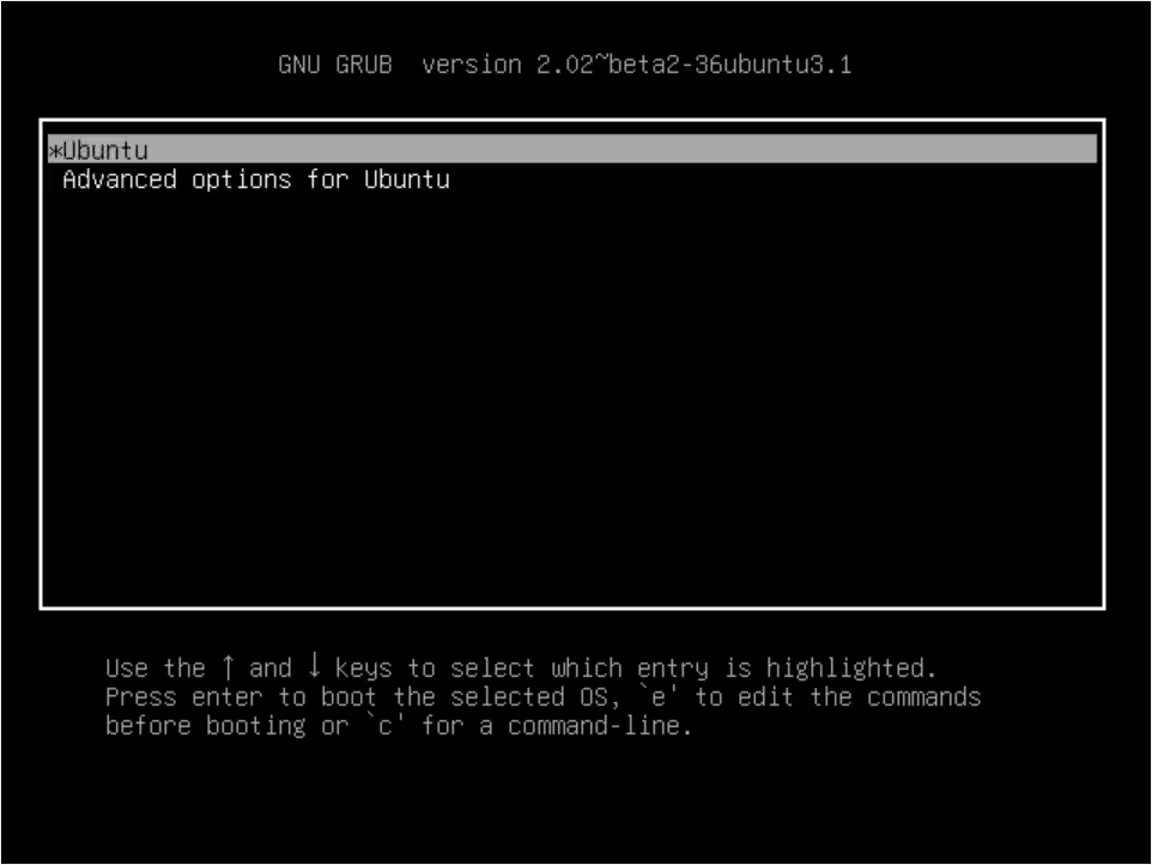
Boot the OS in single-user mode
To boot the OS in single-user mode, you need to change the kernel boot parameters in the GRUB bootloader menu:
- Use the ↓ and ↑ keys to navigate the menu and select the boot line (usually named "Ubuntu" or "Debian")
- Press the E key to access the boot mode editing options
- Find the line that starts with
linux /vmlinuz - Change the parameter
rotorwand add the parameterinit=/bin/bashat the end of the line
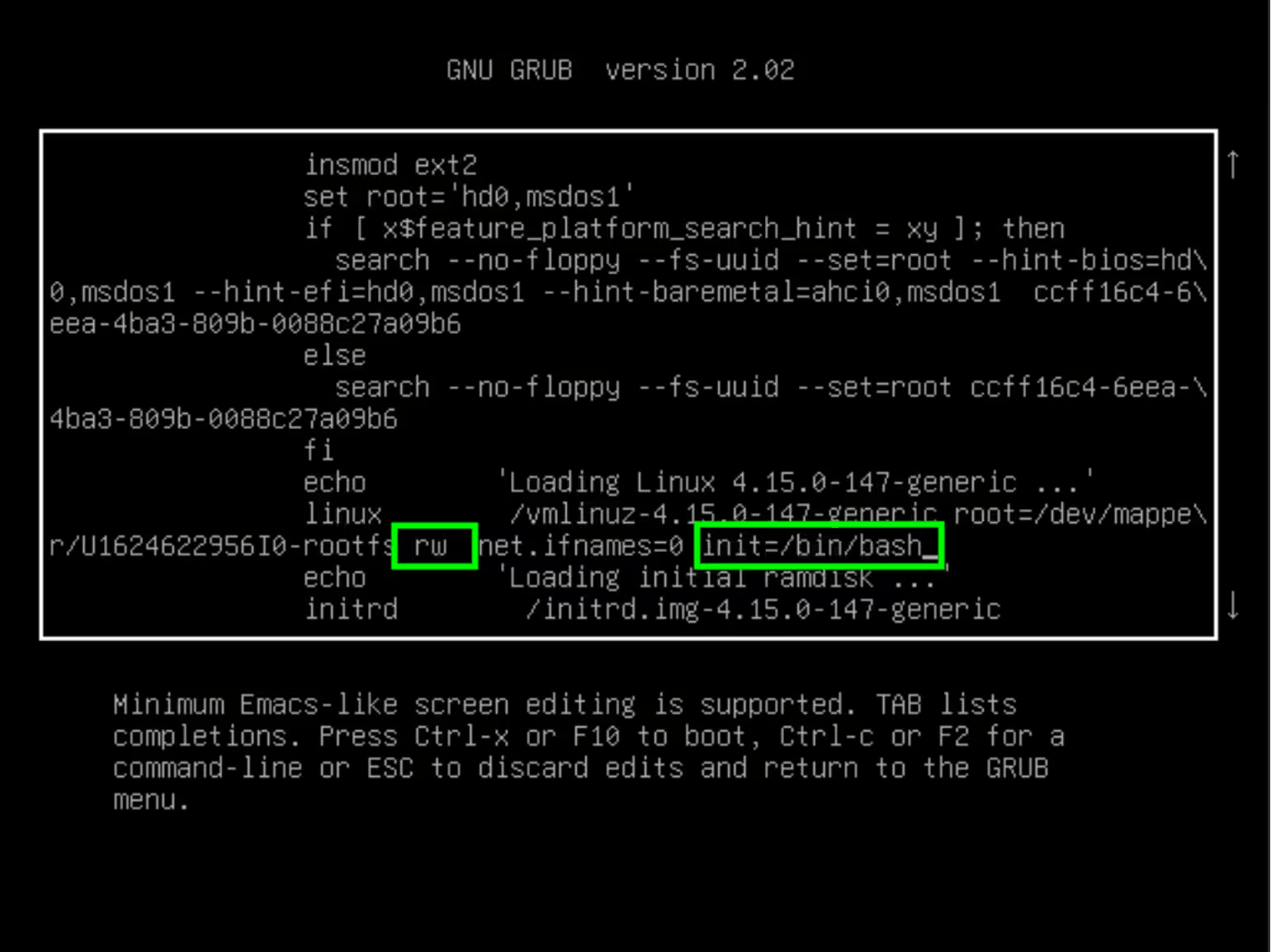
- Boot the system in single-user mode by pressing CTRL+X or F10
The server will reboot and the console will open.
Set a new root password
-
In the console, execute the command:
passwd root -
Enter the new root user password twice — the root user password is changed
-
Save the changes to disk and reboot the server:
sync reboot -f
The new root user password will be set.