How to reset the root password on CentOS
If you have lost the root password of your server, this article will help you reset it.
Process overview
- Access the VNC Console.
- Restart the server and edit kernel boot parameters to boot the server into single-user mode.
- Set a new root password without knowing the old one.
Access the VNC Console
- Log in to the Customer Portal
- Find your server
- For a cloud server, go to Cloud Servers → Instances.
- For a bare metal server, go to Enterprise Bare Metal → Manage.
- In the server details page, click the VNC Console button.
Edit kernel boot parameters
To boot the server into single-user mode, you need to edit kernel boot parameters using the GRUB bootloader menu. Menu behavior and boot parameters depend on OS version and whether it's a bare metal server or a cloud server.
Bare metal server
- Restart the server using Send CtrlAltDel button in the VNC Console. After the BIOS menu, press ESC to stop the timer and access the GRUB boot menu.

- Use ↓ and ↑ keys to select your boot line and press e to edit.
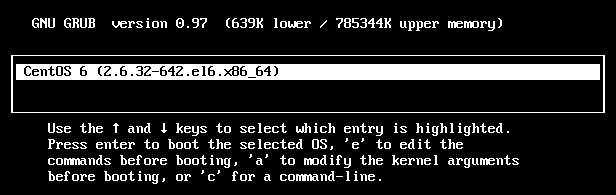
- Select the line starting with
kernel /vmlinuz-and press e again.
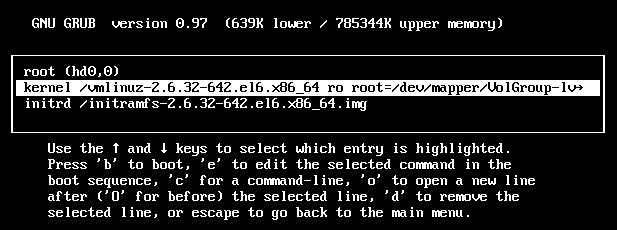
- Add the
singleparameter at the end of the line.

- Press Enter to save, then press b to boot the server into single-user mode.
Cloud server
- Restart the server using Send CtrlAltDel button in the VNC Console. Press Tab to stop the timer and edit the boot menu.
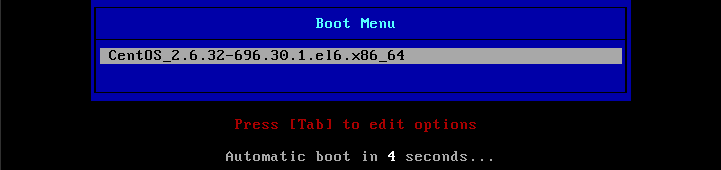
- Remove the highlighted parameters and add
1(with a leading space) at the end of the string.
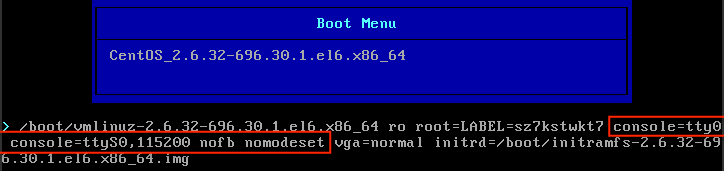
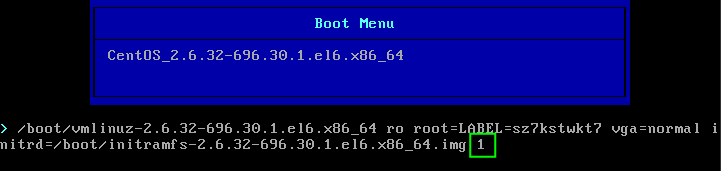
- Press Enter to boot the server into single-user mode.
Set a new root password
If the kernel boot parameters were modified successfully, the server boots into single-user mode and displays a prompt similar to switch_root:/#.
passwd root
reboot