How to reset root password on Ubuntu 16.04 cloud server
If you have lost the root password of your server, you can restart the server in single-user mode and set a new password. To do this, you must access the server console via the Customer Portal.
Step 1: Open the VNC Console
Open the server's page in the Cloud Servers → Create & Manage section of the Customer Portal. Make sure the server is active. Open the VNC Console using the button of the same name.
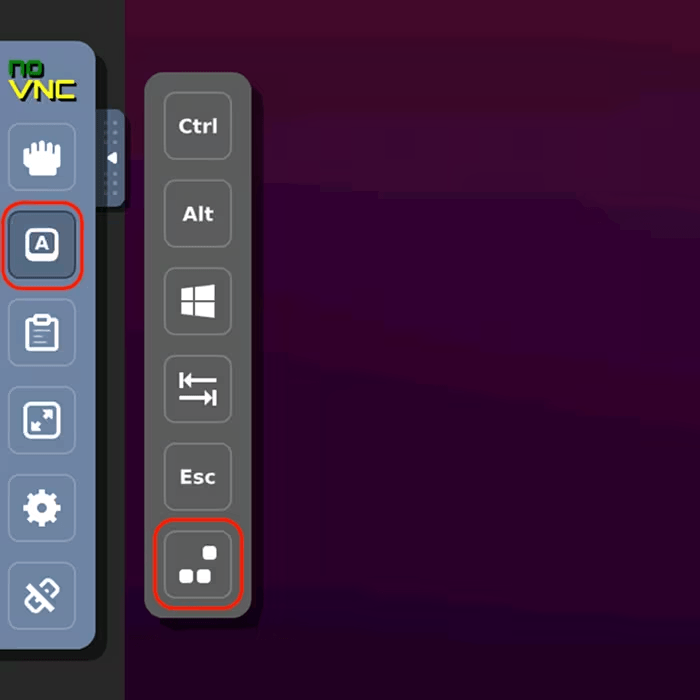
Restart the server using the Send CtrlAltDel button in the VNC Console window.
Step 2: Access the GRUB menu
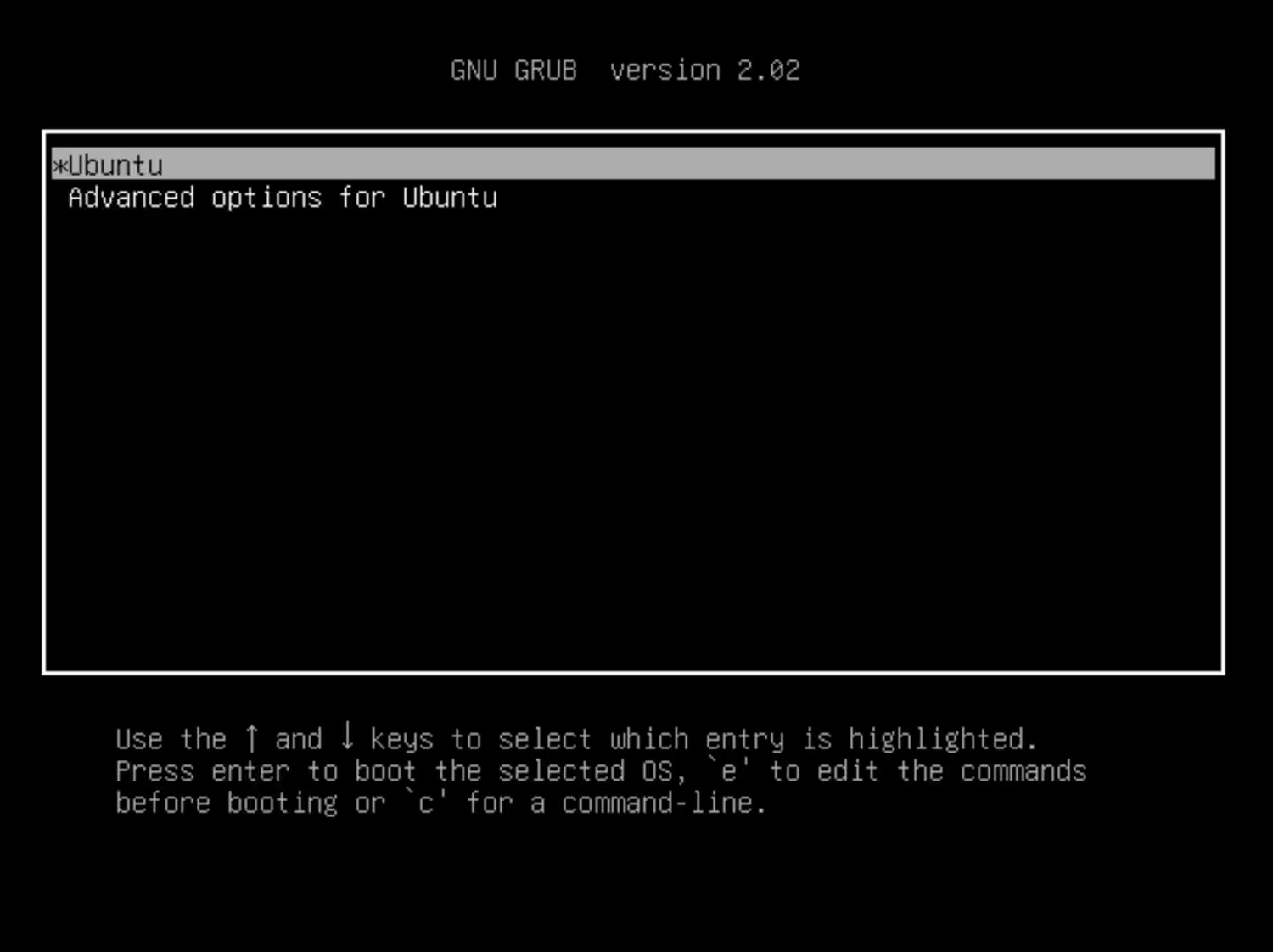
After the BIOS screen, before the OS starts, a Booting from Hard Disk... line appears. Press ESC at that moment to open the GRUB menu.
Step 3: Edit boot parameters
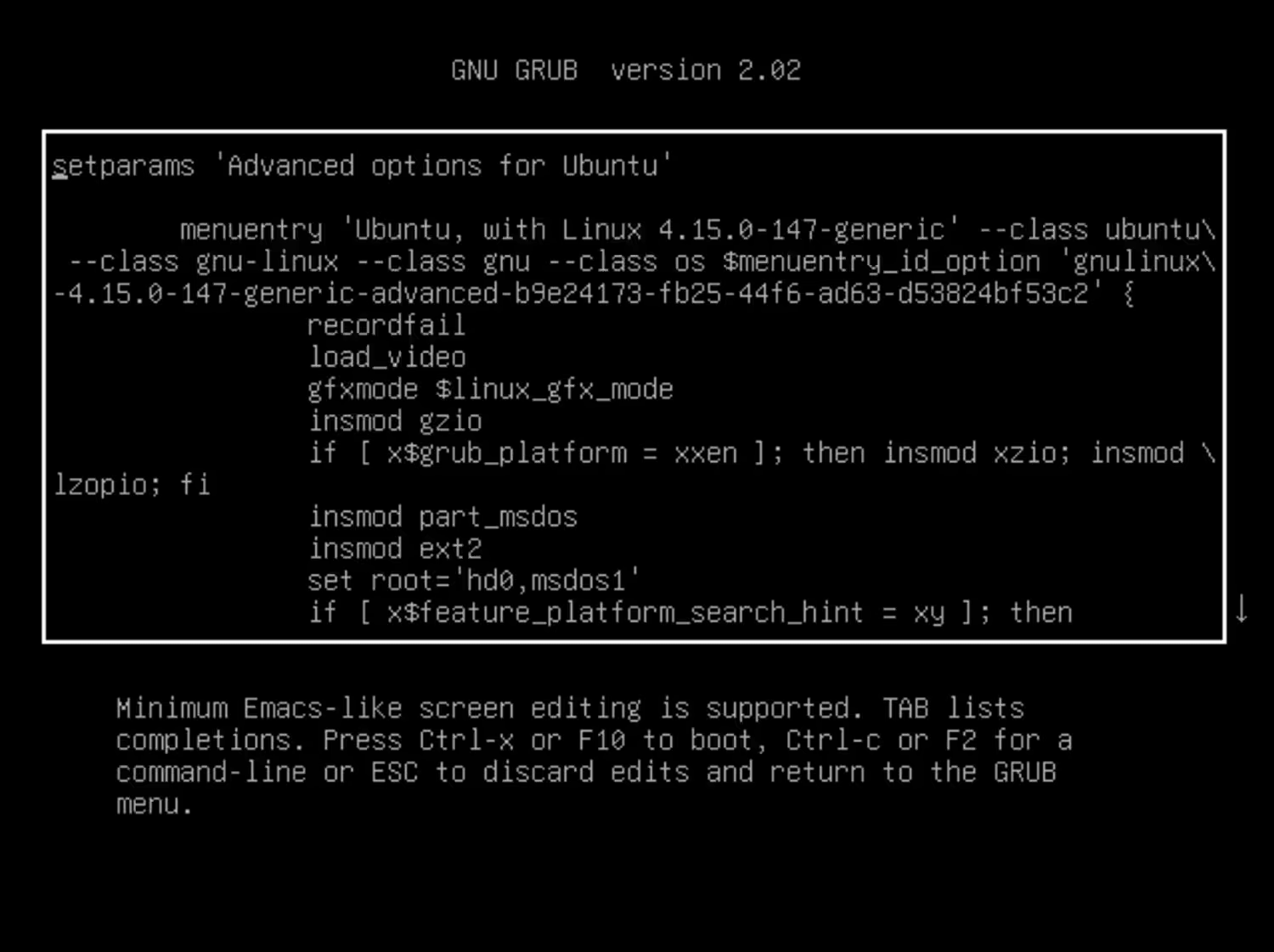
Press e to edit the boot menu. Changes will persist until the next boot.
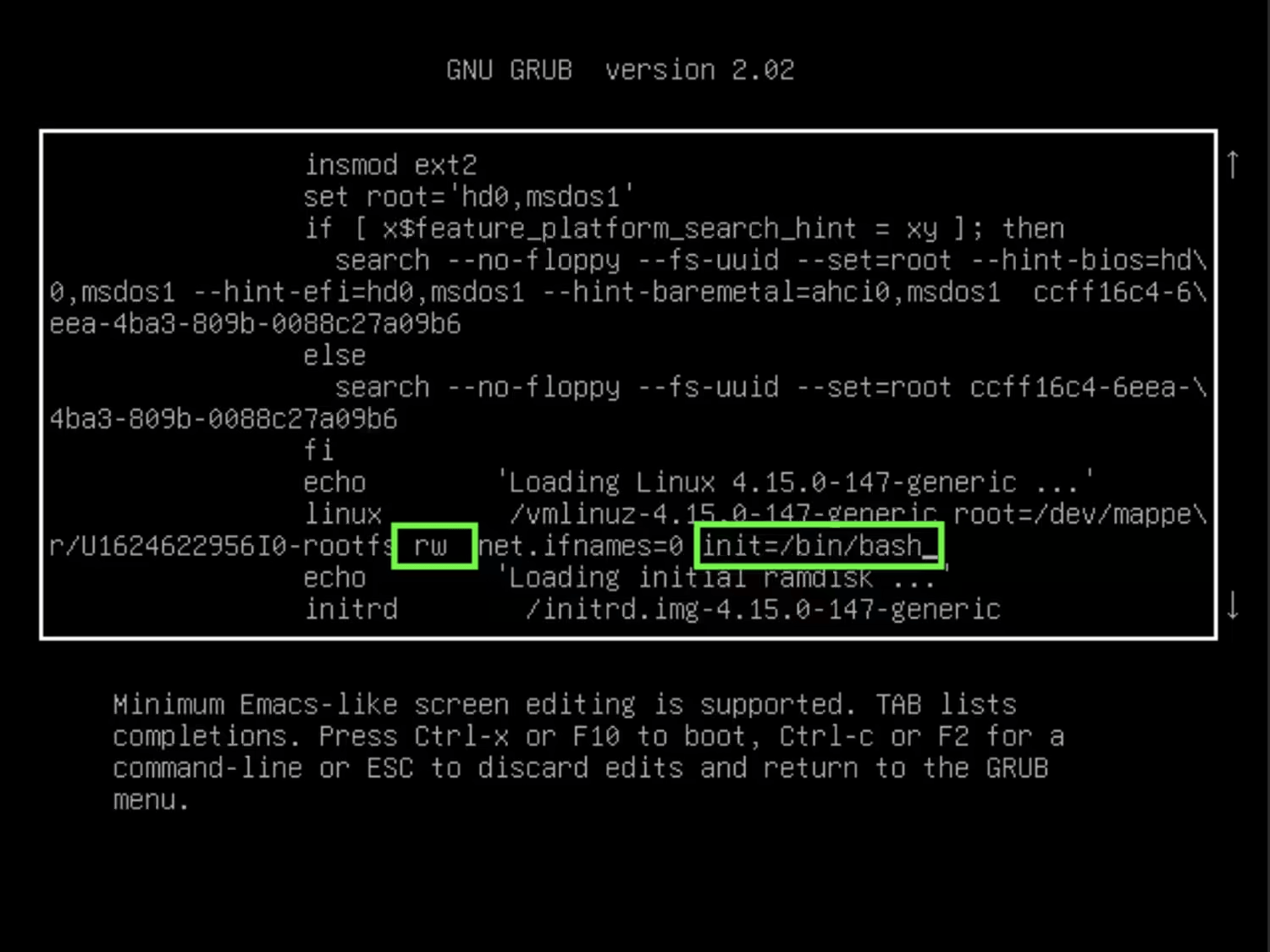
Scroll down to the line that starts with linux /boot. Remove any highlighted parameters and change the ro parameter to rw. Add init=/bin/bash after a space.
Step 4: Boot and reset password
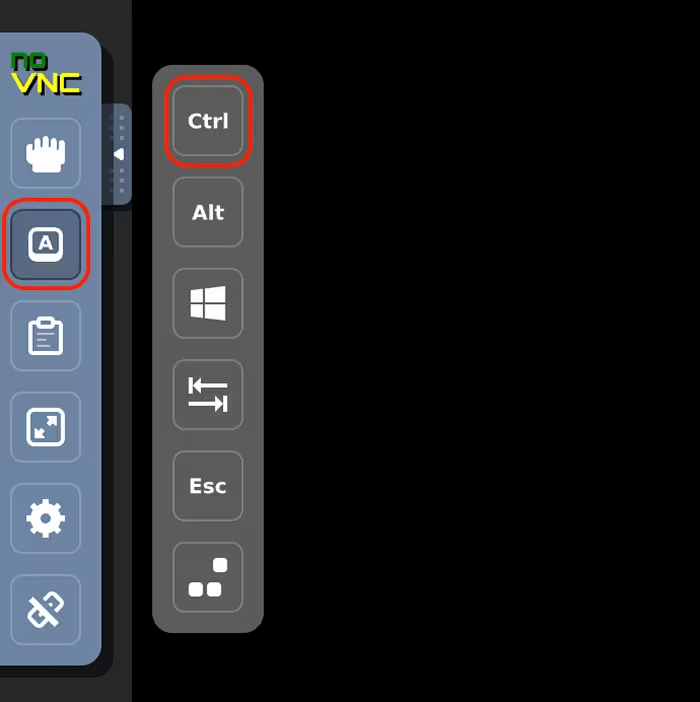
Press Ctrl+X to boot into single-user mode. You may need to press Enter for the command prompt to appear after boot.
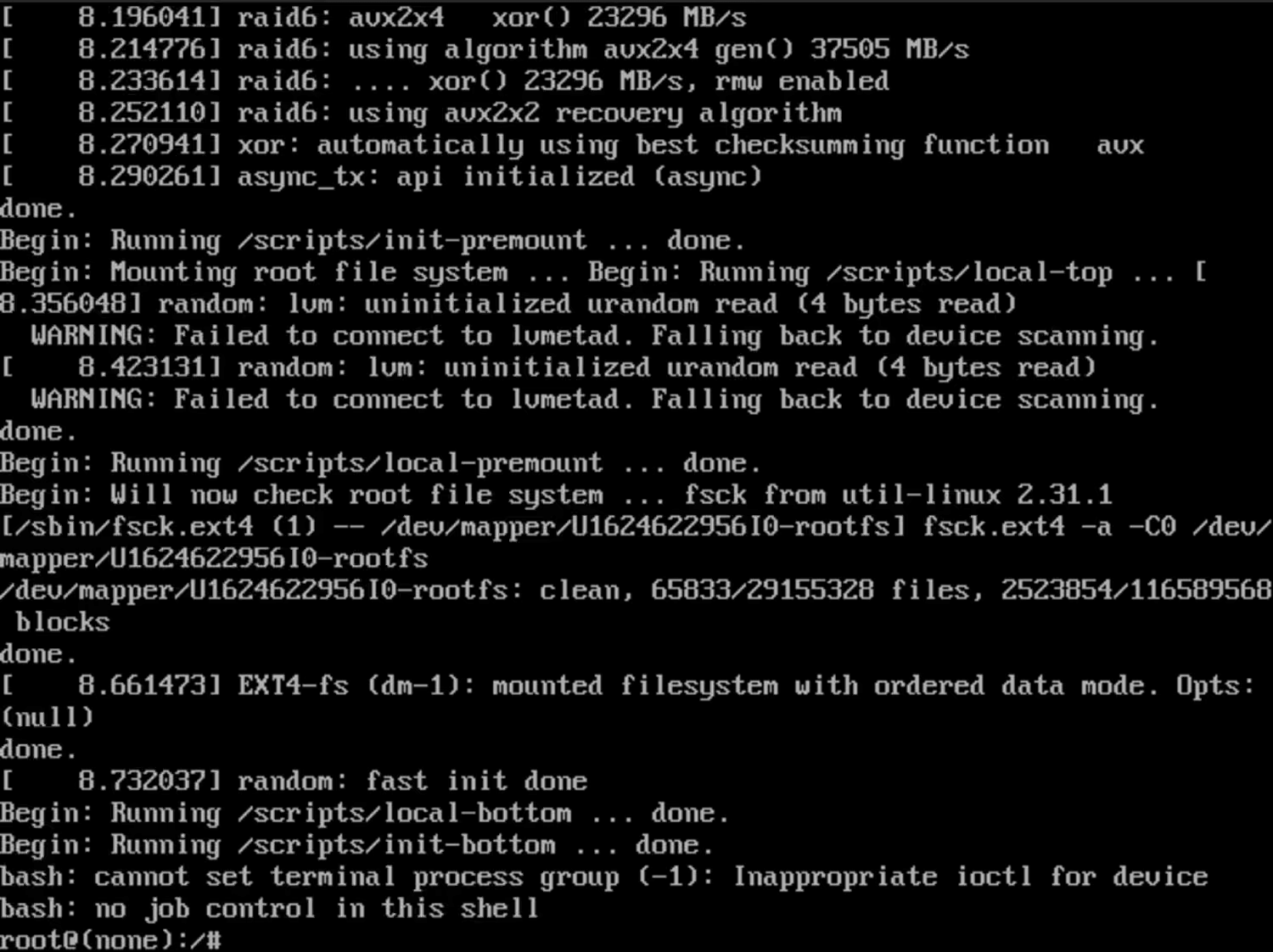
Set a new root password:
passwd rootRestart the server:
reboot