How to reset the root password on Ubuntu 16.04 dedicated server
If you have lost the root password of your server and cannot access it as root, this article will help you resolve this issue. You must access the server console via the Customer Portal.
Password reset algorithm
- Restart the server
- Before the OS starts, change boot parameters in the GRUB boot menu
- Load the OS in single-user mode
- Set a new root password without the old one being required
Step-by-step guide
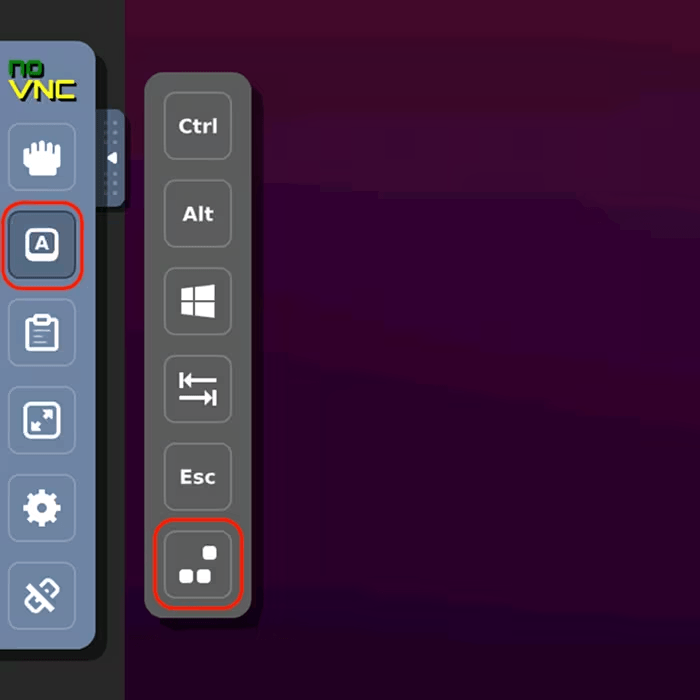
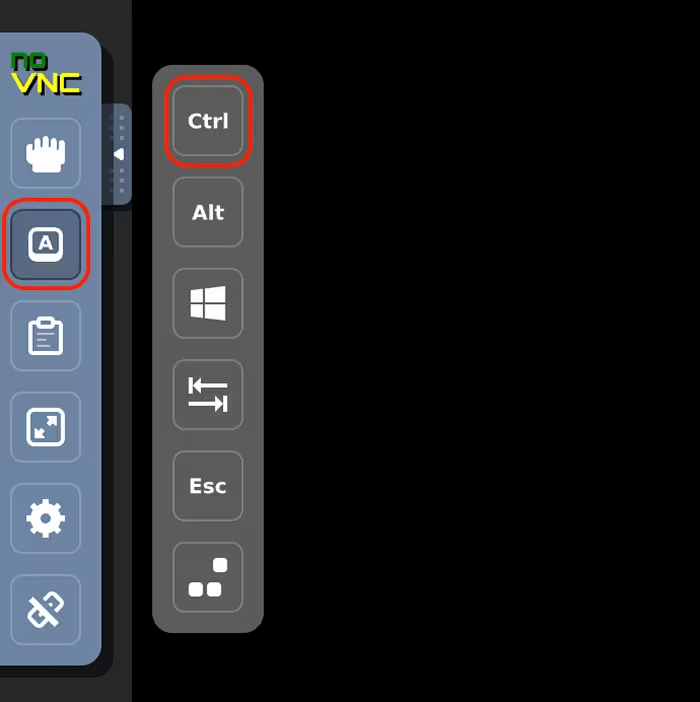
If the server is on, restart it by pressing Ctrl+Alt+Del in the VNC console. After the BIOS menu, before the OS starts, a timer appears — press any key (preferably ESC) to stop it and access the GRUB boot menu.
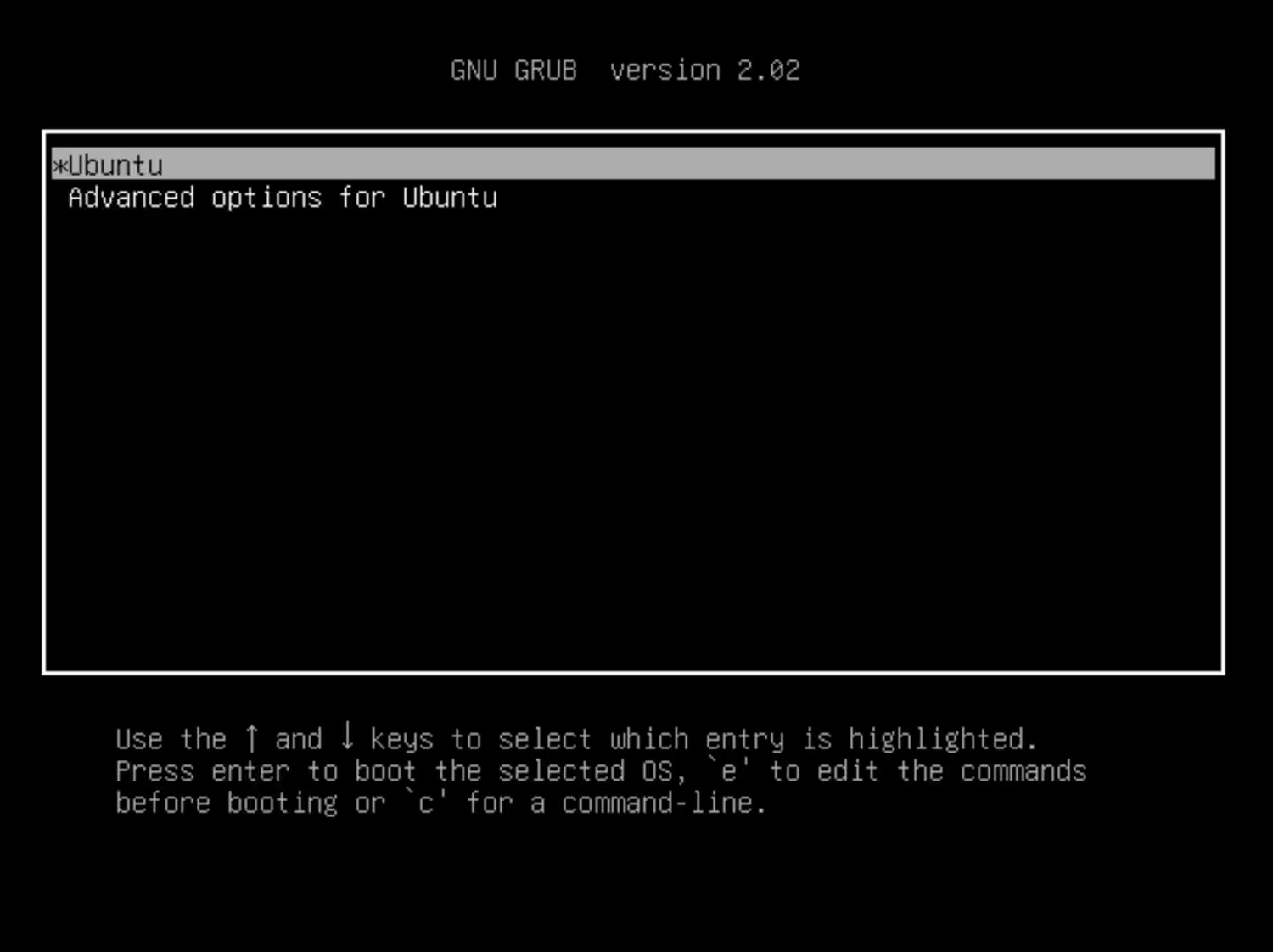
Use the ↓ and ↑ keys to navigate through the menu, select your boot line (often * Ubuntu), and press e to access the boot editing options.
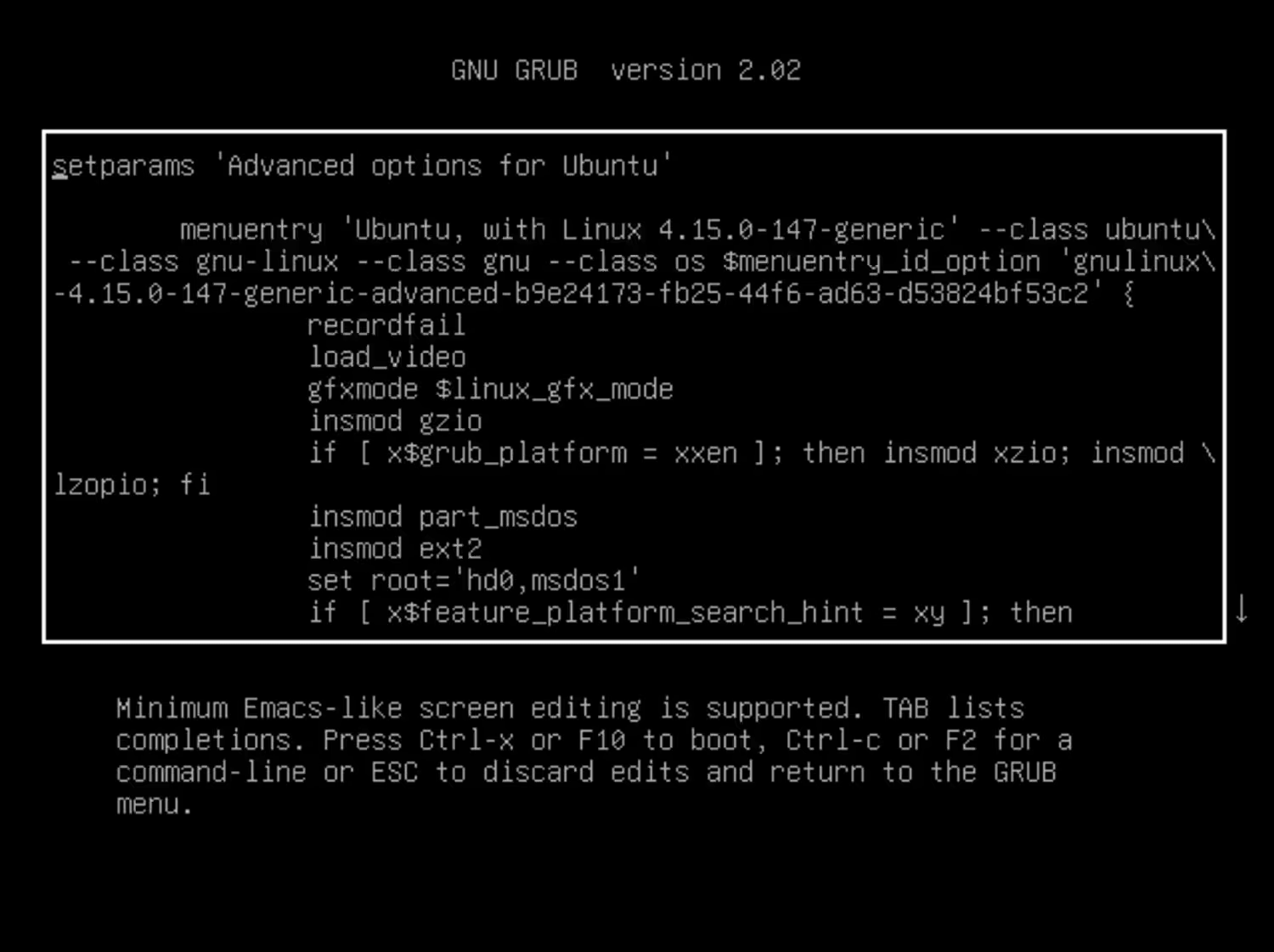
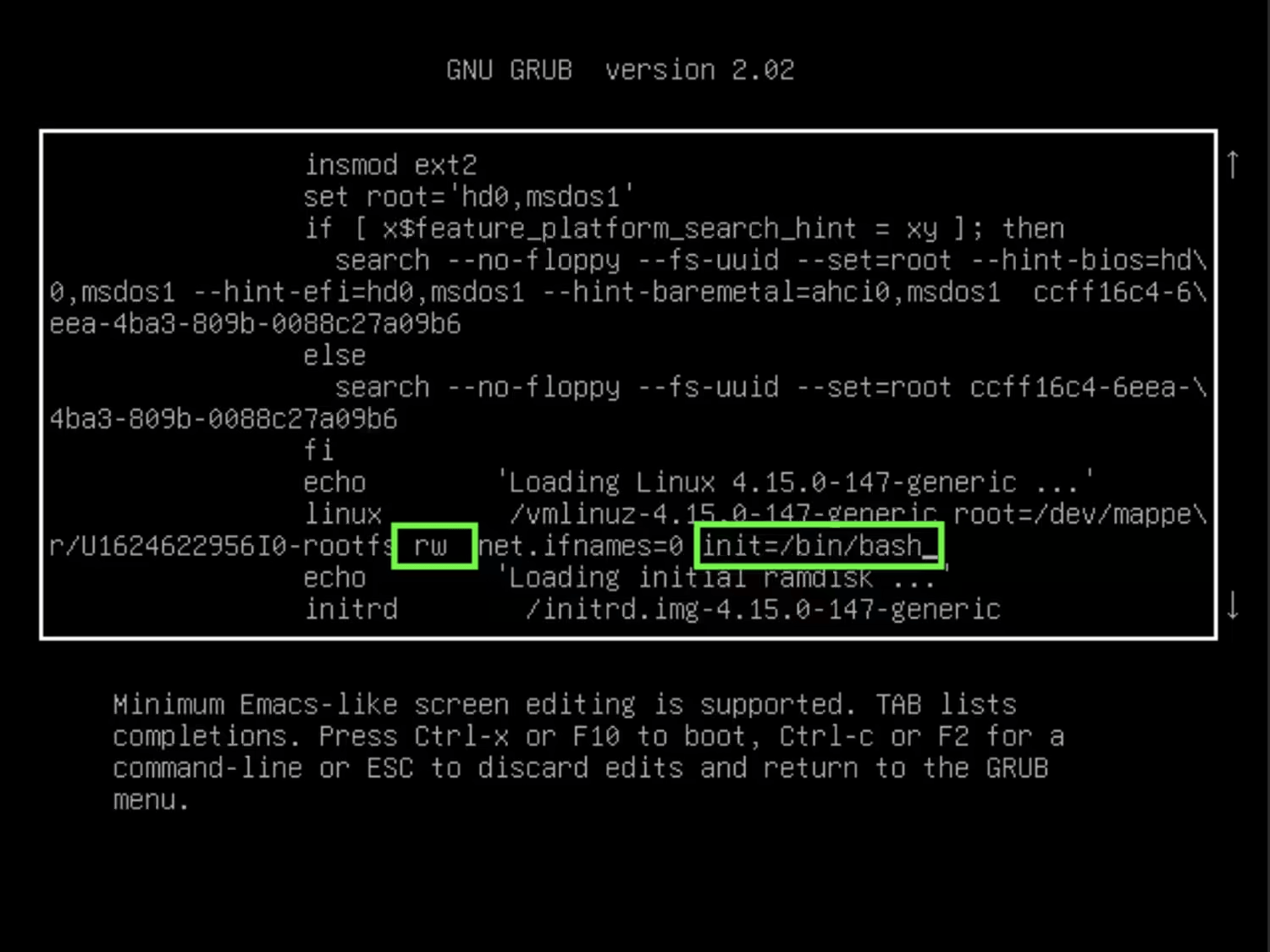
Find the line that starts with linux /boot. At the end of that line, change the ro parameter to rw and add init=/bin/bash after a space.
Press Ctrl+X or F10 to start the system. You will get a root console — run:
passwd rootEnter the new root password twice.
The root password is now changed. Save changes and restart:
sync
reboot -f