How to reset the root password on Ubuntu 24.04
If you have lost the root user password and cannot log in, this guide will help you reset it.
To reset the password, you will need console access to the server. Go to the Customer Portal → Server page → VNC Console. This provides direct access to the server's console, even if SSH is unavailable.
Overview
To reset the password you will:
- Reboot the server
- Edit the kernel boot parameters using the GRUB bootloader
- Boot into single-user mode
- Set a new root password without entering the previous one
- Reboot the server
The reboot and shutdown -r commands, as well as the Ctrl+Alt+Del button, will not work at this stage, as they rely on the init daemon, which will be replaced with /bin/bash. Use the reboot -f command or manually start init using exec /sbin/init.
Resetting a password on a dedicated server
Step 1: Reboot the server
Open the Customer Portal, navigate to the server page, and launch the VNC Console. In the VNC Console toolbar, click Send CtrlAltDel to reboot the server.
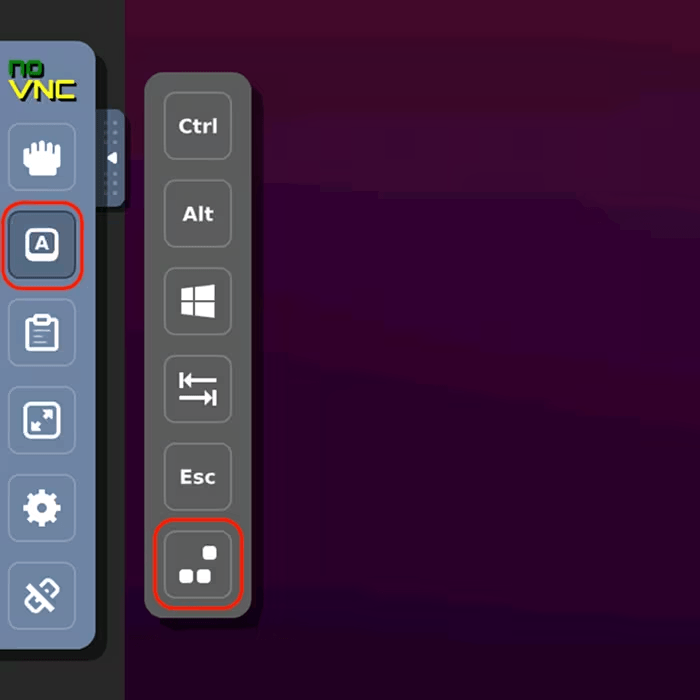
After the BIOS screen, the GRUB boot menu will appear.
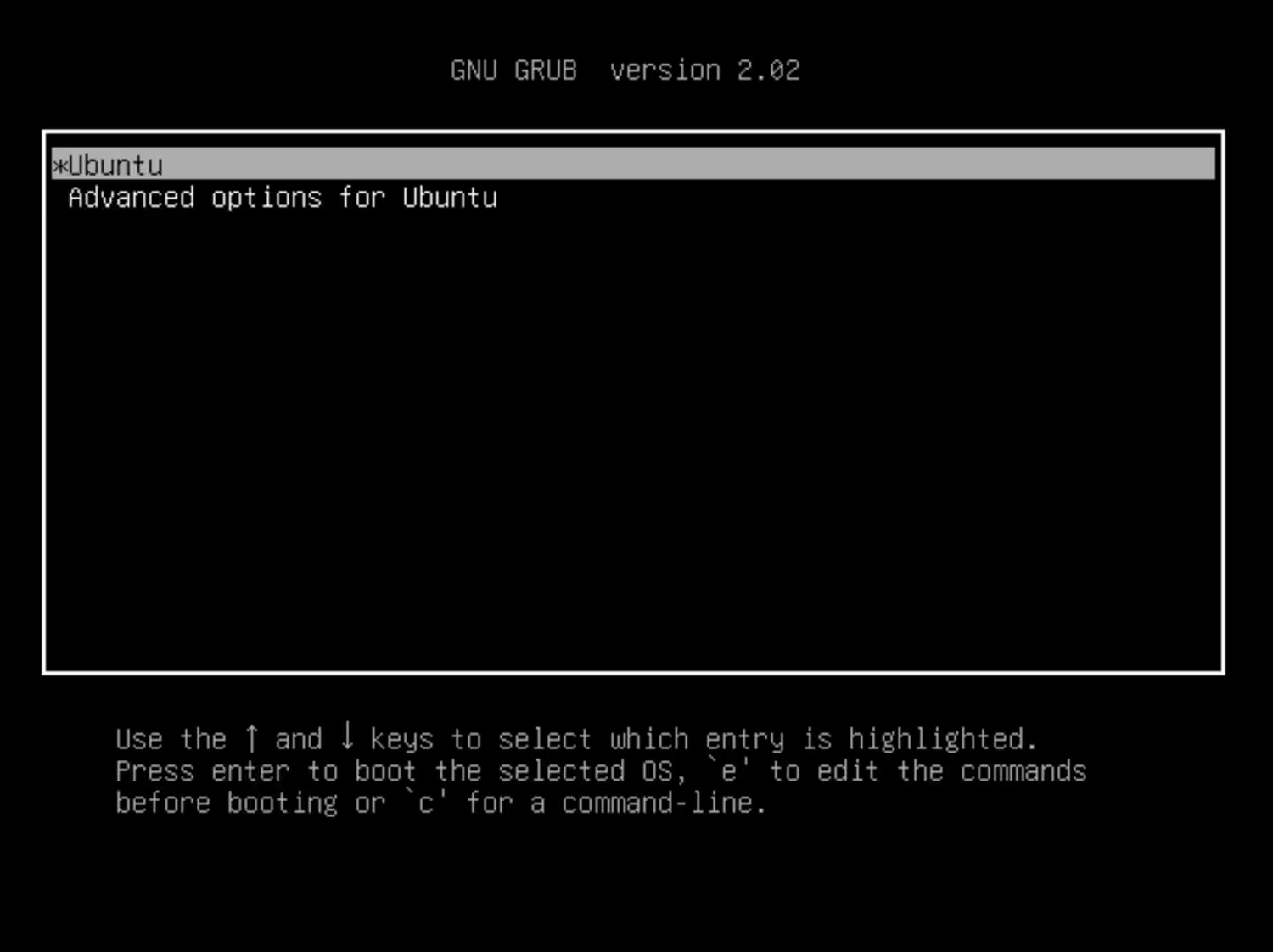
Step 2: Edit boot parameters
Use the ↑ and ↓ arrow keys to select the boot entry for your operating system (usually *Ubuntu). Press e to edit the selected entry.
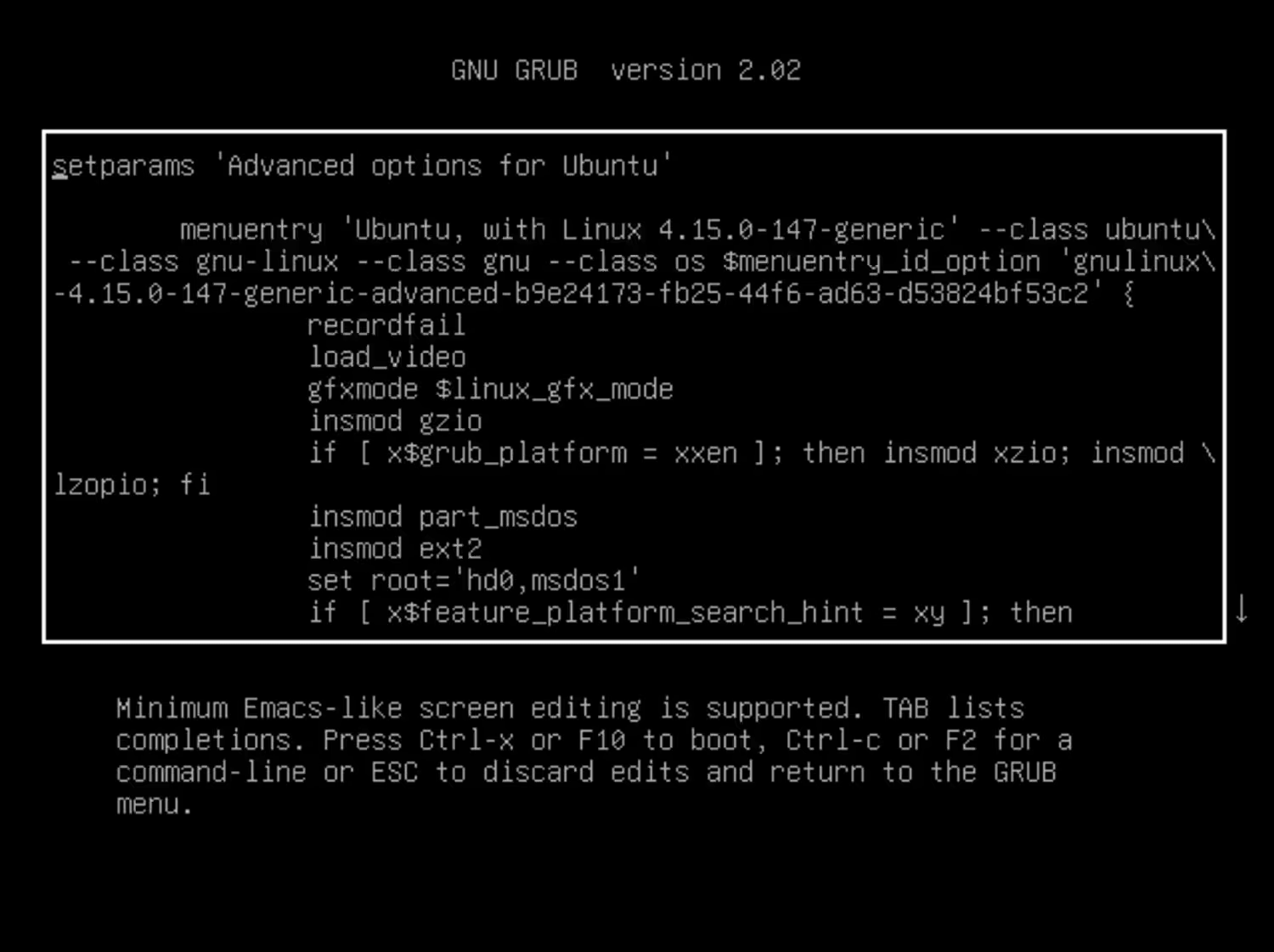
Step 3: Boot into single-user mode
Locate the line starting with linux /vmlinuz. Replace the ro parameter with rw and add init=/bin/bash at the end of the line.
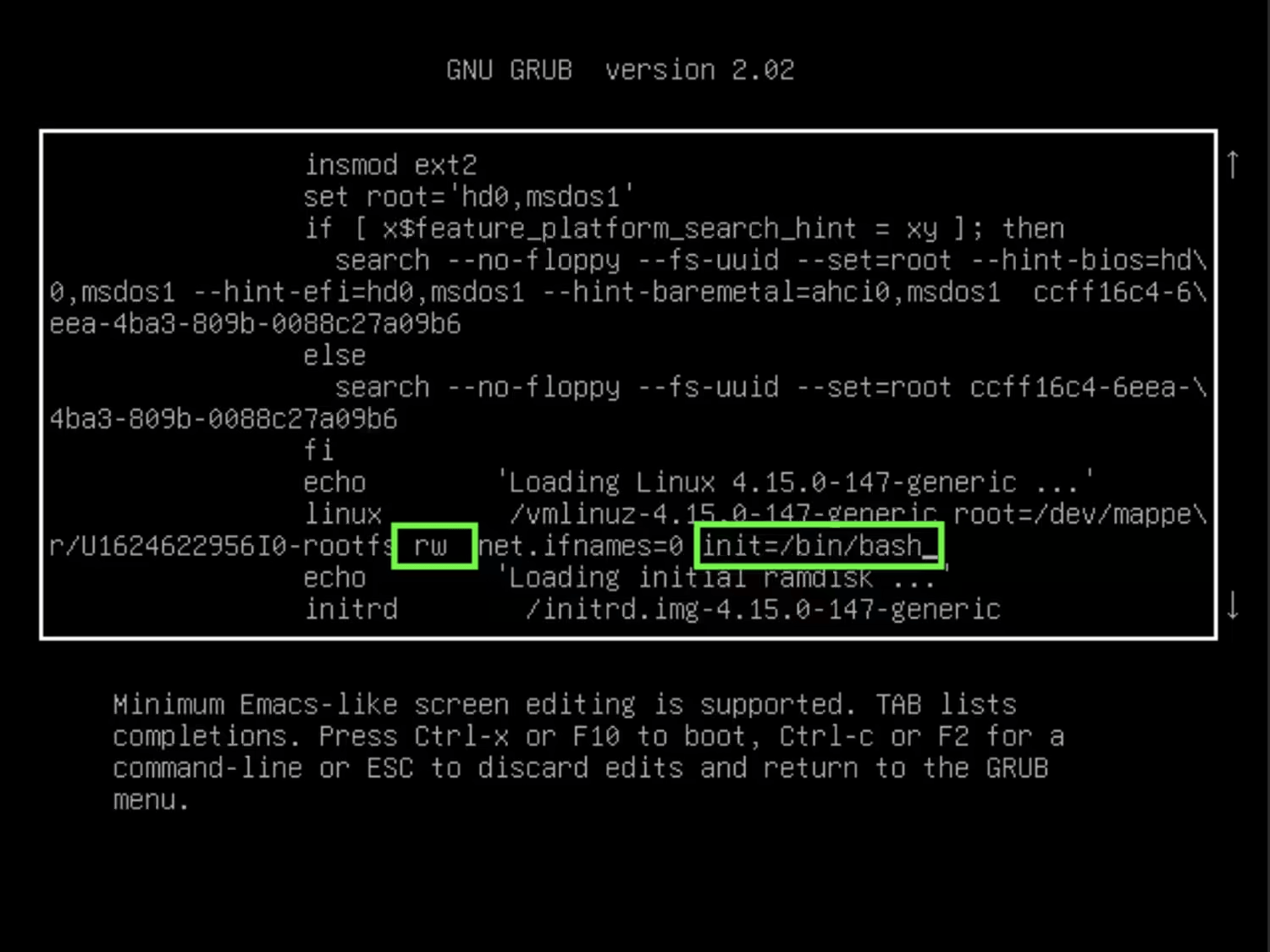
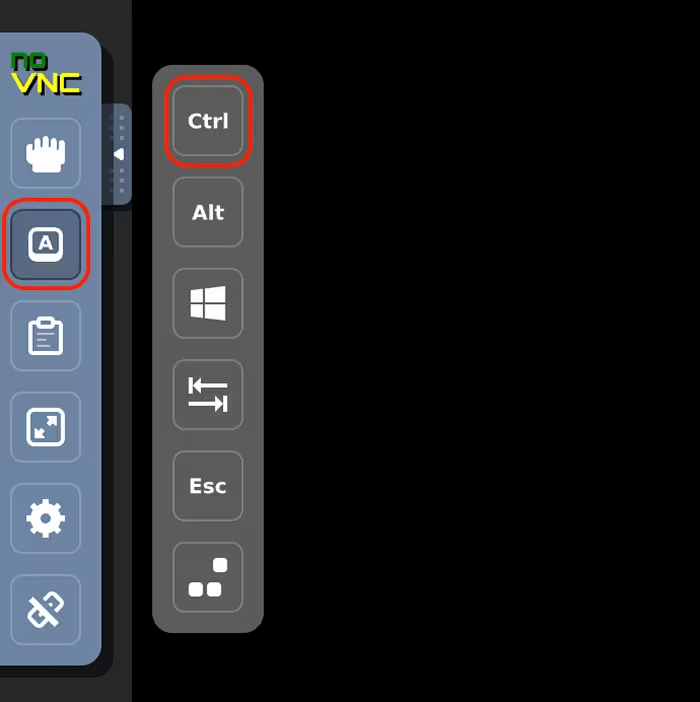
Press Ctrl+X or F10 to boot with the modified parameters. Use the on-screen buttons in the VNC Console to send key combinations.
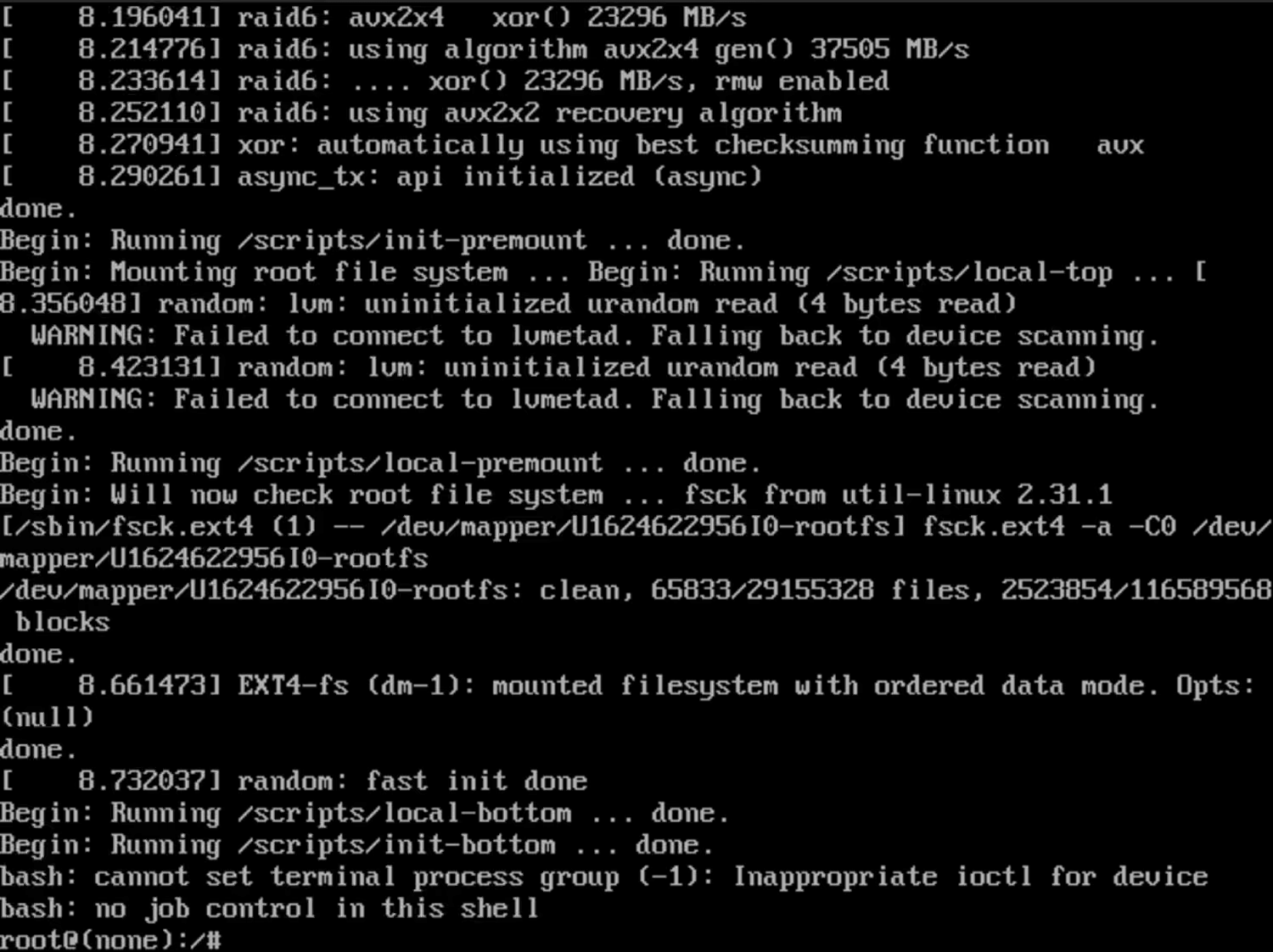
The system will boot directly into a console without requiring login credentials.
Step 4: Reset the root password
Once the system boots into a shell prompt, run:
passwd rootEnter a new root password twice when prompted.
Step 5: Save changes and reboot
sync
reboot -f
Once the system reboots, you can log in as root using the new password.