How to configure network on Windows Server 2012
For the correct operation of the network on Windows — regardless of whether connection redundancy is ordered for a server or not — you must set up link teaming (aggregating two physical interfaces into one logical interface).
Servers with link aggregation have five network ports: two connected to a pair of switches on the private network, two on the public network, and one for out-of-band (OOB) management. Link teaming is configured for each pair of public and private ports using the LACP protocol. By convention:
- aggi — private network aggregation interface
- agge — public network aggregation interface
Setting up link aggregation
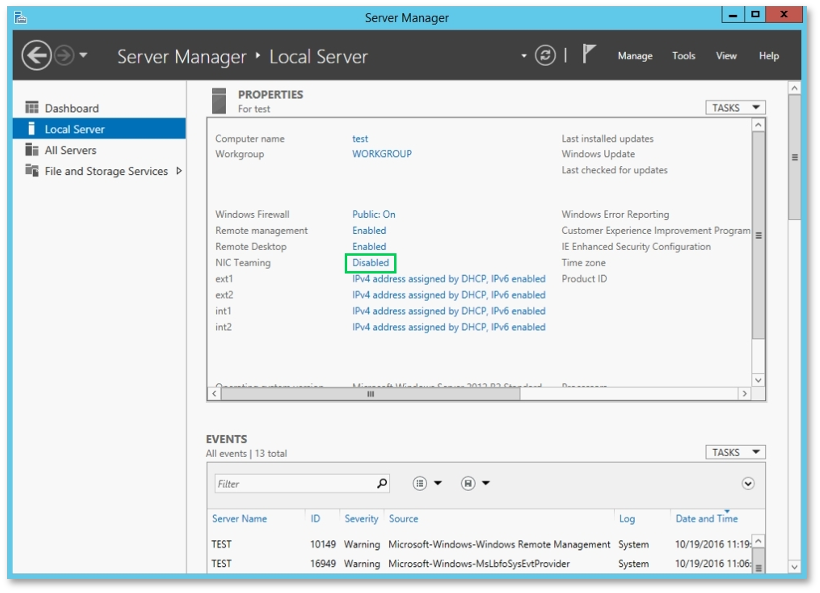
Open Server Manager, go to Local Server, and in the Properties panel click Disabled next to NIC Teaming.
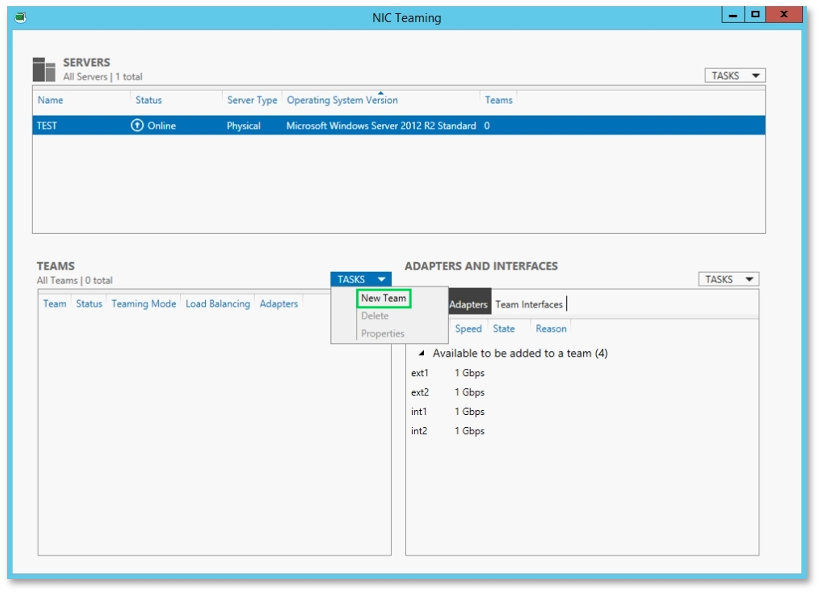
In the NIC Teaming window, open the Tasks drop-down in the Teams section and select New Team.
Configure the private network team first:
- Set the team name to aggi.
- Select int1 and int2 as member adapters.
- Set Teaming mode to LACP.
- Leave Load balancing mode as Dynamic.
- Click OK.
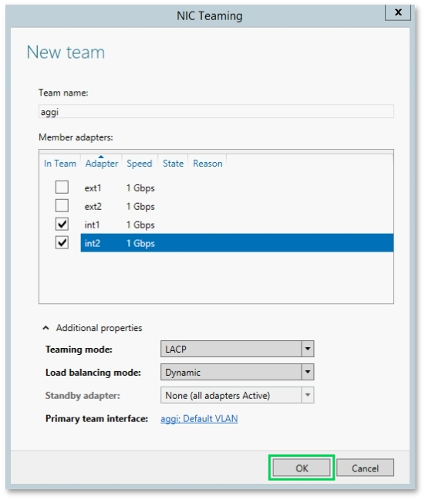
If your system shows different adapter names in Member adapters, contact technical support.
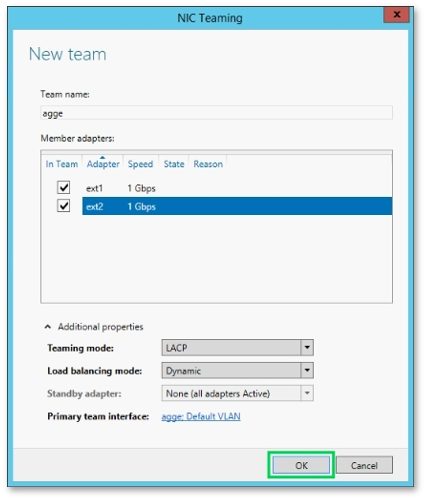
Repeat the same process for the public network team, using:
- Team name: agge
- Member adapters: ext1 and ext2
Configuring IPv4
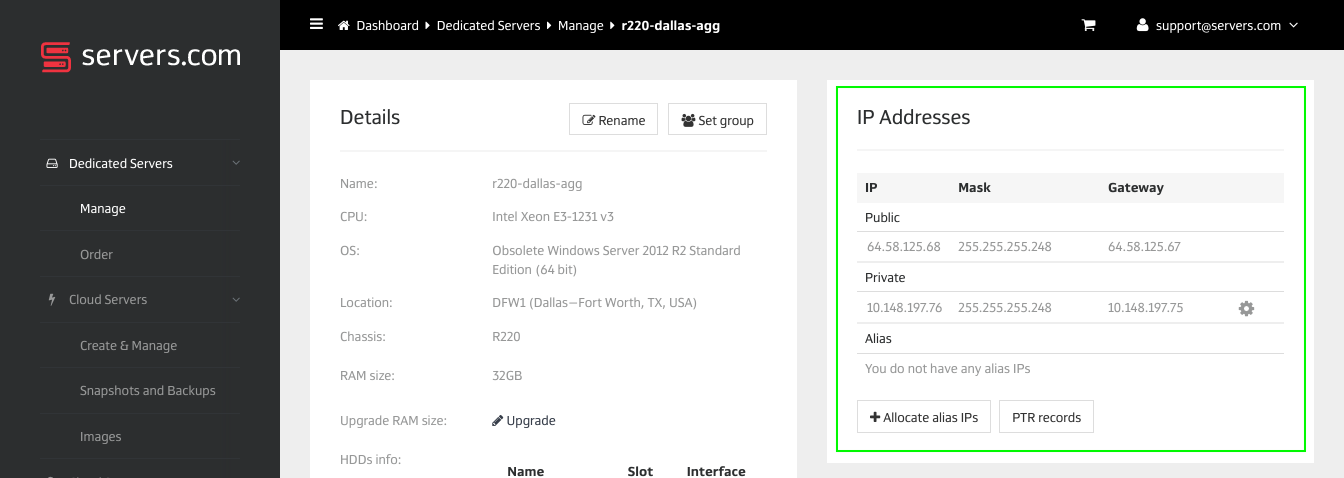
After both teamed interfaces are created, configure IPv4 for each. You will need the private IP, public IP, and gateway addresses — all available on the server's Details page in the Customer Portal.
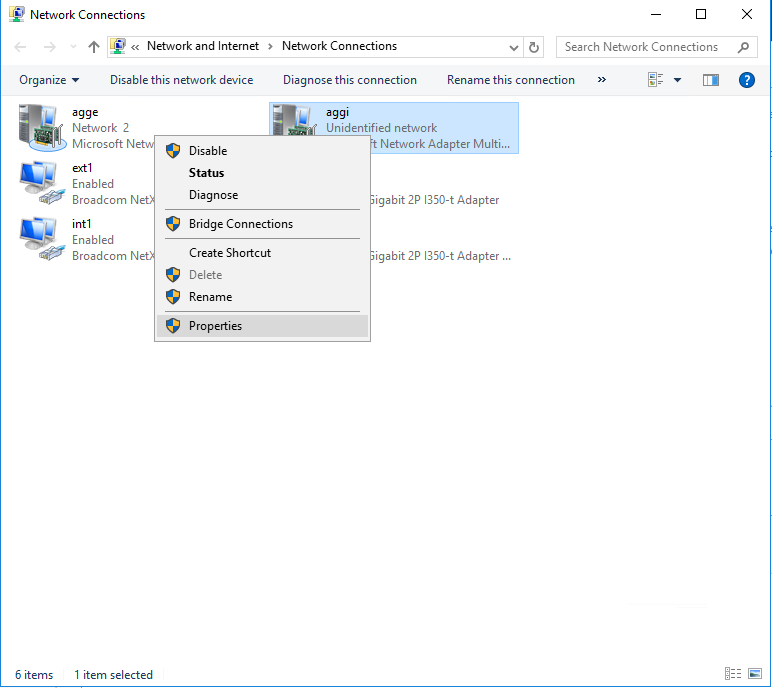
Open Control Panel → Network and Internet → Network and Sharing Center → Change adapter settings. Right-click aggi and select Properties.
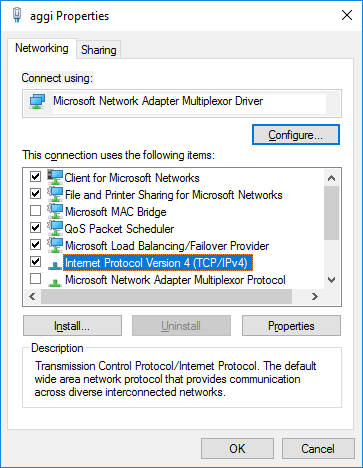
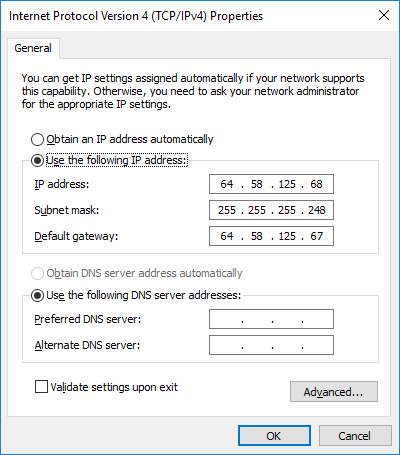
Select Internet Protocol Version 4 (TCP/IPv4) and click Properties.
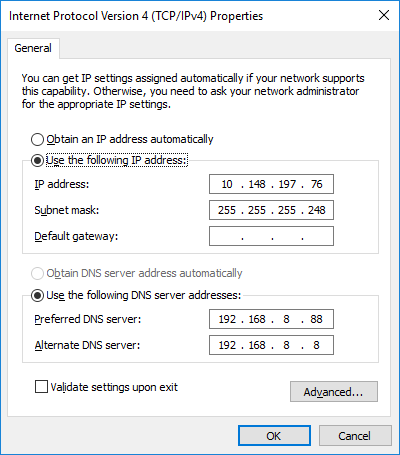
Enter the following values for aggi (private network):
- IP address: your server's private IP address
- Subnet mask: 255.255.255.248
- Default gateway: leave blank
- Preferred DNS server: 192.168.8.88
- Alternate DNS server: 192.168.8.8
Click OK.
Repeat for agge (public network):
- IP address: your server's public IP address
- Subnet mask: 255.255.255.248
- Default gateway: your public gateway IP
- Preferred DNS server: leave blank
- Alternate DNS server: leave blank
Click OK.
Adding static routes
Press Win + R, type cmd, and click OK. Run the following command to find the interface index numbers:
netsh int ipv4 show interfaces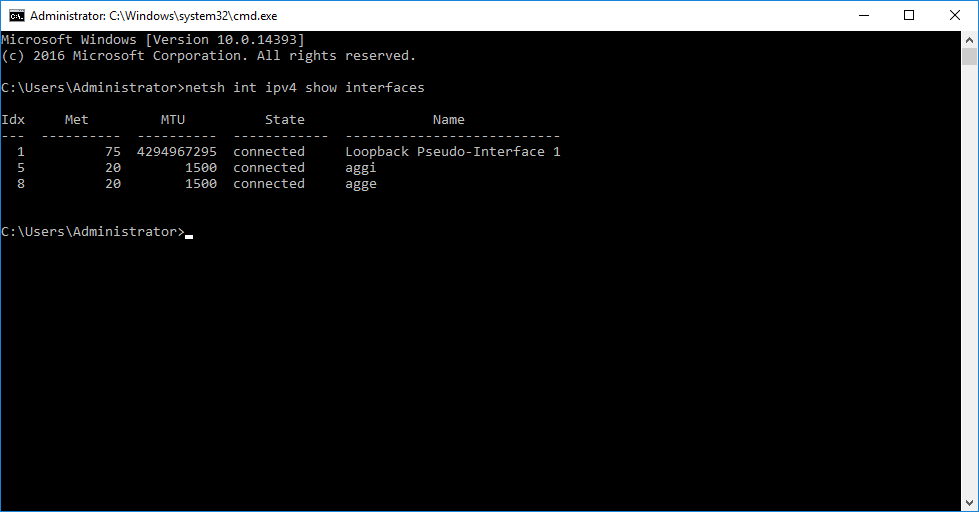
In the example above, aggi has index 5 and agge has index 8. Now add the static routes, replacing the placeholders with your actual values:
route -p add 192.168.0.0 mask 255.255.0.0 [Private_Gateway_IP] if [Private_Interface_ID]
route -p add 188.42.208.0 mask 255.255.248.0 [Private_Gateway_IP] if [Private_Interface_ID]
route -p add 10.0.0.0 mask 255.0.0.0 [Private_Gateway_IP] if [Private_Interface_ID]
Using the example values:
route -p add 192.168.0.0 mask 255.255.0.0 10.148.197.76 if 5
route -p add 188.42.208.0 mask 255.255.248.0 10.148.197.76 if 5
route -p add 10.0.0.0 mask 255.0.0.0 10.148.197.76 if 5
Network configuration is now complete.