Overview
This article covers the key concepts behind the VPN to OOB service, including out-of-band management, available access methods, setup steps, and use cases.
Concepts
The VPN to OOB service allows you to establish a secure VPN connection to the server's out-of-band (OOB) management.
Out-of-band management
Dedicated servers are equipped with the out-of-band (OOB) management platform that sits on the server motherboard and allows you to update and manage servers even if they are turned off. In case of Dell, such a platform is called iDRAC. OOB management provides these opportunities:
- Remote access via the web interface or command line
- Power management
- Hardware sensors monitoring
- Operating system reinstallation
The OOB network is connected from an OOB switch to an OOB port of a server.
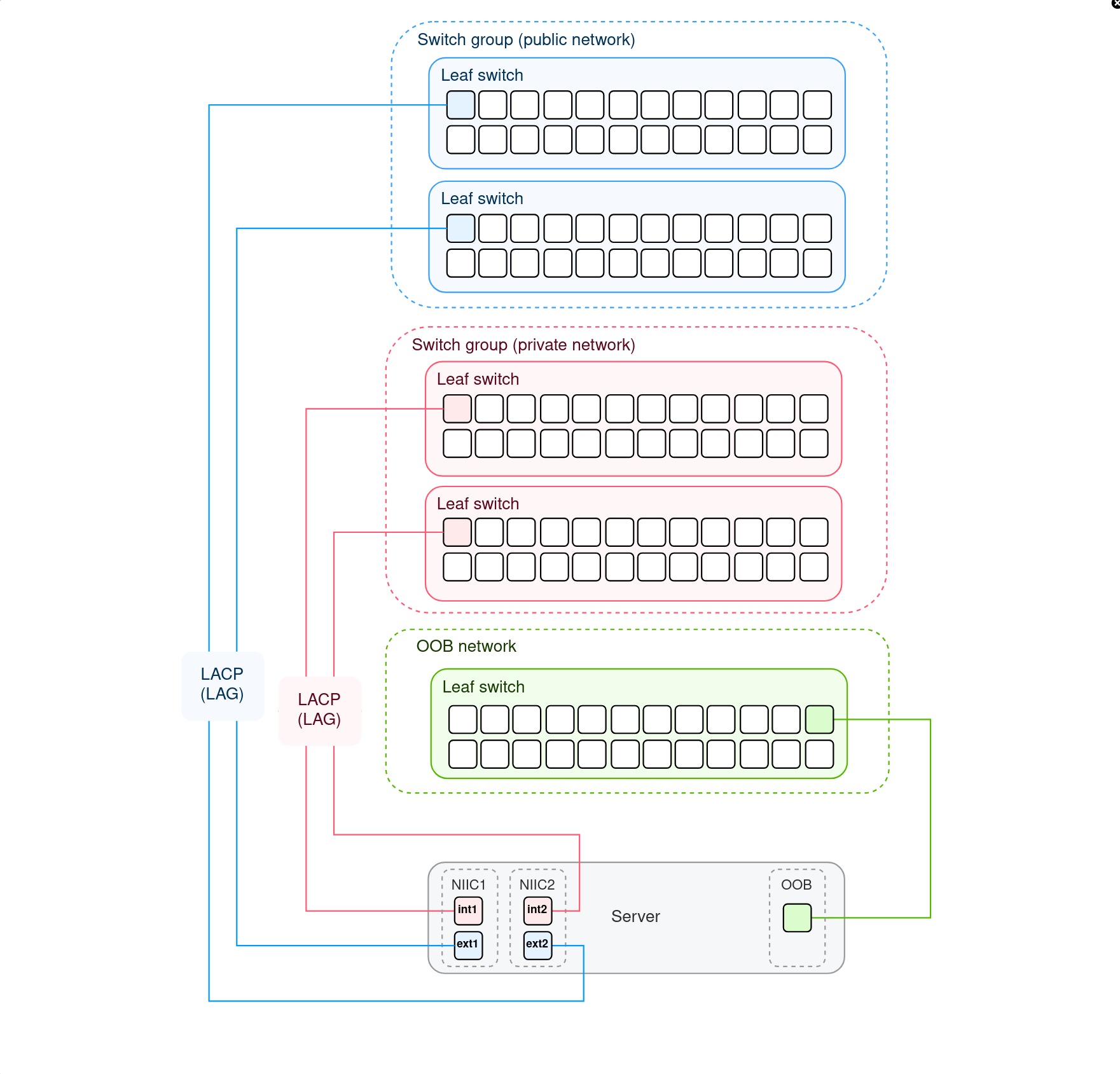
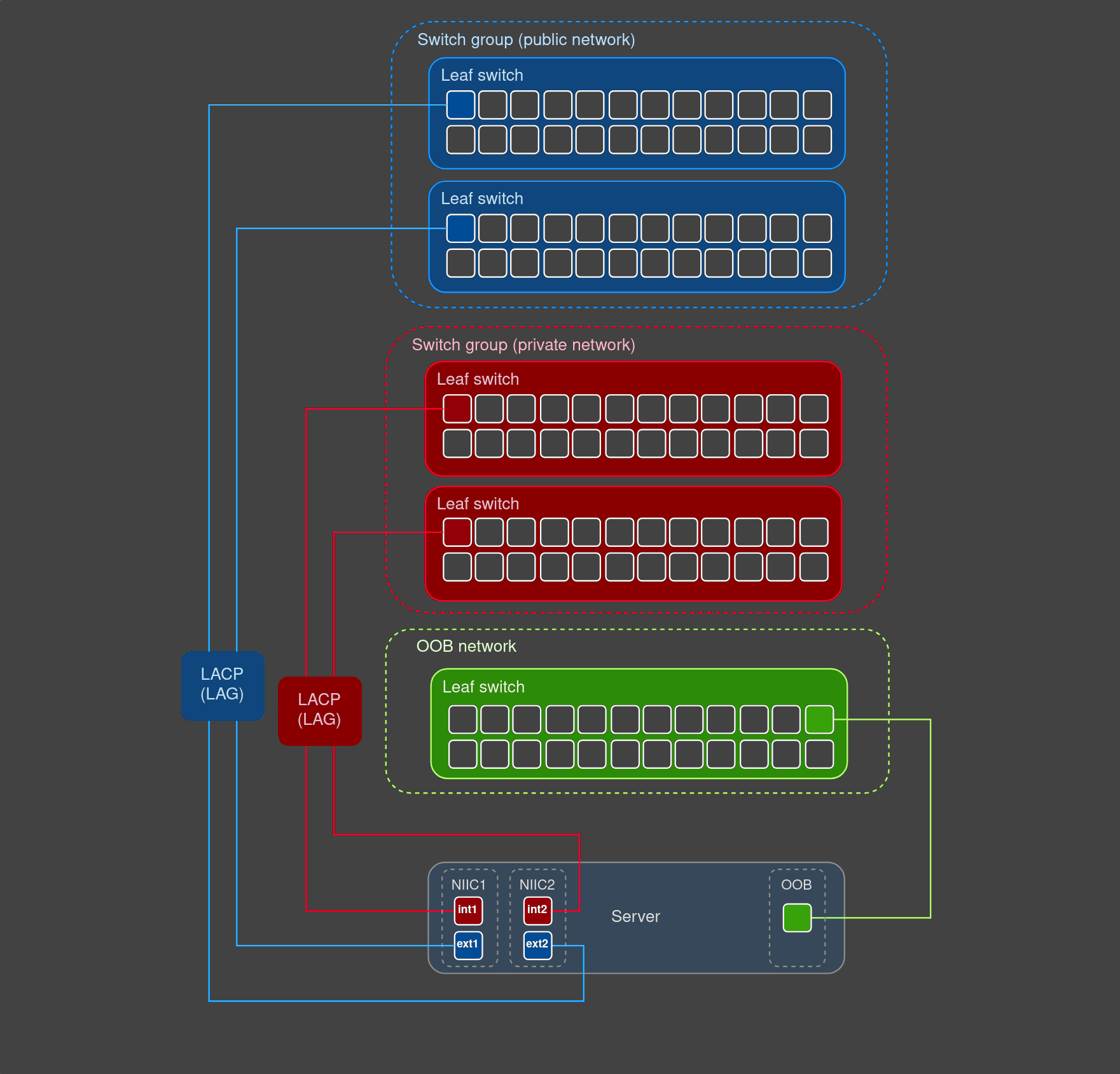
Out-of-band access
By default, the OOB network is hidden behind VPN to enhance security. However, some cases require urgent access when there is no option to connect via VPN. That's why Servers.com has two ways to reach OOB:
- Public access — access over Internet without a VPN connection
- VPN to OOB service — access via a VPN client
Public OOB access activation
Public access allows you to connect to the server's OOB via an OOB IP address using a login and password. To reach OOB of a server, follow these steps:
- Navigate to the Enterprise Bare Metal → Manage section of the Customer Portal. Click the Details button next to the server's name. On the server's details page, scroll down to the OOB section.
- Click the Enable public access for 24 hours button. After this, the public OOB access will be open for the next 24 hours.
- Enter the IP address from the OOB section in your browser and log in using the Credentials button. A browser will warn you about your connection being not secure because of a self-signed HTTPS certificate — this is normal, continue despite this message.
- After successful login, you will see the OOB dashboard of a server vendor from where you can perform the necessary operations.
- When public access is no longer needed, you can turn it off by clicking Disable access in the OOB section.
VPN to OOB setup
The Servers.com Customer Portal provides you with VPN credentials to access servers' OOB. These credentials consist of:
- Name (Default user is a name given automatically)
- Login
- Password
- Shared secret
Credentials are associated with a specific location but they can be used to reach other locations too.
Limitations
Up to 5 credentials records per location.
Billing
The service is free.
Use cases
Troubleshooting
This service is useful for troubleshooting cases. When a Dell server becomes unavailable, you can connect to its DRAC using a secure VPN connection and fix the issue.
Security
When an employee has left a company, you can reset their credentials from the Customer Portal and be sure that only your current team members can reach the OOB of your servers.