How to set up L2TP over IPsec for iDRAC on Linux Ubuntu 24.04
This article explains step-by-step guides how to connect to iDRAC using a secure L2TP over IPsec VPN connection. It covers how to find your VPN credentials in the Customer Portal, installing the required packages, configure the VPN connection, and add the necessary routes to access the iDRAC network.
Temporary public access
Alternatively, if necessary, you can enable temporary public access to the iDRAC interface, allowing access without a VPN. This can be activated in the Customer Portal on the server details page under the OOB section by selecting Enable public access for 4 hours. Once activated, public access remains enabled for the next four hours, but can be manually disabled at any time.
For security reasons, VPN access remains the preferred method and should be used whenever possible.
Finding VPN credentials
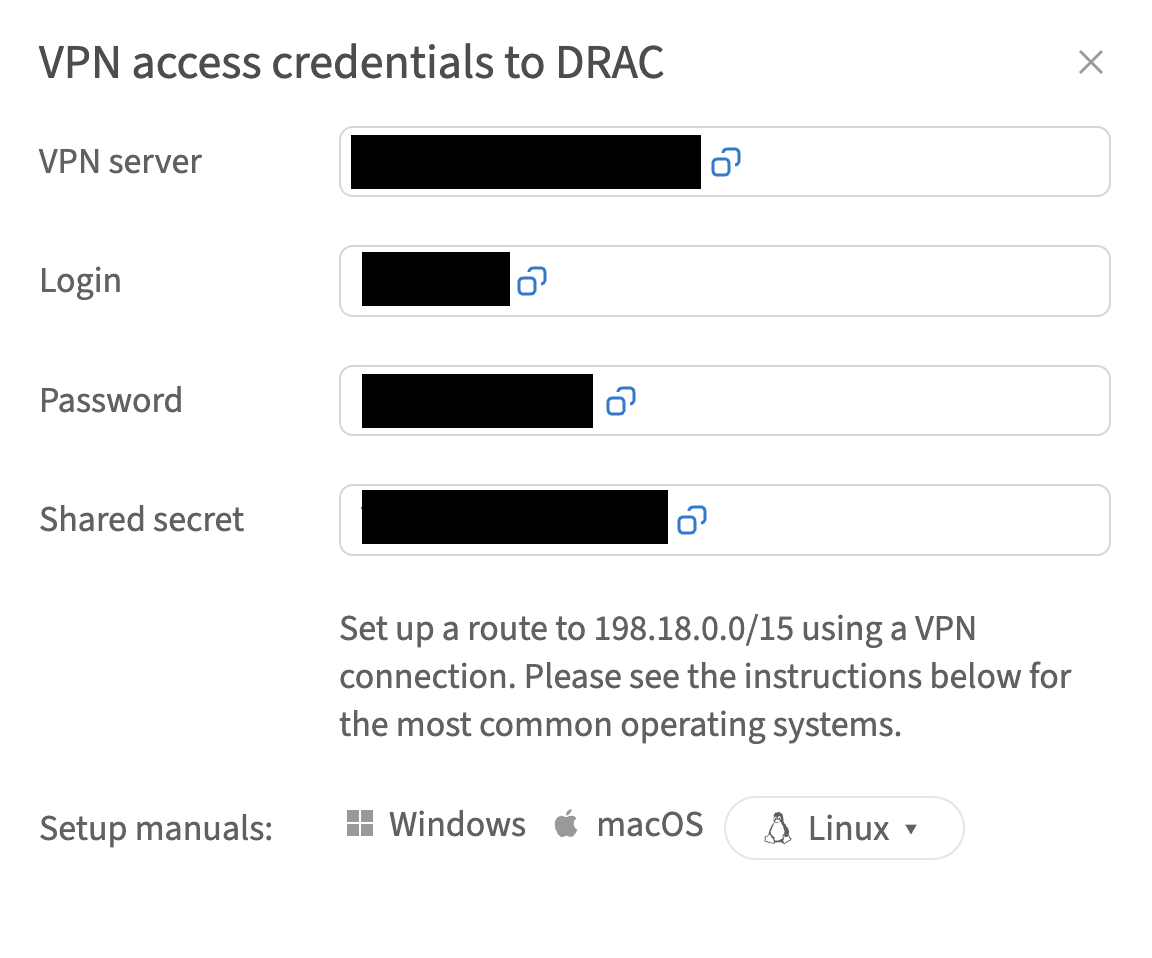
Credentials and instructions for setting up a VPN connection to the OOB network are available in the Customer Portal. To access them:
- Navigate to VPN access → VPN to DRAC section
- Select the location and click Credentials
- In the opened window, you will find the credentials
Installing required packages
- Update the package information to retrieve the latest versions and dependencies:
sudo apt update - Install the L2TP plugin for NetworkManager:
sudo apt install -y network-manager-l2tp network-manager-l2tp-gnome - Restart your system:
sudo reboot
Setting up a new VPN connection
-
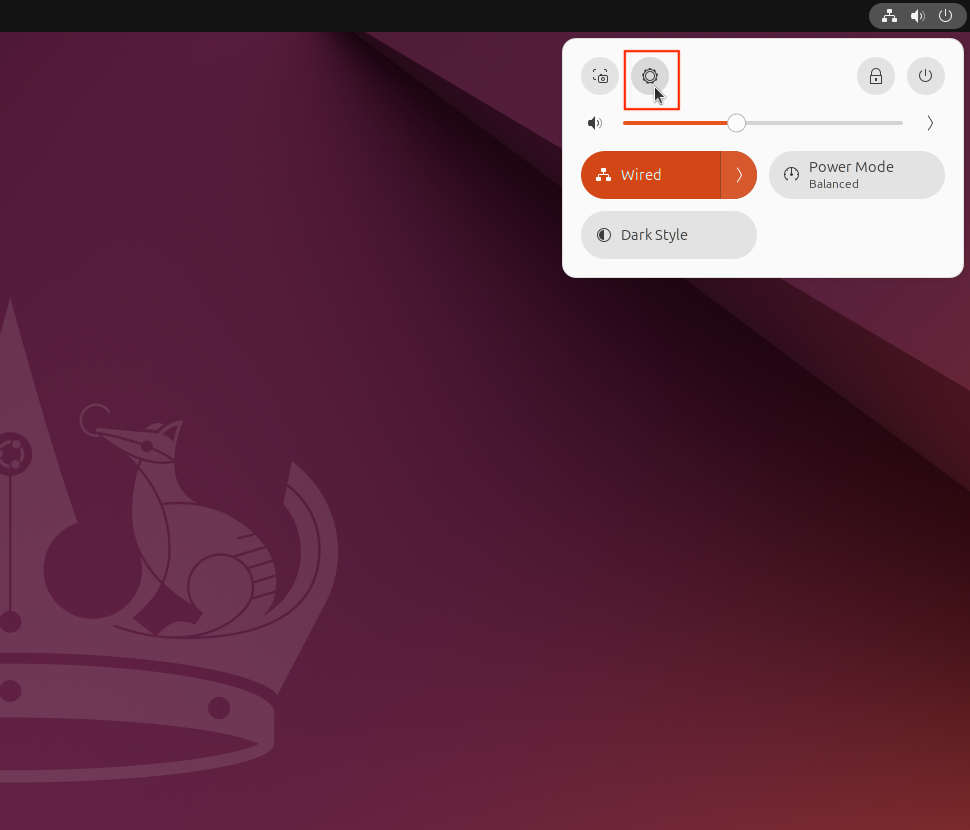
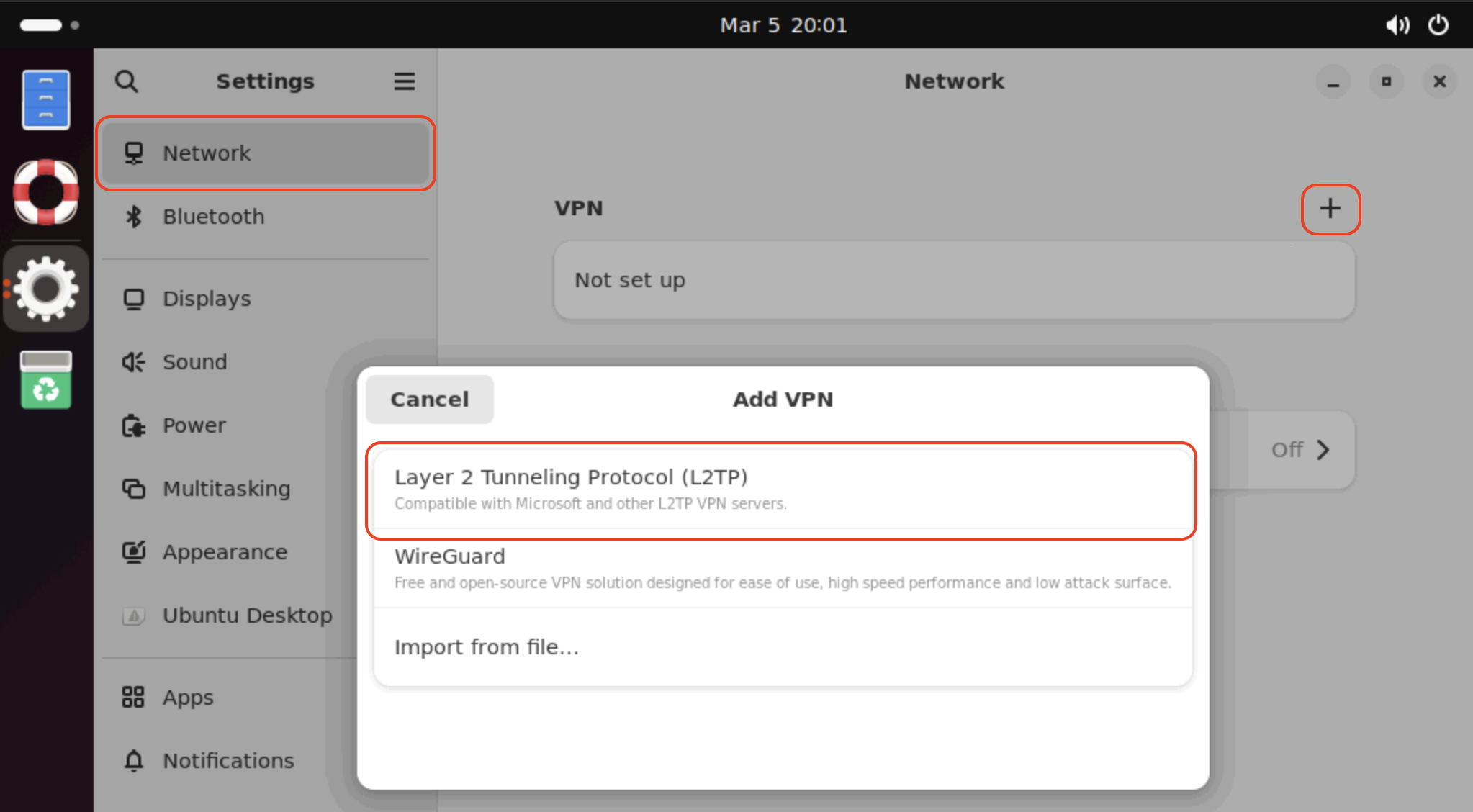
Click the Settings button in the shortcuts menu and navigate to Network
-
Click the + button next to the VPN label to add a new VPN connection and select Layer 2 Tunneling Protocol (L2TP)
-
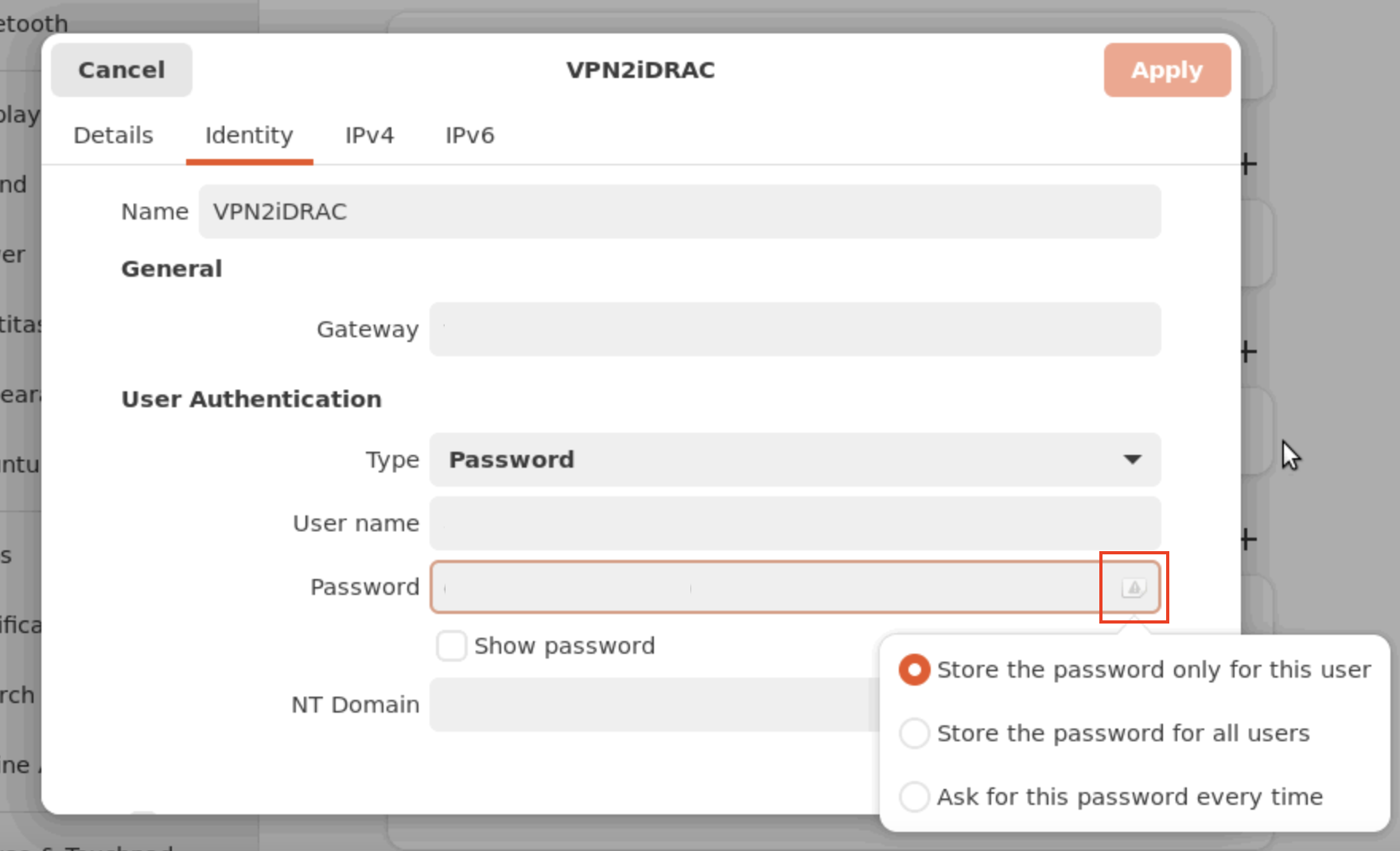
In the VPN connection settings, go to the Identity tab and enter the following details:
- Connection name (e.g. VPN2iDRAC)
- Login credentials obtained from the Customer Portal:
- Gateway: VPN server
- User name: login
- Password: password
- Click the user symbol in the password input field and select Store the password only for this user
-
In the same tab, click IPsec Settings:
-
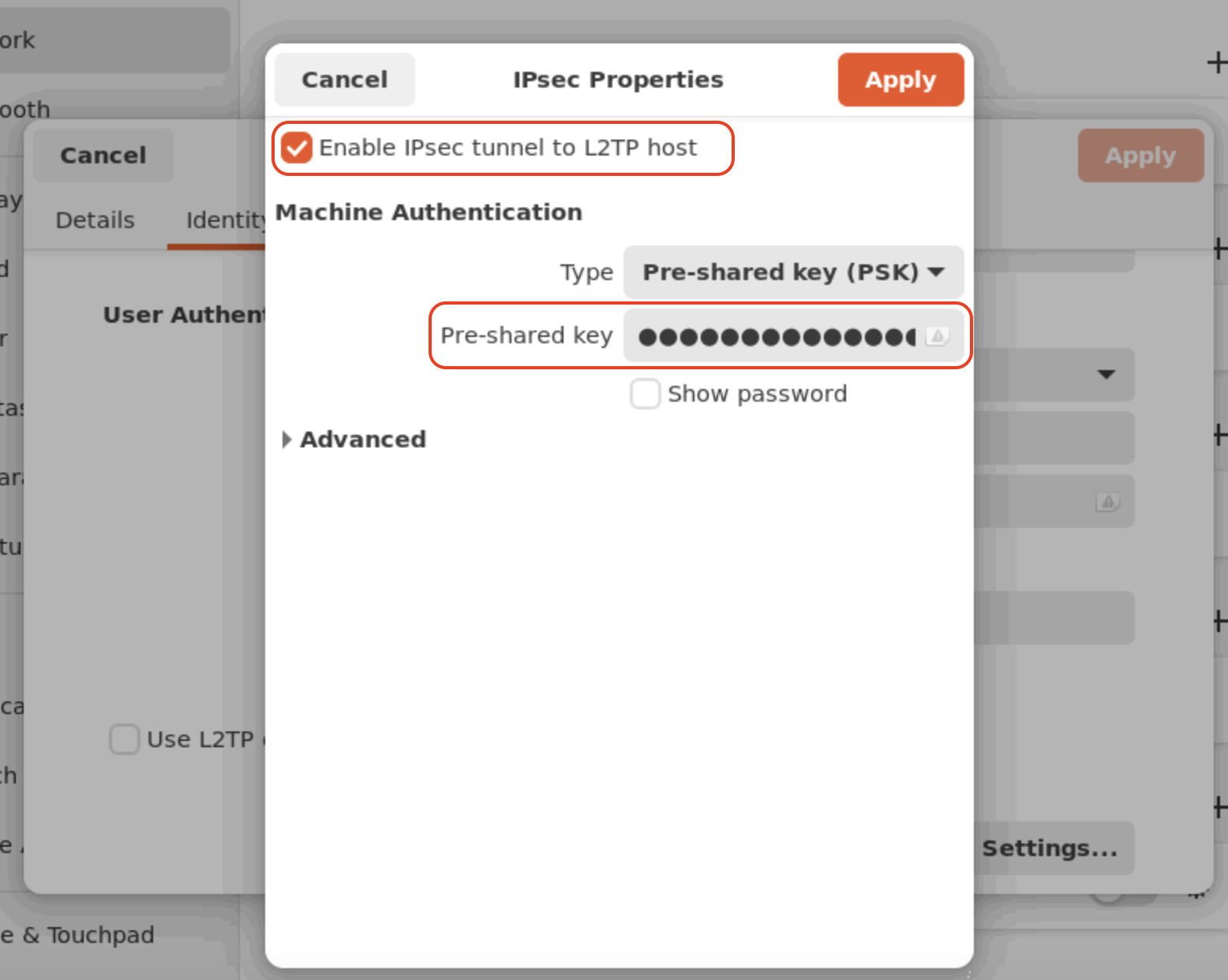
Tick Enable IPsec tunnel to L2TP host
-
Enter the Shared key obtained from the Customer Portal in the Pre-shared key input box
-
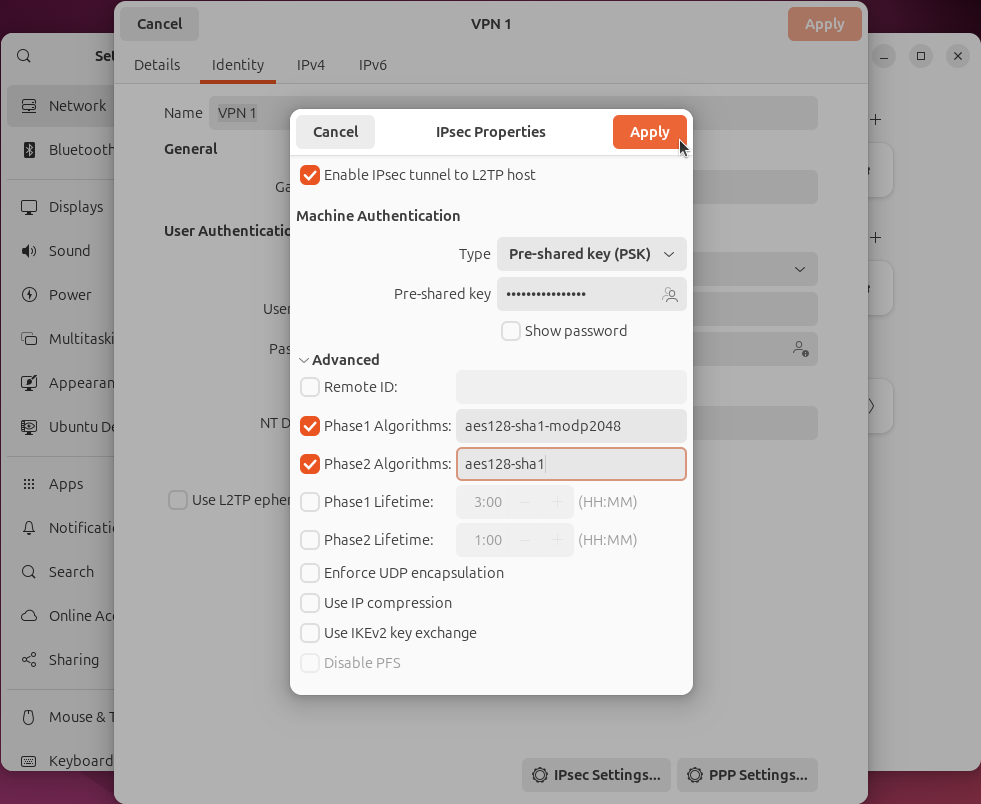
Optionally click Advanced and manually specify the encryption methods. A full list of supported tunnel options is available.
-
Click Apply to save the settings
-
-
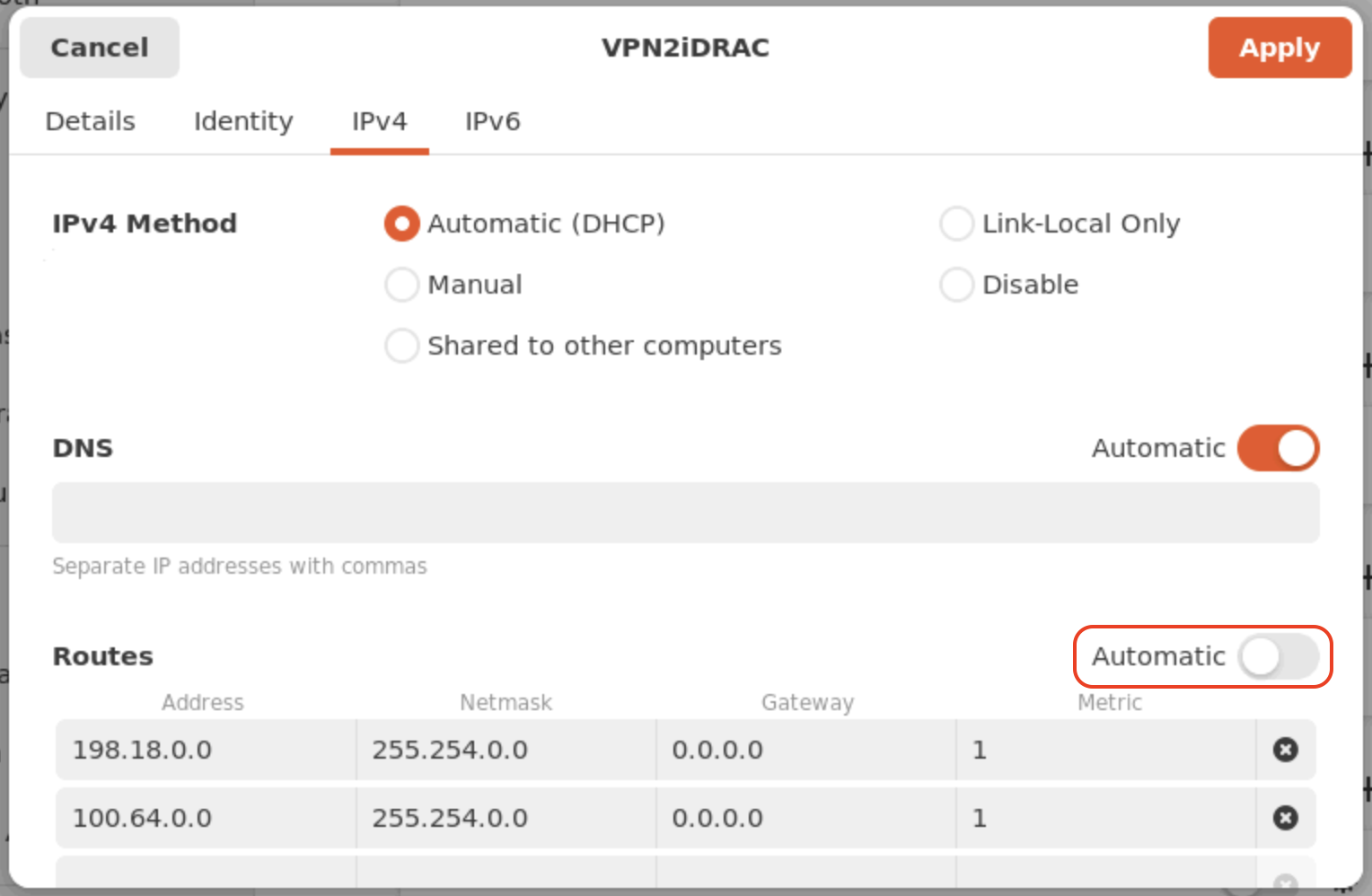
Go to the IPv4 tab and scroll down to the Routes section:
- Disable automatic route detection by toggling the Automatic switch
- Add the following routes:
198.18.0.0/15and100.64.0.0/15 - Click Apply to save the settings
-
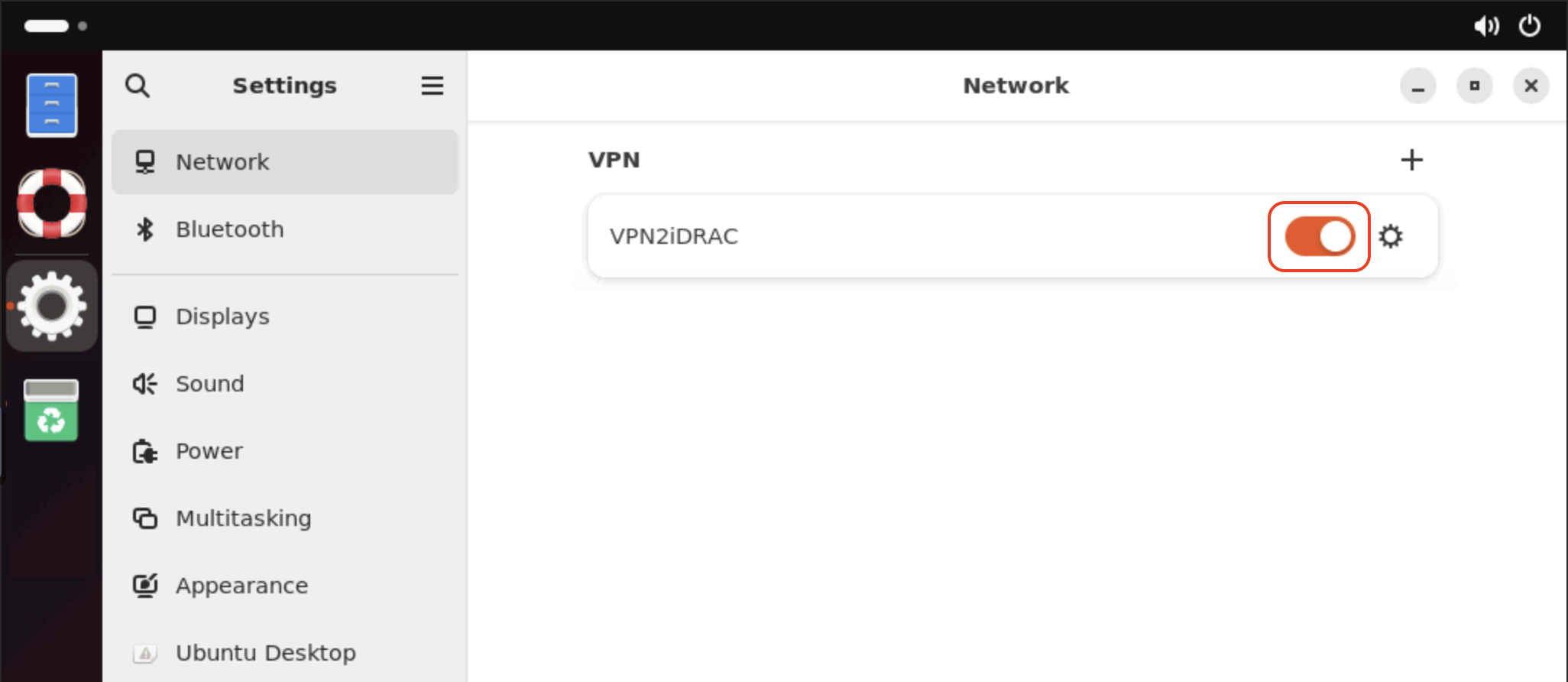
Turn on your newly created VPN connection
Finding iDRAC credentials
The IP address and credentials for an individual server's iDRAC interface can be found in the Customer Portal:
- Navigate to Enterprise Bare Metal and select your server from the list
- Scroll down to the OOB section and click Credentials