How to set up L2TP over IPsec for iDRAC on Linux Ubuntu 16.04 and 16.10
This article explains step-by-step guides how to connect to iDRAC using a secure L2TP over IPsec VPN connection. It covers how to find your VPN credentials in the Customer Portal, installing the required packages, configure the VPN connection, and add the necessary routes to access the iDRAC network.
Temporary public access
Alternatively, if necessary, you can enable temporary public access to the iDRAC interface, allowing access without a VPN. This can be activated in the Customer Portal on the server details page under the OOB section by selecting Enable public access for 4 hours. Once activated, public access remains enabled for the next four hours, but can be manually disabled at any time.
For security reasons, VPN access remains the preferred method and should be used whenever possible.
Finding VPN credentials
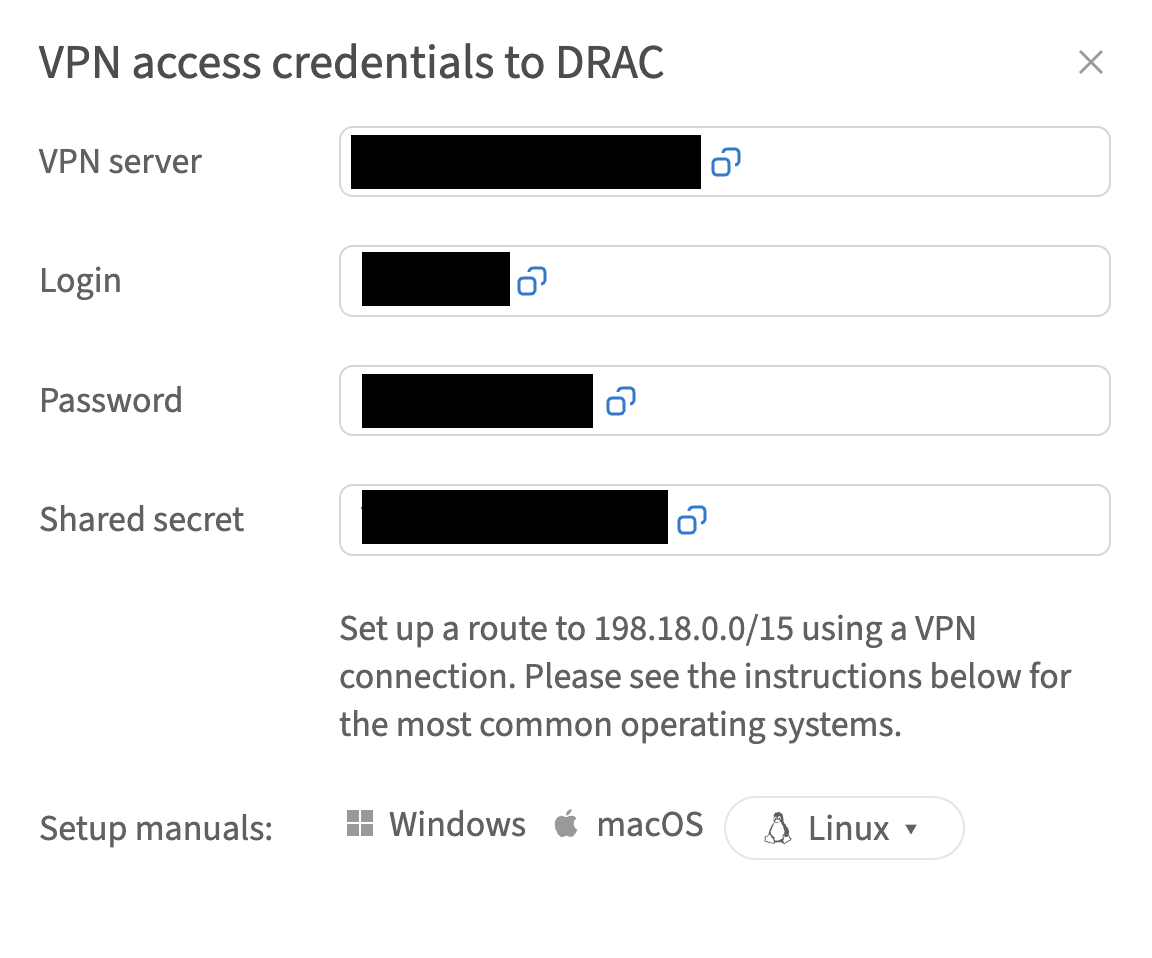
Credentials and instructions for setting up a VPN connection to the OOB network are available in the Customer Portal. To access them:
- Navigate to VPN access → VPN to DRAC section
- Select the location and click Credentials
- In the opened window, you will find the credentials
Installing required packages
- Update the list of available packages:
sudo apt update - Install the required packages:
sudo apt install intltool libtool git network-manager-dev libnm-util-dev libnm-glib-dev libnm-glib-vpn-dev libnm-gtk-dev libnm-dev libnma-dev ppp-dev strongswan libdbus-glib-1-dev libsecret-1-dev libgtk-3-dev libglib2.0-dev xl2tpd - Reinstall Network Manager:
git clone https://github.com/nm-l2tp/network-manager-l2tp.git cd network-manager-l2tp autoreconf -fi intltoolize ./configure --disable-static --prefix=/usr --sysconfdir=/etc --libdir=/usr/lib/x86_64-linux-gnu --libexecdir=/usr/lib/NetworkManager --localstatedir=/var --with-pppd-plugin-dir=/usr/lib/pppd/2.4.7 make sudo make install - Remove AppArmor IPsec settings:
sudo apparmor_parser -R /etc/apparmor.d/usr.lib.ipsec.charon sudo apparmor_parser -R /etc/apparmor.d/usr.lib.ipsec.stroke - Replace
xl2tpdwithlibcap:sudo apt remove xl2tpd sudo apt install libpcap0.8-dev wget https://github.com/xelerance/xl2tpd/archive/v1.3.6/xl2tpd-1.3.6.tar.gz tar xvzf xl2tpd-1.3.6.tar.gz cd xl2tpd-1.3.6 make sudo make install - Reboot your system:
sudo reboot
Now your Network Manager can create L2TP connections.
Setting up a new VPN connection
-
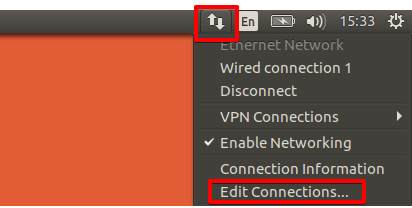
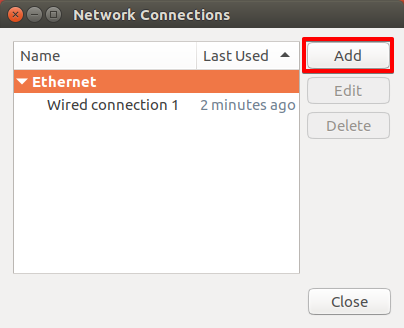
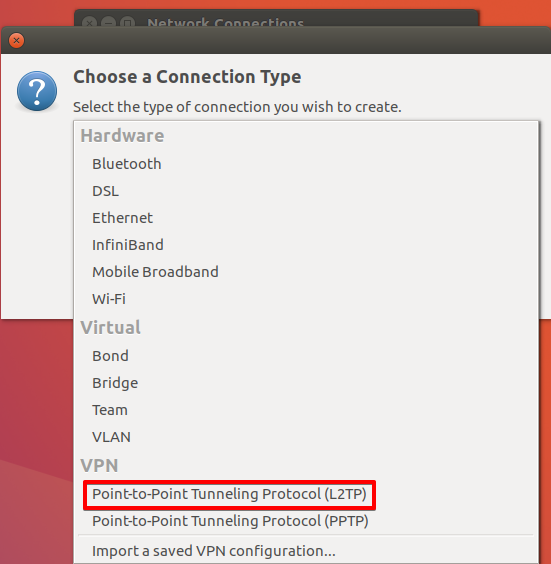
In the Network Manager, select Edit Connections, then add a new VPN connection of type L2TP
-
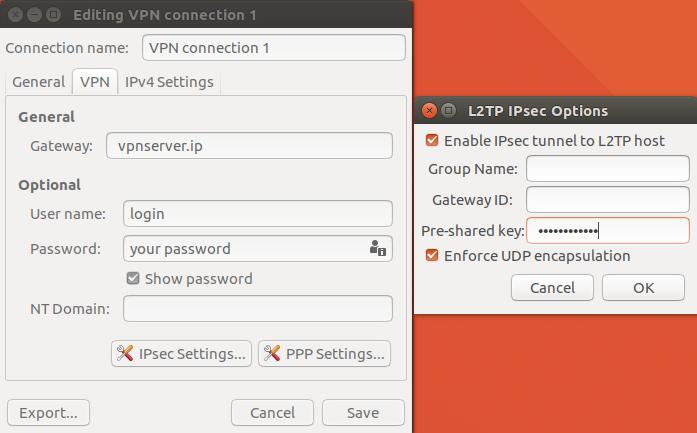
Enter the connection details using credentials obtained from the Customer Portal
-
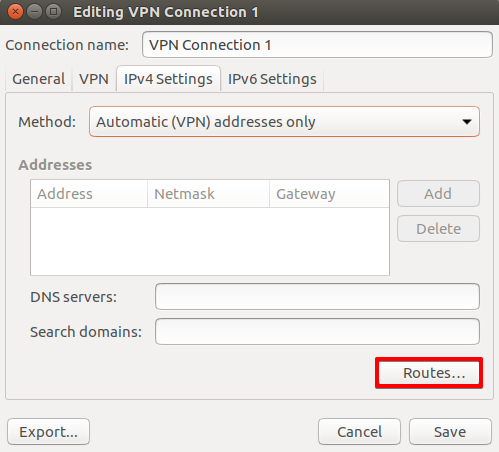
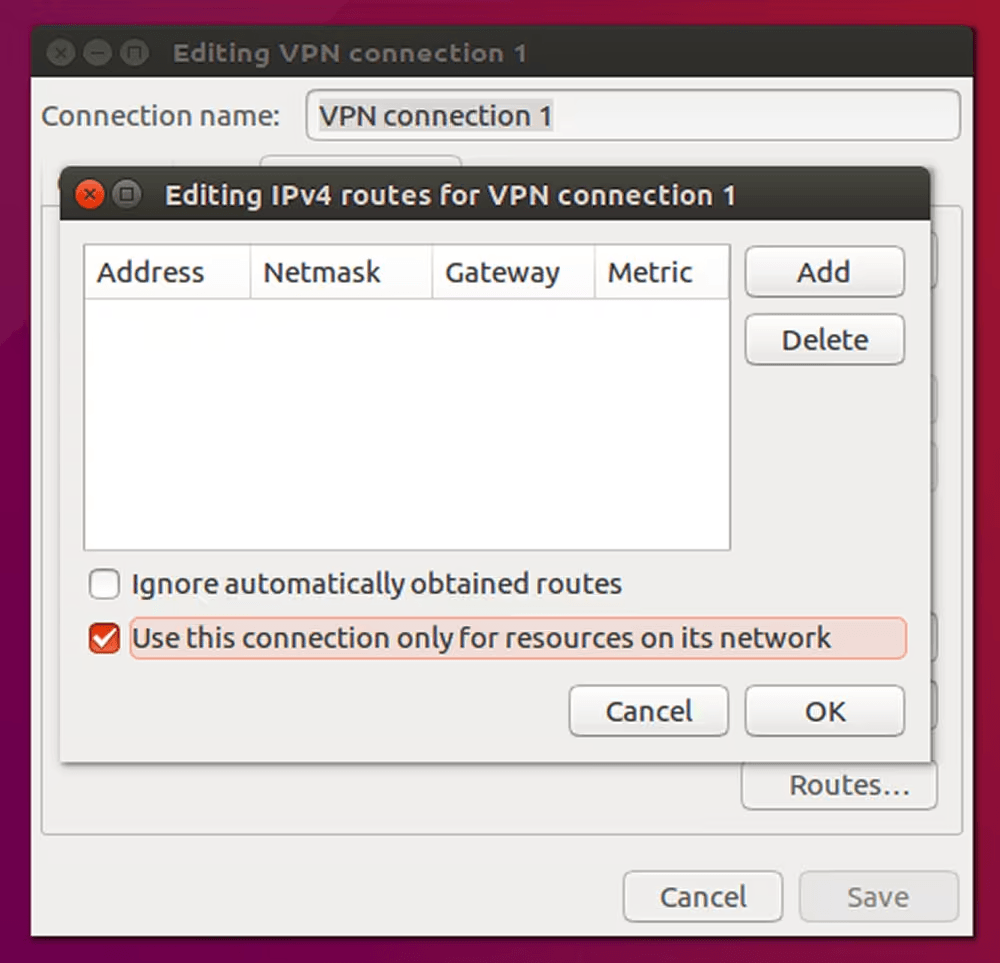
Click Routes and add the following routes to enable access to the iDRAC network:
198.18.0.0/15100.64.0.0/15
Now you can establish a VPN connection and access iDRAC.
Finding iDRAC credentials
The IP address and credentials for an individual server's iDRAC interface can be found in the Customer Portal:
- Navigate to Enterprise Bare Metal and select your server from the list
- Scroll down to the OOB section and click Credentials